> For the complete documentation index, see [llms.txt](https://help.recart.com/llms.txt). Markdown versions of documentation pages are available by appending `.md` to page URLs; this page is available as [Markdown](https://help.recart.com/discounts/expiring-discount-codes.md).
# Expiring Discount Codes
A unique discount code that stops working a set time after the customer receives it. Shown on the popup and carried into the Welcome Flow.
An expiring discount code is a unique, one-time code that only works for a set time after the customer receives it: minutes, hours or days. It adds urgency, and stops old codes from being used months later.
### How it works
1. A visitor opts in through your popup
2. Recart creates a unique code for them and shows it on the popup **Success step**, with an optional countdown timer
3. The same code is passed into your linked Welcome Flow, so your first SMS can include it
4. The code expires the set time after the customer received it
The code can also be synced to **Klaviyo** and **Postscript**. To set this up, [contact the Recart Support team](/contact-recart-support.md).
### Set up an expiring code
#### 1. Create the discount
1. Go to [**Discounts**](https://app.recart.com/discounts) and click **Create new**, then **New discount**
2. Choose the **Discount type**, select **Unique**, then the **Automated flows & Popups** placement, and click **Continue**
3. Fill in the discount value, name and optional prefix
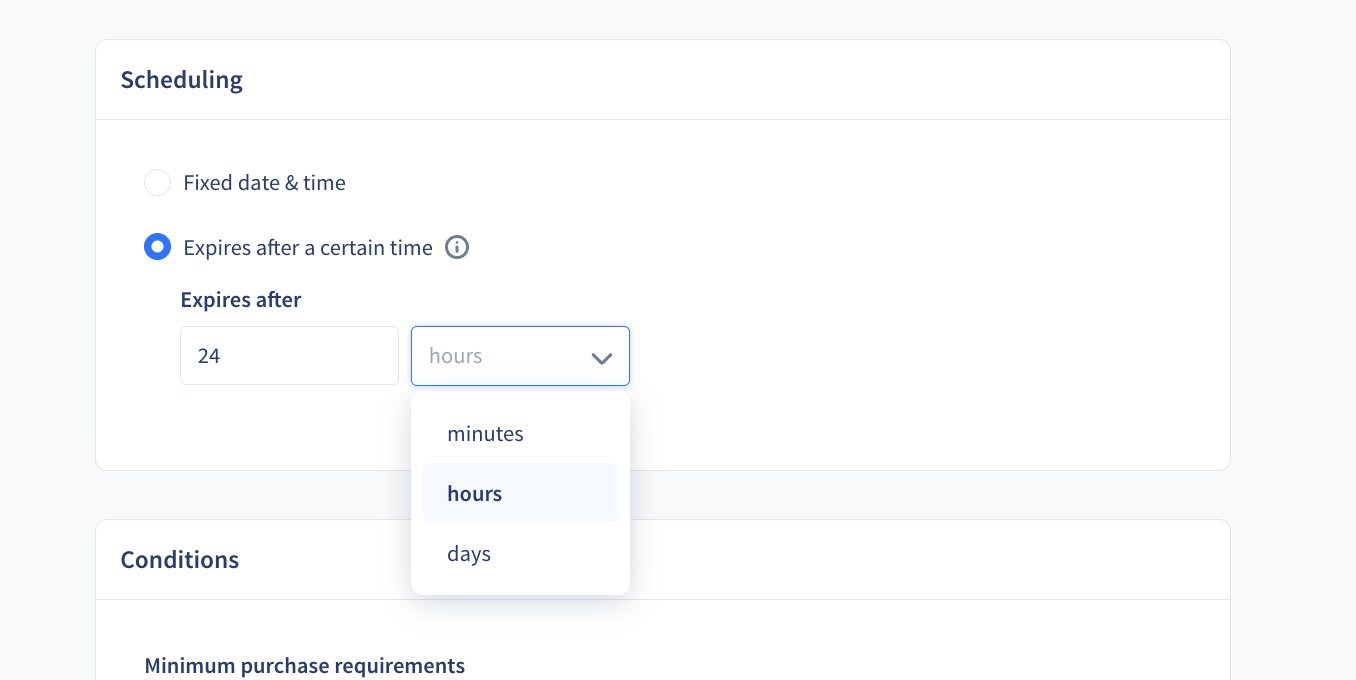
4. Under **Scheduling**, select **Expires after a certain time** and set how long the code lasts, in minutes, hours or days. The default is 24 hours
5. Set your conditions and click **Create discount**
{% hint style="info" %}
The timer starts the moment the customer receives the code, in the popup or by SMS. You can change the duration later, but you can't switch an expiring discount to fixed dates, or the other way round.
{% endhint %}
#### 2. Add the discount to your popup
1. Open your popup editor and go to the **Success step**
2. Click **Add discount code**
3. Select your expiring discount
#### 3. Connect your popup to a Welcome Flow
In the popup editor, go to **Settings**, select your Welcome Flow under **Opt-in messages** and save.
#### 4. Use the popup's code in the Welcome Flow
In the Welcome Flow message, click the **%** (Add discount code) icon, select the same expiring discount and choose **Send the same discount code as the popup**. Make sure the popup and the flow use the same discount.
### Styling the code on the popup
You can change how the code looks on the Success step:
* Border style: **Dashed**, **Dotted**, **Solid** or **None**
* Border radius
* Heading-style text
These options only change how the code looks, not how it works at checkout.
### Countdown timer
* The countdown timer appears automatically when you add an expiring code to the Success step
* You can show or hide it in the popup editor
* It's removed if you remove or replace the discount code
* Countdown timers aren't available for codes that don't expire
### Managing an expiring code
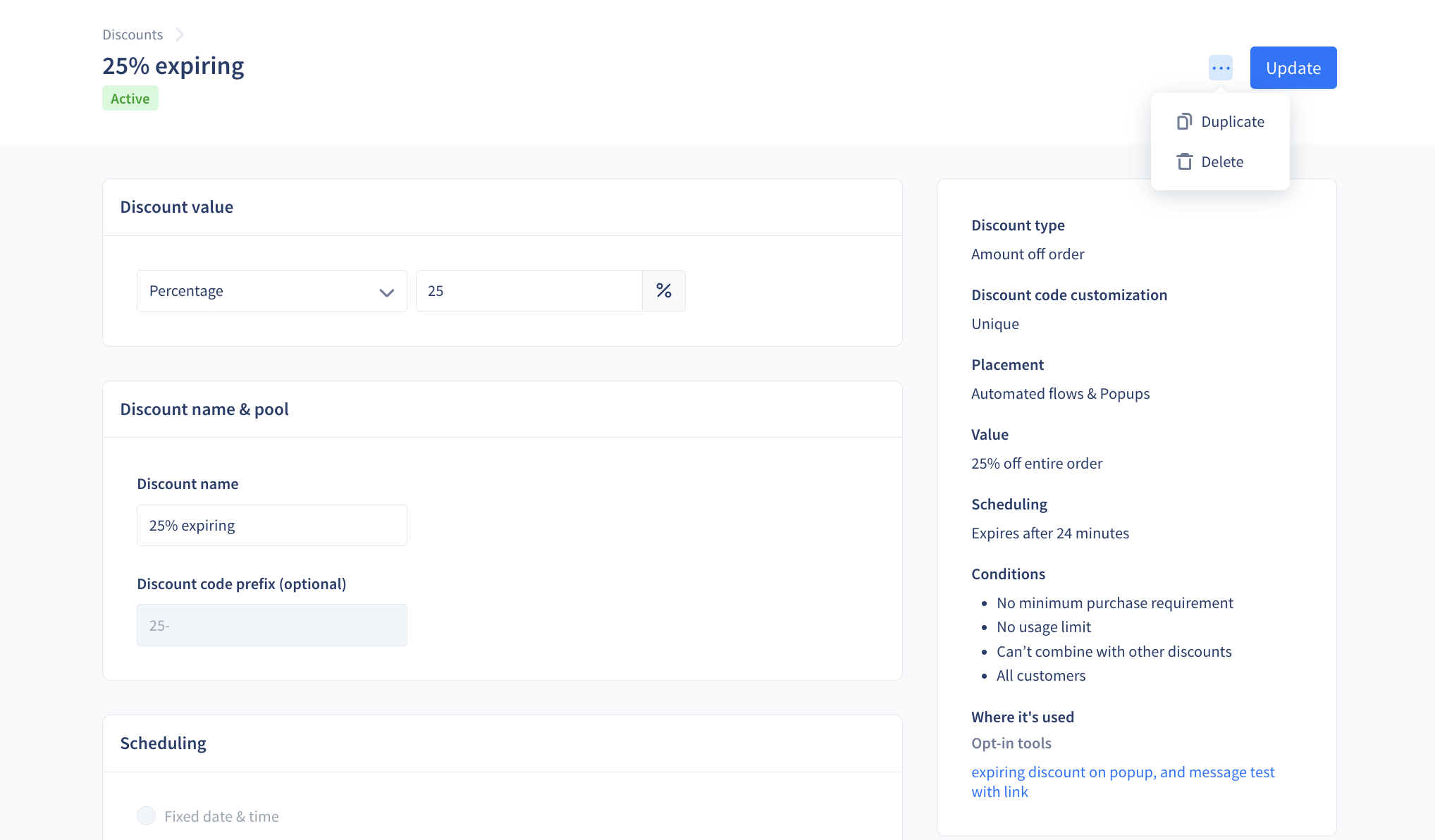
* In the Discounts list, expiring codes show **On demand** as the activation date and their duration as the expiration, for example **In 24 hours**
* Expiring codes can't be deactivated. The **⋯** menu offers **Duplicate** and **Delete**
* If you delete an expiring discount, codes that were already sent keep working and stay visible in Shopify, but no new codes are created
* To see each code that was sent, go to the discount in your Shopify Discounts page
### Limitations
* **Popup and Welcome Flow should use the same discount.** If they don't match, Recart shows a warning
* **One expiring discount per Welcome Flow**
* **Not available for 2-step (SMS Reply) popups**
* **Not available in campaign flows.** Campaigns use fixed dates instead
* **Imported expiring discounts can't be limited** to Shopify customer segments or specific customers
### Warnings you may see
| Warning | What it means |
| ----------------------------------------------------------------- | ---------------------------------------------------------------------------------------------------------------------------- |
| **Discount mismatch detected** | The discount on your popup doesn't match the one in the connected Welcome Flow. Go to the discount to fix it, or save anyway |
| **The discounts used in your connected opt-in tools don't match** | Shown in the Welcome Flow's Discount code panel. Use the same code in the popup and the flow |
| **Cannot delete discount** | The discount is still used in a popup or flow. Remove it from them first |
If you have any questions, do not hesitate to [contact the Recart Support team.](/contact-recart-support.md) We'd be happy to help!
---
# Agent Instructions
This documentation is published with GitBook. GitBook is the documentation platform designed so that both humans and AI agents can read, navigate, and reason over technical content effectively. Learn more at gitbook.com.
## Querying This Documentation
If you need additional information that is not directly available in this page, you can query the documentation by asking a question.
Perform an HTTP GET request on the following URL with the `ask` and `goal` query parameters:
```
GET https://help.recart.com/discounts/expiring-discount-codes.md?ask=&goal=
```
`ask` is the immediate question: it should be specific, self-contained, and written in natural language.
`goal` is what the user is ultimately trying to achieve, the reason they need the answer. Sharing it helps GitBook give you a better, more relevant answer. A goal is most helpful when it describes the outcome the user wants rather than restating the question. For example, with `ask=how do I create an API token`, a goal like `automate deployments from our CI pipeline` lets GitBook tailor the answer to that use case.
The response will contain a direct answer to the question and relevant excerpts and sources from the documentation.
Use this mechanism when the answer is not explicitly present in the current page, you need clarification or additional context, or you want to retrieve related documentation sections.