> For the complete documentation index, see [llms.txt](https://help.recart.com/llms.txt). Markdown versions of documentation pages are available by appending `.md` to page URLs; this page is available as [Markdown](https://help.recart.com/discounts/unique-discount-codes.md).
# Unique Discount Codes
A different one-time discount code for every subscriber, created in Recart and synced to Shopify. How to choose a placement and use unique codes.
A unique discount code is a different code for every subscriber, like `WELCOME7KQ2ZX`. Because each subscriber gets their own code, codes are hard to share and easy to track.
You create unique codes in Recart, and Recart creates them in your Shopify store for you. You don't need to set anything up in Shopify first.
### Choose a placement
When you create a unique discount, you choose where it will be used. The placement can't be changed later.
| | **Automated flows & Popups** | **Campaign flows** |
| ------------------------------- | ------------------------------------------------------------------------- | ---------------------------------------------------- |
| **Use it in** | Automated flows and popups | Campaigns |
| **How codes are made** | One code is created on demand, each time a subscriber needs one | Recart creates a fixed pool of codes before you send |
| **Pool size** | None needed | 10,000 to 2,000,000 codes |
| **Can expire after a set time** | Yes, see [Expiring Discount Codes](/discounts/expiring-discount-codes.md) | No, use fixed dates |
### Create a unique code
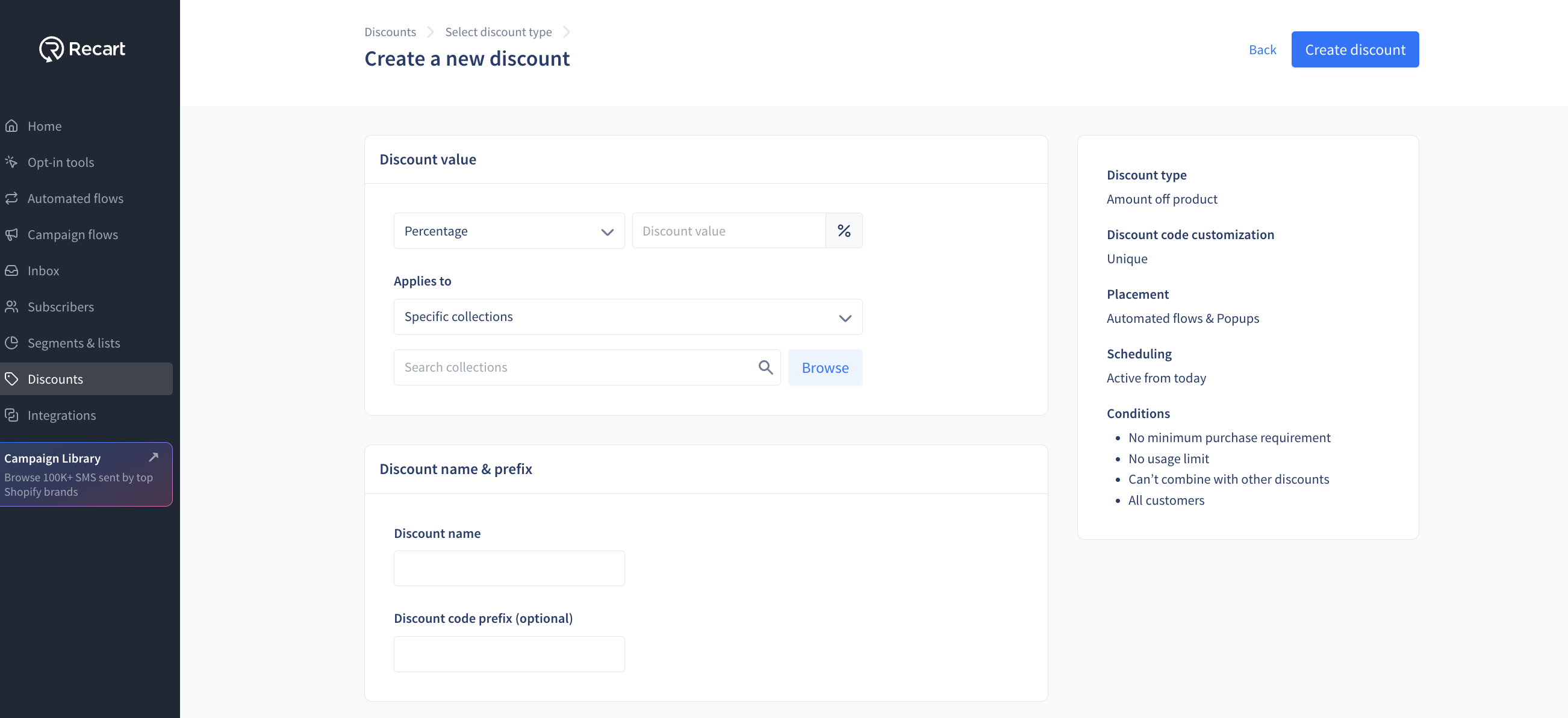
1. Go to [**Discounts**](https://app.recart.com/discounts) and click **Create new**, then **New discount**
2. Choose the **Discount type**, select **Unique**, choose a **Placement** and click **Continue**
3. Enter a **Discount name** and, optionally, a **Discount code prefix**. Each code is your prefix plus six random characters. The prefix can't be changed later
4. For the **Campaign flows** placement, set the **Target discount pool size**. Make it about 20% higher than your campaign's target audience
5. Set the discount value, scheduling and conditions, then click **Create discount**
For every field in the form, see [Create & Manage Discount Codes](/discounts/create-discount-codes-in-recart.md).
### Add a unique code to an SMS message
In the flow or campaign editor, click the **%** (Add discount code) icon and select your unique discount. In the editor, the discount shows as a placeholder. Each subscriber receives their own code when the message is sent.
* A message can contain one unique code. You can add general codes alongside it
* To apply the code automatically at checkout, connect a link to the discount with **Connect link to discount (optional)**
* Don't delete the discount item from your message. Recart uses it to insert each subscriber's code
#### Welcome Flows: same code as the popup, or a new one
If your popup shows a unique code and is connected to a Welcome Flow, Recart asks how each Welcome Flow message should handle the code:
* **Send the same discount code as the popup** — the subscriber gets the code they already saw on the popup
* **Generate and send a new discount code in this message** — the subscriber gets a fresh code
Either way, each subscriber still receives their own unique code.
{% hint style="info" %}
**Follow-up messages:** unless a Welcome Flow message is set to send the same code as the popup, each message with a unique code sends the subscriber a new code. To avoid confusing subscribers with several codes, keep the code in your first message only. In follow-ups, use a link connected to the discount and say the code is applied automatically at checkout.
{% endhint %}
### Add a unique code to a popup
In the popup editor, go to the **Success step**, click **Add discount code** and select a unique discount with the **Automated flows & Popups** placement. Each subscriber sees their own code as soon as they opt in.
### Campaign pools
For the **Campaign flows** placement, Recart creates your pool of codes and uploads them to Shopify. While this is happening, the Discounts list shows **Uploading...** and the number of codes available so far.
* **Create the pool in advance** of a large campaign, so the codes are ready by send time
* **If the pool is smaller than your target segment**, you can't send the campaign. Click **Save & extend pool size** to make the pool bigger, or choose a general code instead
* **If the codes are still uploading**, wait until the pool has enough codes, or use a general code
* **Each campaign pool is for one campaign.** Once a pool is used in a campaign, it isn't offered for other campaigns. Create a new pool, or duplicate the discount, for your next send
### Track and edit unique codes
* Open the discount from the Discounts list to see its **Performance**: how many codes were sent and how many were used
* Click **Code on Shopify** to open the discount in your Shopify admin, where you can see each individual code
* You can edit the discount's value, conditions and dates in Recart, then click **Update**. The placement and prefix can't be changed
If you have any questions, do not hesitate to [contact the Recart Support team.](/contact-recart-support.md) We'd be happy to help!
---
# Agent Instructions
This documentation is published with GitBook. GitBook is the documentation platform designed so that both humans and AI agents can read, navigate, and reason over technical content effectively. Learn more at gitbook.com.
## Querying This Documentation
If you need additional information that is not directly available in this page, you can query the documentation by asking a question.
Perform an HTTP GET request on the following URL with the `ask` and `goal` query parameters:
```
GET https://help.recart.com/discounts/unique-discount-codes.md?ask=&goal=
```
`ask` is the immediate question: it should be specific, self-contained, and written in natural language.
`goal` is what the user is ultimately trying to achieve, the reason they need the answer. Sharing it helps GitBook give you a better, more relevant answer. A goal is most helpful when it describes the outcome the user wants rather than restating the question. For example, with `ask=how do I create an API token`, a goal like `automate deployments from our CI pipeline` lets GitBook tailor the answer to that use case.
The response will contain a direct answer to the question and relevant excerpts and sources from the documentation.
Use this mechanism when the answer is not explicitly present in the current page, you need clarification or additional context, or you want to retrieve related documentation sections.