
Adaptive Campaigns take the guesswork out of choosing the right SMS message. Instead of manually running a test, watching the results, and re-sending the best version yourself, Recart handles the whole process for you: it tests your message versions on part of your audience, picks the winner, and automatically sends that winner to everyone else.
Table of Contents
- What You Can Test
- How Adaptive Campaigns Work
- How to Set Up an Adaptive Campaign
- Campaign Settings Explained
- Creating Strong Variants
- Campaign Statuses
- Reading Your Results
- Good to Know
- Frequently Asked Questions
What You Can Test
Adaptive Campaigns aren't just for testing wording — and often your biggest wins come from testing something bigger than copy. You can use them to find the best version of almost any part of your message:
- Your offer — compare different discounts or promotions to see which drives the most action
- Your links — test where you send subscribers, like a collection page vs. a specific product
- Your copy — try different hooks, angles, or calls to action
- SMS vs. MMS — test a plain-text message against one with an image to see which format performs better for your audience
Because Recart tests these on a slice of your audience first, you can experiment with bolder ideas knowing the winning version is what reaches everyone else.
How Adaptive Campaigns Work
An Adaptive Campaign runs in two stages:
- Test stage — A portion of your target audience (your test audience, 30% by default) receives the test. This group is split evenly across all your message versions.
- Rollout stage — Once the evaluation period ends, Recart picks the winning version based on your chosen metric and automatically sends it to the rest of your audience (your rollout audience).
The result: your best-performing message reaches the majority of your subscribers, without you having to lift a finger between the test and the send.
How to Set Up an Adaptive Campaign
1. Go to Campaign Flows and click Create New.
2. Choose Adaptive as your campaign type. Adaptive appears next to Standard as a campaign type. Select it to open the Adaptive campaign builder.
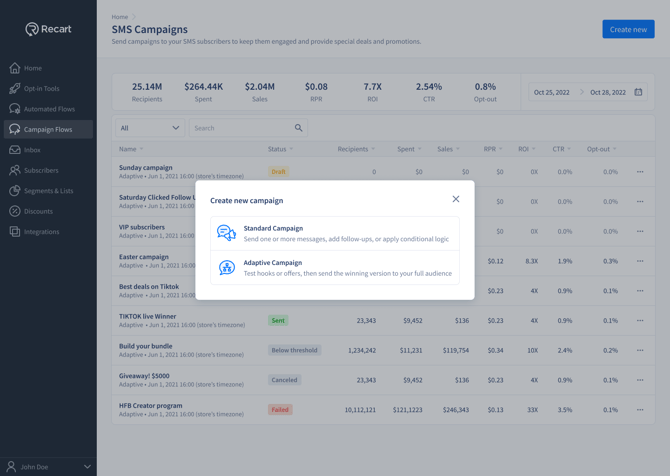
Note: Your campaign type is locked once you create the campaign. If you start an Adaptive Campaign and later want a Standard one (or the reverse), you'll need to create a new campaign.
3. Set your Trigger (audience and schedule). Choose your target audience — a segment, list, or all subscribers — and decide whether to send immediately or schedule a date and time. You can also review your quiet hours and turn on Smart sending here.
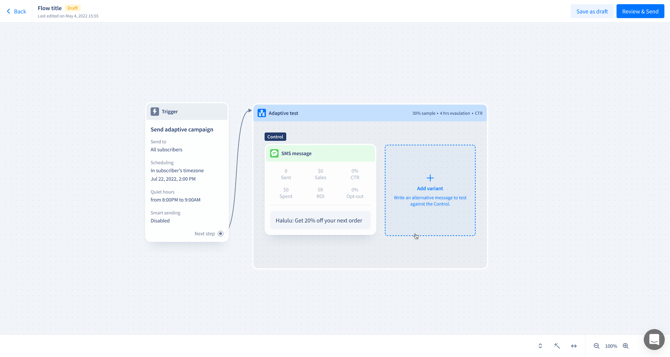
4. Write your message versions. Start with your Control — the message you'd normally send — then add one or more variants to test against it. Each version needs its own message before the campaign can be sent. Minimum is 2 (1 control + 1 variant); maximum is 5 (1 control + 4 variants).
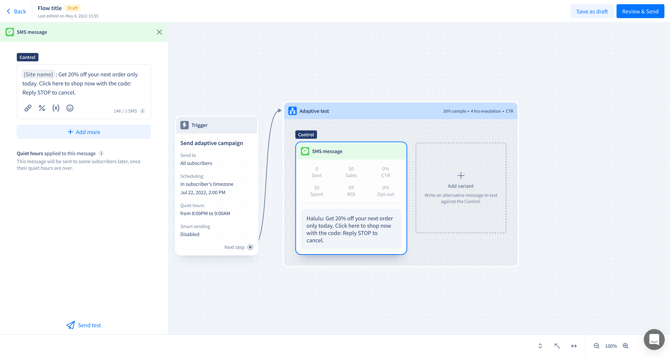
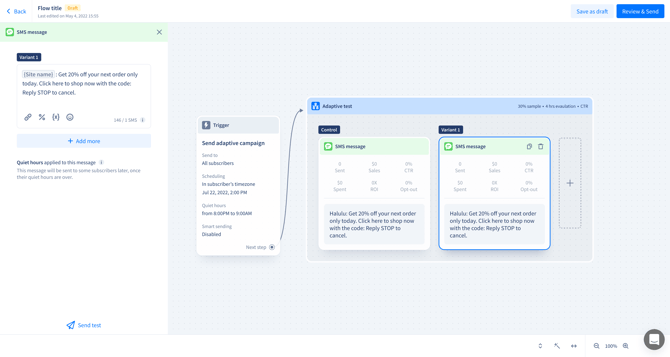
5. Set up your Adaptive test. Configure how the test runs: your test audience size, your winning metric (CTR or ROI), how long to evaluate before picking a winner, and an optional minimum threshold.
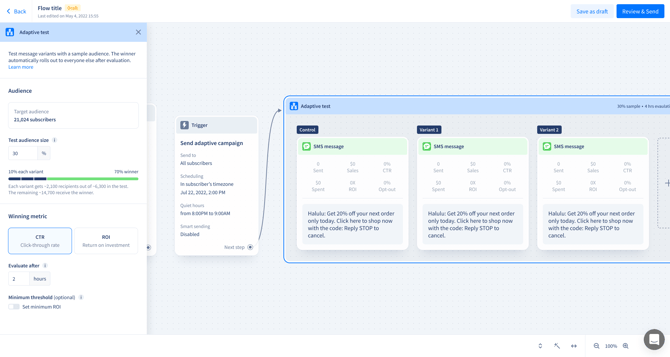
6. Resolve any warnings. If anything's missing, you'll see a red badge in the top-right of the canvas with a count, and the field that needs attention will be outlined in red. A campaign is ready to send once you have at least one variant beyond your Control, every version has a message, and an evaluation time is set.
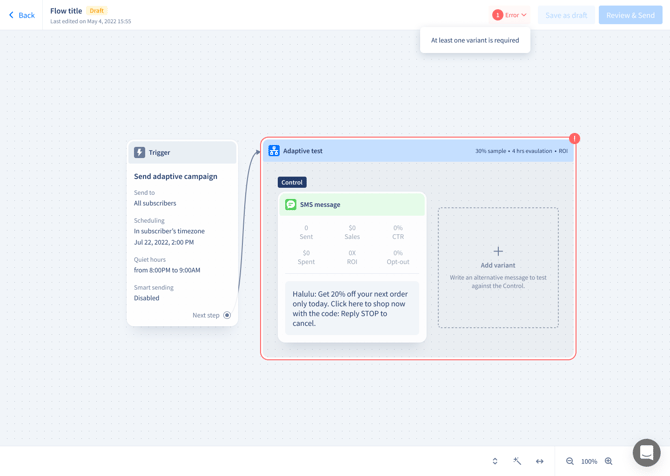
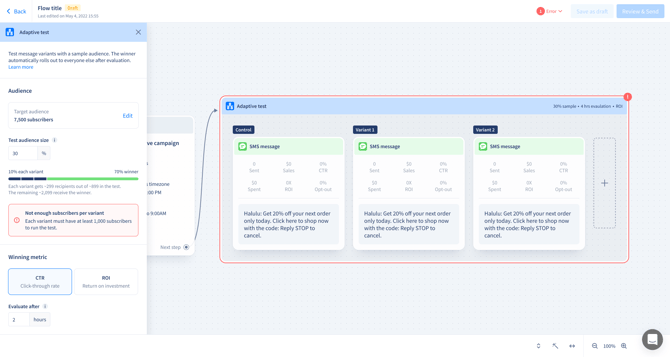
7. Send now or schedule your campaign. Review everything before sending. You can choose to send campaign or go back to editing if needed. Recart takes it from there — it runs the test, picks the winner, and rolls it out automatically.
Campaign Settings Explained
| Setting | What it controls |
|---|---|
| Target audience | Who's in scope for the campaign — a segment, list, or all subscribers |
| Scheduling | Send immediately, or schedule a date and time in your store's timezone |
| Quiet hours | Store level - 8PM - 9AM. Applies to all messages. |
| Smart sending | Skips subscribers who already received a message in the past few hours. Default: Off (8-hour window when on) |
| Variants | The number of message versions, including your Control. Minimum 2 (1 control + 1 variant; maximum 5 (1 control + 4 variants) |
| Test audience size | The % of your audience used for the test (the rest receives the winner). Default: 30% |
| Winning metric | How Recart picks the winner — CTR or ROI. Default: CTR |
| Evaluate after | How long the test runs before a winner is chosen. Default is 2 hours |
| Minimum threshold | An optional floor for the winning metric. If no version clears it, no rollout is sent. |
Creating Strong Variants
Your Control is the message you'd normally send as a Standard campaign — it's your baseline. Each variant is an alternative to it.
For the clearest results, make each variant change one big thing rather than tweaking a few words. As covered above, that could be your offer (try a different discount), your format (test an MMS with an image against a plain SMS), where your link points, or your hook, angle, or urgency. Big differences give you a meaningful read on what actually resonates; small wording changes rarely move the needle enough to tell variants apart.
Campaign Statuses
As your campaign moves through its stages, you'll see these statuses in your campaign table and canvas:
| Status | Meaning |
|---|---|
| Draft | Campaign created, not yet sent |
| Scheduled | Send time set, waiting for the trigger time |
| Processing | The send is being prepared |
| Evaluating | The test has been sent; waiting for the evaluation window to close |
| Sending | The winner is being rolled out to the rest of your audience |
| Sent | The winner has been fully delivered |
| No winner | Evaluation closed and no version met your minimum threshold, so no rollout was sent |
| Canceled | You canceled the campaign before it completed |
| Failed | The send failed |
Reading Your Results
Once your campaign completes, each variant card shows two tabs:
- Evaluation window — Results from the test audience during the test period only. This is the data Recart used to choose the winner.
- All-time — For the winner, this includes the test audience plus the full rollout that went out afterward. It reflects the campaign's total performance.
Losing variants default to the Evaluation window tab, and the winner defaults to All-time.
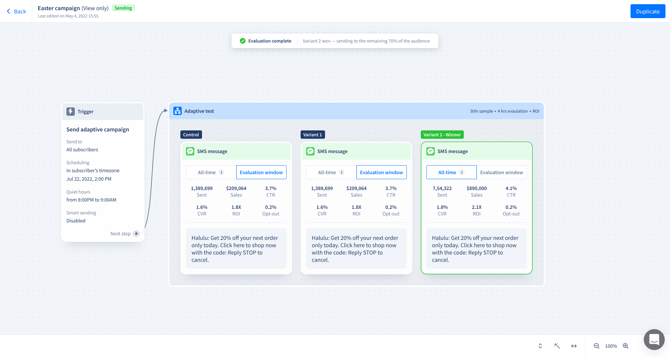
A quick tip on comparing versions: To compare variants against each other fairly, use the Evaluation window tab for all of them — that's the only period where they all reached a comparable audience. The winner's All-time numbers will always look higher because they include the rollout, so use that view when you want your campaign's overall results, not when comparing one version to another.
Good to Know
A few behaviors that are helpful to understand:
- Campaign type is locked after creation. Once you choose Adaptive, you can't switch a campaign to Standard (or vice versa) — you'd need to start a new campaign.
- Scheduling during quiet hours. If you schedule a send during your own quiet hours, you'll see a warning. The campaign still goes out — it's simply delayed until quiet hours end.
- Audience too small. If the number of recipients per variant is low, you'll see a warning: "Audience too small — test each variant with at least 10,000 subscribers for reliable results." You can still send, but with smaller numbers the winner is less reliable. To get a cleaner read, widen your audience or reduce the number of variants.
- No winner. This only happens if you've set a Minimum threshold and no version clears it. In that case, nothing is sent to the rollout audience — Recart won't fall back to the Control or send a "best of the rest."
- Duplicating a campaign carries the winner only. When you duplicate a completed Adaptive Campaign, the winning version comes across as the new Control, and the other versions are dropped — so you can keep testing fresh ideas against your proven message.
- Editing during a test. Once a campaign is Evaluating, it's read-only. If you need to make changes, duplicate it to start a new test.
Frequently Asked Questions
Why can't I switch a campaign from Standard to Adaptive after creating it?
The two campaign types are built differently — Adaptive includes the test, evaluation, and rollout structure that Standard doesn't. Because of that, the type is locked at creation, and switching means starting a new campaign.
How many variants should I run?
Two or three is the sweet spot. The more variants you add, the thinner your test audience is split, which makes the winner less reliable. The higher limit is there for edge cases, not as a recommendation.
How long should I run the test?
Give it at least 2 hours. The right length also depends on your winning metric: CTR settles quickly, so a few hours is usually enough, while ROI needs longer since conversions keep coming in after the send. Keep your Quiet Hours in mind: they apply to both the test send and the winner's rollout. Since Recart sends the test, evaluates, picks a winner, and then sends to the rest, give the whole sequence enough buffer to finish before Quiet Hours start — otherwise sends will pause partway through.
Should I choose CTR or ROI as the winning metric?
CTR is the default and the best choice for most campaigns. Because the evaluation window is short (just a few hours), CTR gives you a clean, reliable read on which version your subscribers respond to. ROI can be a better fit when revenue is your priority — but over a short window, conversions are still coming in, so ROI tends to be noisier. If you do choose ROI, give the test more time to run; overnight is a good option.
What happens if no variant wins?
This only happens when you've set a Minimum threshold and no version clears it. When that's the case, nothing is sent to your rollout audience — Recart respects the floor you set.
Why is the "Audience too small" warning showing?
Your per-variant recipient count is below the recommended size. The test can still run, but the winner will be less reliable. Widening your audience or running fewer variants will give you a cleaner result.
I duplicated my campaign — where are my other variants?
Duplication carries only the winning version forward, as the new Control. The other versions are dropped by design, so you can keep improving on the message that already won.
Why is the winner showing different numbers than it did during the test?
The winner's card has two tabs: Evaluation window (test audience only) and All-time (test audience plus the rollout). All-time will always be higher because it includes the rollout send. Use Evaluation window to compare versions, and All-time to see your overall campaign performance.
Can I edit my variants while the test is running?
No — once a campaign is Evaluating, it's read-only. If you need to make changes, duplicate the campaign to start a new test.
If you have any questions, feel free to reach out to your CSM or contact us at support@recart.com — we're happy to help.