
Table of Contents
- How It Works
- Supported File Types & Size Requirements
- Image Orientation & Dimensions
- Character Limit for MMS Messages
- Best Practices
- What's Next
How It Works
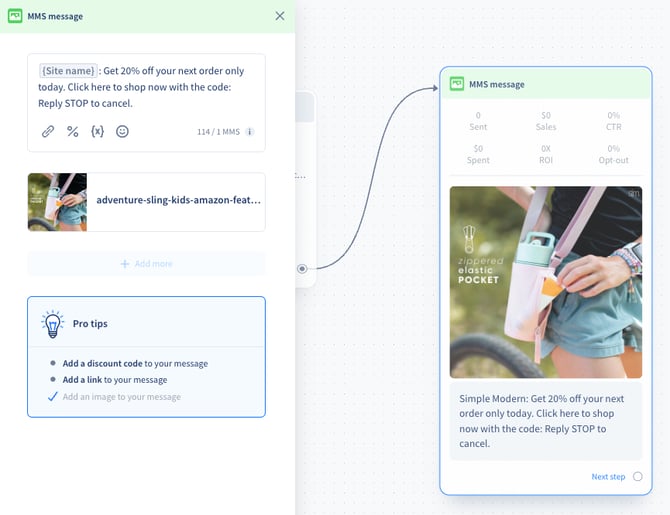
When you add an image or GIF to a text message, it automatically converts to an MMS message. You can add images directly in the campaign or flow editor.
- Open the Campaign or Flow editor.
- Click + Add more and select Image/GIF.
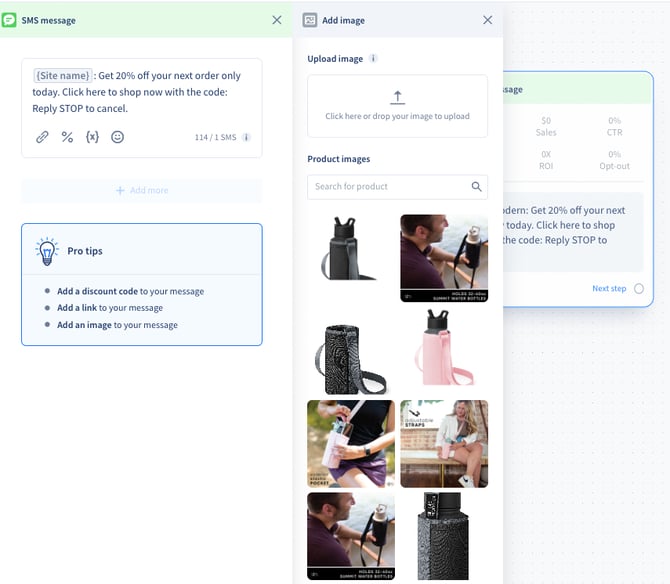
- Add your image in one of two ways:
- Drag and drop your file into the upload box.
- Click Product images to pull images directly from your Shopify store. You can search by product name.
- To replace or remove an image, hover over the image element in the editor and use the controls that appear.
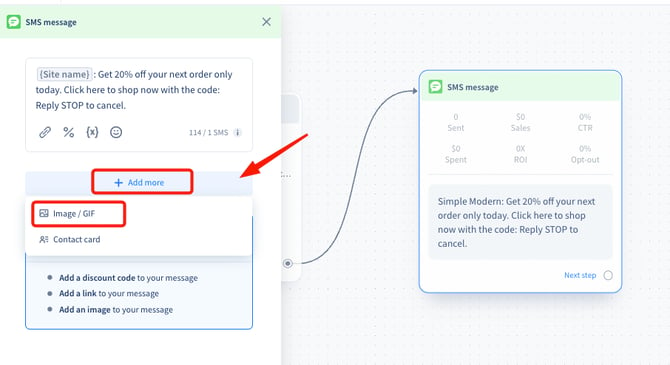
Note: Each message can contain a maximum of one text element and one image element. To include additional images, add a separate message block.
Supported File Types & Size Requirements
| Type | Supported Formats | Max Size |
|---|---|---|
| Image | JPG, JPEG, PNG, WebP (converted to JPEG on upload) | 25 MB |
| GIF | GIF (no sound supported) | 500 KB |
Keep image files as small as possible — 200 KB or under is recommended for best delivery speed. Exceeding the size limits will prevent the file from uploading or cause the message to fail delivery.
Image Orientation & Dimensions

Images that exceed the recommended dimensions may be cropped on the recipient's device, requiring them to tap to expand.
Character Limit for MMS Messages
When a message is converted to MMS (by adding an image or GIF), the character limit increases from the standard SMS limit to 1,000 characters.
If you need more text, add a separate message block — either a plain SMS or another MMS with an image.
Best Practices
Required:
- Stay within the 500 KB GIF size limit. Larger files will fail to upload or deliver.
Recommended:
- Use square (1:1) or vertical (9:16) images — these display best across most mobile devices.
- Keep images under 200 KB to improve delivery speed.
- Use short GIF animations. Long GIFs are often skipped before they finish playing.
- Keep GIF content simple — product shots, collection banners, or promotional graphics work best.
- Stick to a consistent image size once you find what works for your brand.
Avoid:
- Adding images or GIFs to welcome flows or time-sensitive messages. MMS delivery can be delayed by several hours compared to standard SMS.
- Sending landscape images unless necessary — they are less optimized for mobile viewports.
What's Next
Once you've added images to your messages, you can:
If you have questions, contact our Customer Support team — we're happy to help.