
Table of Contents
- What Is a Keyword Reply?
- Keyword Reply vs. Compliance Keywords
- How to Add a Keyword Reply to an Automated Flow
- Keyword Guidelines
- Use Case Examples
- Important Notes
- Troubleshooting
- Best Practices
- What's Next
What Is a Keyword Reply?
A Keyword Reply lets subscribers respond to your SMS message with a specific word to trigger an action, deal, or follow-up message. This turns one-way texts into interactive, two-way conversations.
You're not limited to a single question — you can include multiple questions and keyword options in the same flow to collect detailed preferences from your subscribers. Keyword Replies also work in MMS messages.
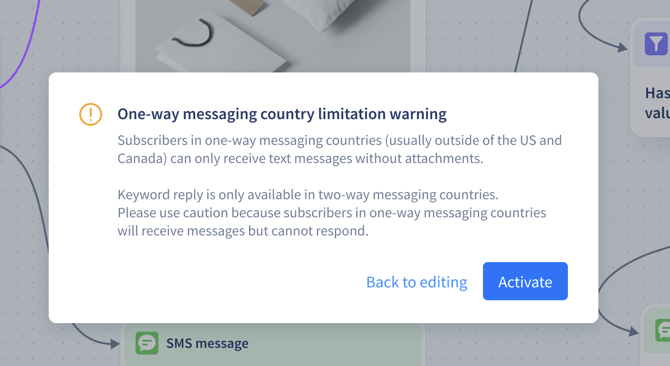
Note: Keyword Reply only works in Two-way messaging countries (such as the US and Canada). Subscribers in one-way countries will receive the message but will not be able to respond.
Keyword Reply vs. Compliance Keywords
It's important to understand the difference between conversational Keyword Replies and compliance keywords — they serve completely different purposes.
| Type | Purpose | Examples | Managed By |
|---|---|---|---|
| Keyword Reply (conversational) | Triggers a follow-up message or action inside an automated flow | DEAL, YES, REVIEW, SHOP | You (in the flow editor) |
| Compliance keywords (operational) | Manages subscription status (opt-in, opt-out, help) | STOP, UNSUBSCRIBE, START, UNSTOP, RESUBSCRIBE, HELP | Mobile carriers & SMS aggregator |
Key differences:
- Compliance keywords are handled at the carrier level. When a subscriber texts STOP, they are blocked by the carrier — not by Recart. To opt back in, they must text START, UNSTOP, or RESUBSCRIBE. A popup alone will not resubscribe them.
- You cannot use compliance keywords (opt-in, opt-out, or help keywords) as conversational Keyword Replies in your flows.
How to Add a Keyword Reply to an Automated Flow
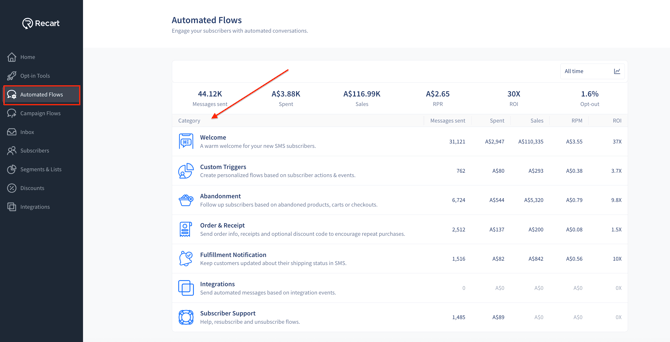
- Go to your Automated Flows page.
- Select the flow you want to edit.
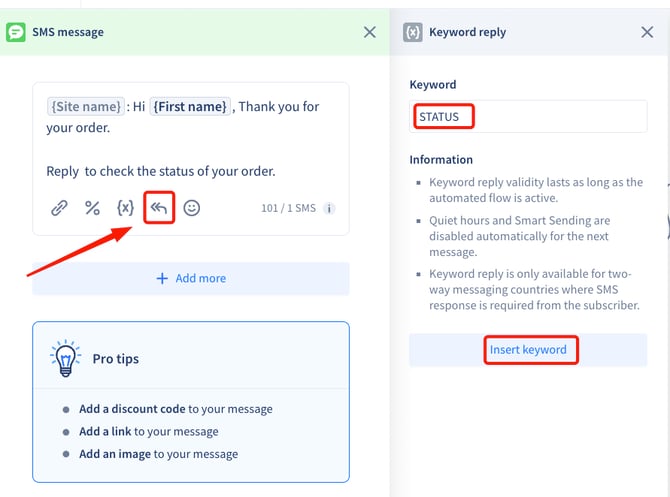
- Open the text editor of the SMS message where you want to add a keyword.
- Click the Keyword icon in the editor toolbar.
- Type the keyword you want to use.
- Click Insert keyword.
- Once inserted, the keyword appears below the message item as a branch option.
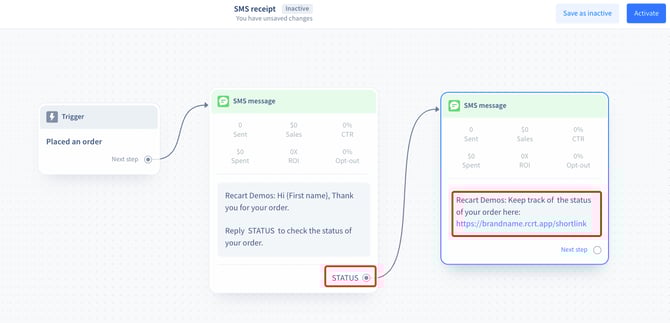
- Connect the keyword to the next item in your flow (another message, delay, conditional split, etc.) to define what happens when a subscriber replies.
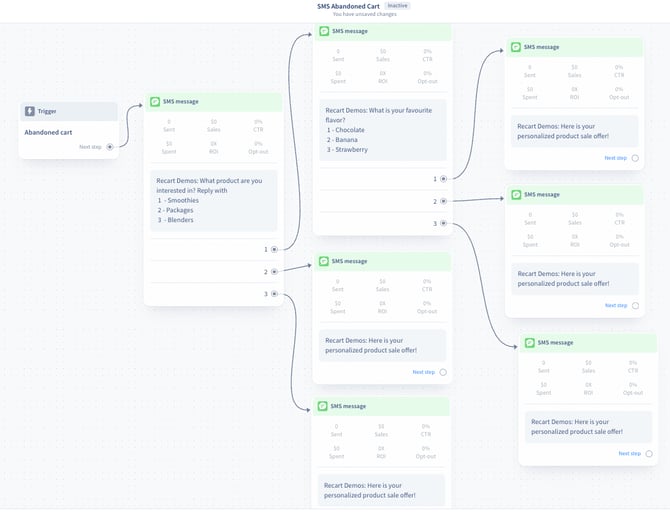
Important: You must connect each keyword to another item in the flow. Without a connection, nothing will happen when a subscriber replies with the keyword.
Keyword Guidelines
Follow these rules when creating keywords:
| Rule | Details |
|---|---|
| Characters | Use alphanumeric characters only (A–Z and 0–9) |
| Length | Between 1 and 20 characters |
| No special characters | Characters like !, @, $, or spaces are not allowed |
| No emojis | Emojis render differently across devices and cannot be used |
| Single word only | Keywords cannot contain spaces, phrases, or sentences |
| Not case-sensitive | "DEAL" and "deal" are treated the same |
| No compliance keywords | You cannot use STOP, START, HELP, UNSUBSCRIBE, or other operational keywords |
Avoid common words like "the," "that," "yes," "no," "can," "here," or "and." Subscribers may accidentally trigger a keyword during normal conversation.
Some use cases for Keyword Reply in automated flows
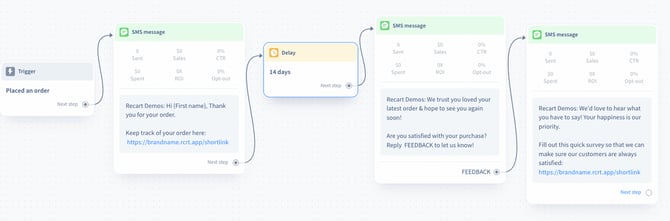
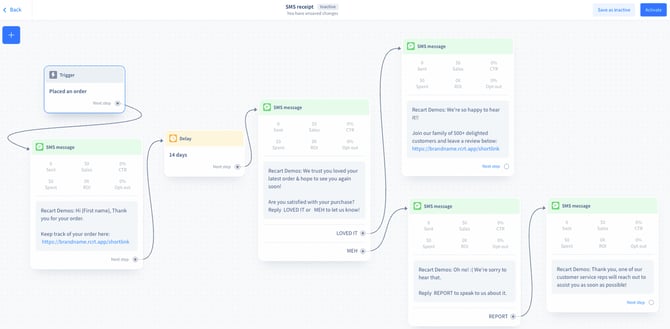
Use case: SMS Receipt feedback follow up - send link to a feedback survey; OR ask customers who loved the product to leave a review while contacting those who were not too happy.
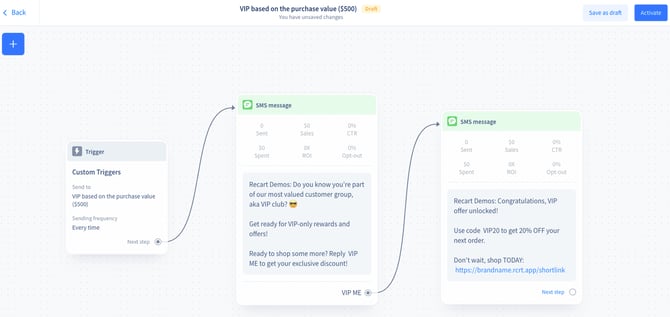
Use case: Send VIP customers a special discount and increase engagement with them.
Use case: Send a follow-up message to customers who enter a segment because they have purchased a certain product whether they are interested in your new stock or would like to leave a review.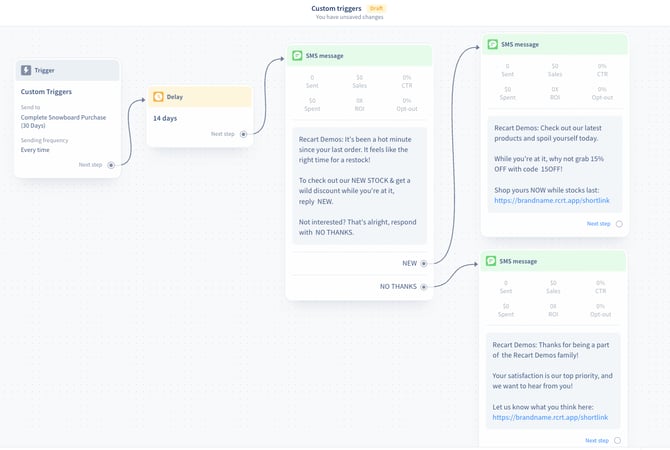
Use case: Send a follow-up message to customers who enter a segment because they have purchased a certain product about restocking their supplies.
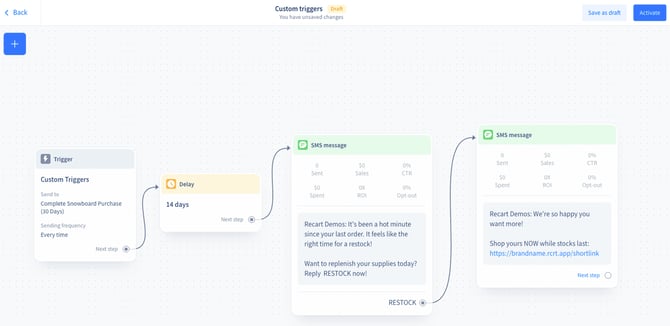
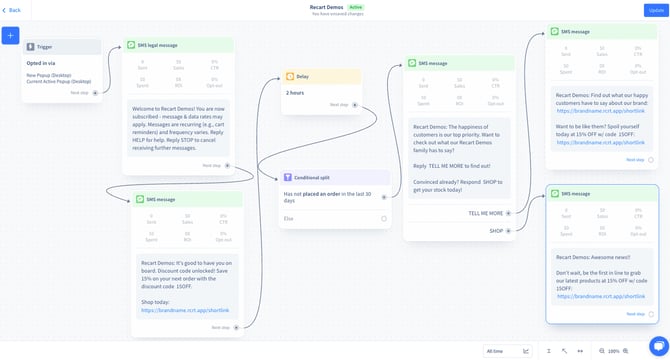
Use case: get interactive in your welcome flow by asking customers whether they want to view reviews.
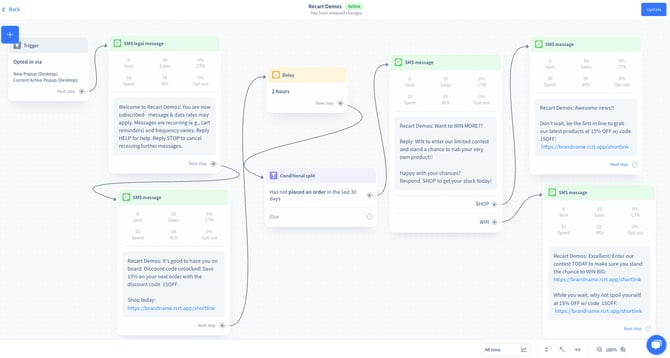
Use case: get interactive in your welcome flow by offering customers the chance to enter a competition
Use case: get interactive in your welcome flow by offering customers the chance to enter a competition
More ideas:
- Ask subscribers to enter a competition by replying with a keyword
- Direct customers to track their order by replying with a keyword
- Collect feedback on delivery speed or customer support quality
- Let customers rate your service on a scale (1–5) and route responses accordingly
- Create a chatbot-like experience in your Help flow using multiple keyword branches
Important Notes
Editing keywords You cannot edit a keyword after creating it. To change a keyword, delete the existing one and create a new one.
Keyword status A keyword inherits the status of its automated flow. Keywords only trigger follow-up messages when the flow is active.
Reusing keywords across flows You can use the same keyword in different flows and even multiple times within the same flow. If a subscriber receives multiple messages containing the same keyword, their reply is matched to the most recently sent message with that keyword.
Misspelled or unexpected responses If a subscriber misspells the keyword or sends a longer response than expected, no auto-response is sent. The message is routed to your Inbox instead, so you can respond manually.
Quiet Hours and Smart Sending When a subscriber replies with a keyword, they expect an immediate response. For this reason, Quiet Hours and Smart Sending are automatically disabled for the next message after a keyword reply.
Two-way vs. one-way countries Keyword Reply only works in two-way messaging countries (such as the US and Canada). Recart does not block sending to one-way countries — subscribers will receive the message but cannot respond. A warning is displayed when your segment includes one-way subscribers.
Troubleshooting
Subscriber replied but didn't receive a follow-up: Check that the keyword is connected to a follow-up item in the flow, and that the flow is active. Also verify the subscriber is in a two-way messaging country.
Keyword isn't triggering the right response: If you use the same keyword in multiple messages, the system matches the reply to the most recently sent message. Review your flow to make sure keywords are unique where needed.
Subscriber's reply went to the Inbox instead: This means the subscriber misspelled the keyword or included extra text. Keyword matching requires an exact, single-word match.
Best Practices
- Required: Always connect your keyword to a follow-up item in the flow — an unconnected keyword does nothing.
- Recommended: Use short, clear, action-oriented keywords (e.g., SHOP, YES, DEAL, REVIEW) that are easy to type and hard to misspell.
- Recommended: Avoid common everyday words to prevent accidental triggers during normal conversation.
- Recommended: Include the keyword in your message text so subscribers know exactly what to reply (e.g., "Reply DEAL to claim your discount").
- Avoid: Using keywords that are similar to compliance keywords (STOP, HELP, START) — this can confuse subscribers.
What's Next
Once you've set up Keyword Replies, you can:
- Add Conditional Splits to create more advanced branching logic in your flows
- Schedule Delays between your keyword reply and the follow-up message
- Use Trigger Selections to control which subscribers enter your flow
If you have questions, contact our Customer Support team — we're happy to help.