
Table of Contents
- Why Use a Contact Card
- How Contact Cards Work
- Customize Your Contact Card
- Contact Card Fields
- Add a Contact Card to Your Messages
- Best Practices
- What's Next
Why Use a Contact Card
When subscribers save your number, your messages display your brand name instead of an unknown number. This builds trust, improves recognition, and can increase open rates. Contact Cards make it easy for subscribers to save your info with one tap-including your logo, website, and support email.
How Contact Cards Work
Recart automatically creates a default Contact Card for your account using your site name and phone number. You can customize it with additional details like a logo and description.
When you add a Contact Card to a message, subscribers receive a downloadable file they can tap to save your contact information to their phone.
Important: Adding a Contact Card converts your message to MMS, which has different character limits. Learn more about SMS vs MMS character limits.
Customize Your Contact Card
- Go to your SMS Settings page.
- Scroll down to the Contact Card section.
- Upload a Contact image (optional).
- Add a Site info description (optional).
- Verify your Support email address is correct.
- Click Save.
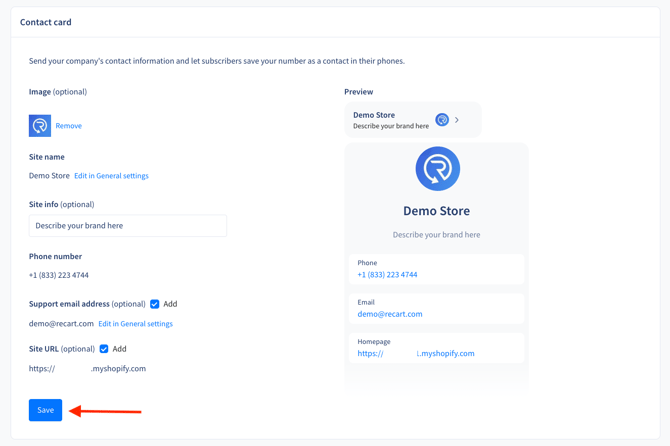
Note: Changes apply immediately. Any messages sent after saving will include the updated Contact Card.
Contact Card Fields
Required (Added Automatically)
| Field | Description | How to Edit |
|---|---|---|
| Site name | Displays as the contact name | Edit in General Settings |
| Phone number | Your sending number | Cannot be changed (assigned to your account) |
Optional
| Field | Description | Requirements |
|---|---|---|
| Contact image | Your logo or brand image | JPG format only, 400x400px recommended, max 25MB |
| Site URL | Your store's homepage | Auto-synced, cannot be edited |
| Site info | Short description under your name | Max 50 characters |
| Support email | Email where subscribers can reach you | Edit in General Settings |
Add a Contact Card to Your Messages
You can add your Contact Card to any SMS message-including automated flows and campaigns.
- Open the flow or campaign you want to edit.
- Click on the message step where you want to add the Contact Card.
- Click + Add more.
- Select Contact Card.

Best Practices
- Recommended: Add your Contact Card to your Welcome flow so new subscribers save your number right away.
- Recommended: Use a square logo (400x400px) for the best display across devices.
- Recommended: Keep your Site info short and branded (e.g., "Your go-to for skincare" or "Exclusive deals & updates").
- Avoid: Adding Contact Cards to every message - once subscribers save your number, they don't need it again.
- Avoid: Using PNG or GIF images - only JPG format is supported.
What's Next
Once your Contact Card is set up, you can:
- Add it to your SMS Welcome flow so new subscribers save your number immediately
- Create a campaign to send the Contact Card to existing subscribers who haven't saved you yet
If you have questions, contact our Customer Support team, we're happy to help.