
Table of Contents
- Overview
- Default Segments
- Creating a new Segment or List
- Segments & Lists Details Page
- Managing Segments & Lists
- Segments and lists on profile pages
- How frequently the segments are reloaded?
- Targeting and excluding segments and lists
Overview
By creating segments you can easily target a specific group of your subscribers. This feature allows you to send relevant, personalized SMS campaigns based on your subscribers’ previous interactions and behavior.
A Segment is a dynamically generated user group based on a set of rules. A segment's members are constantly changing based on meeting the conditions.
A List is a static group of users that has been selected. This does not change unless members are being added or removed manually.
Default Segments
Once the SMS feature is active on your account, the below Default Segments will be created automatically. These will help you target specific subscribers right away, but you can also create new segments with different conditions.
-
Never purchased
-
Subscribed within 2 months, never purchased
-
Clicked on a campaign, did not purchase (30 days)
-
Purchased more than 2 months ago
-
Did not purchase (30 days)
-
Cart abandoners (30 days)
-
VIP based on the purchase value ($500)
-
VIP based on purchase frequency (2/60 days)
Creating a new segment or list
1. Creating a new segment
Go to Segments&Lists and click on Create new.

To create a segment based on pre-set conditions choose Segment.

You will need to name your segment and add at least one condition that will define which customers will be added to the segment. You can put together more conditions to narrow your audience. When you are ready, click on the Create button.
Learn more about the condition setup in this article.

When you create a segment, a green confirmation appears at the top of the page and Recart starts building it right away. Segments are ready in seconds — usually under a minute, even for larger lists — though segments with several conditions may take a little longer. You'll briefly see a Calculating status next to the name while it builds.
As you add, edit, or remove conditions, Recart shows a live count of how many subscribers currently match — at the top of the Segment Builder, and for each group in a Conditional Split. The count refreshes a few seconds after you stop editing, so you can fine-tune your audience before you save.
When the segment is saved it will appear on the Segments&Lists Page. Next to the name, the number of subscribers within the segment will be displayed so you can check the size of the audience you'll be able to reach with a campaign.
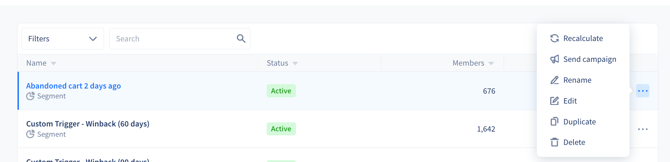
By clicking on the three dots next to a segment you will have the following options.
- Recalculate
-
Send campaign will direct you to the campaign editor. You can learn more about campaign sending in this article.
-
Renaming will allow you to rename the segments on the same page.
-
Editing will take you back to the conditions set up, you will be able to edit the conditions.
-
Duplicating will also take you to the conditions set up, you can edit the conditions and once you save your changes it will result in a new segment besides the original one.
- Delete your segment permanently
Note: Clicking on the segment’s name will direct to the Segment details page
2. Creating a new list
To create a list you will need to start from the same menu: Go to Segments&Lists and click on Create new. Then you will need to choose either List or List from import.
If you choose the simple list option, you can still import subscribers once the list is created, or you can import subscribers right away by choosing the List from import option. You can also add subscribers manually to both types of lists.

When the list is saved it will appear on the Segments&Lists Page. Next to the name, the number of subscribers within the segment will be displayed so you can check the size of the audience you'll be able to reach with a campaign.
By clicking on the three dots next to a list you will have the similar options as at segments, plus the Import. This is one way to add new subscribers to the existing list by uploading a CSV file.

Segment & List details page
1. Segment details page

-
definition of the segment: the conditions and filter summarized as a sentence
-
members: number of subscribers in that given segment
-
type: segment or list
-
the date when the segment was created and last edited
-
status, and when it was last recalculated
2. List details page
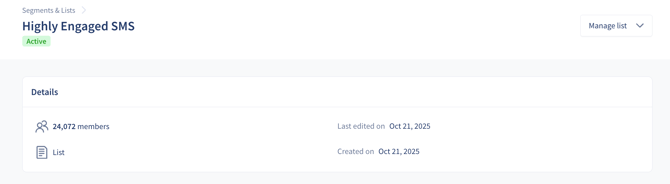
By clicking on the list’s name you can find the same information as displayed for segments, in addition, you will see the below information:
-
The list of uploaded CSV files that contain the subscribers in the list, you can also upload new files and import new subscribers on this page
-
The members of the list
Managing segments and lists
1. Managing Segments
Managing segments are possible on the segment details page.

The following actions are available for managing a segment:
-
Recalculate - when dormant
-
Send campaign will direct you to the campaign editor.
-
Editing will take you back to the conditions set up, you will be able to edit the conditions.
-
In a scheduled campaign: you will be able to edit the segment but the sending will not start until the calculation of the segment is finished
-
In a campaign that's sending: you won't be able to edit the segment
-
-
Duplicating will also take you to the conditions set up, you can edit the conditions and once you save your changes it will result in a new segment besides the original one.
2. Managing Lists
Managing Lists works very similarly:

-
Send campaign will direct you to the campaign editor
-
Import will direct you to the page where you can upload a CSV with your existing subscribers to the list
-
Duplicating will direct you to the List creating page
Segments and lists on profile pages
If you open a subscriber profile page, the segments and lists the subscriber is included in will be displayed under the personal information. You can click on the segment’s or the list’s name to be redirected to the segment or list details page. You can also manually add or remove the subscriber from the list by clicking on Edit next to the list’s name.

How frequently the segments are reloaded?
Segments are being updated in real-time. Please note that some delays might occur based on the time Shopify transfers the data. For example:
-
If you have sent a campaign to users who did not purchase, those users who purchased after this campaign should be excluded from the segment immediately as their purchase is detected.
-
If you upload a new product, it will appear within the product filter immediately and can be used to build up a segment.
Active and dormant segments
Segments you use regularly stay active and refresh automatically. If a segment sits unused for a while, Recart puts it to sleep — this is called going dormant — so your Segments & Lists page stays focused on what you're actively using.
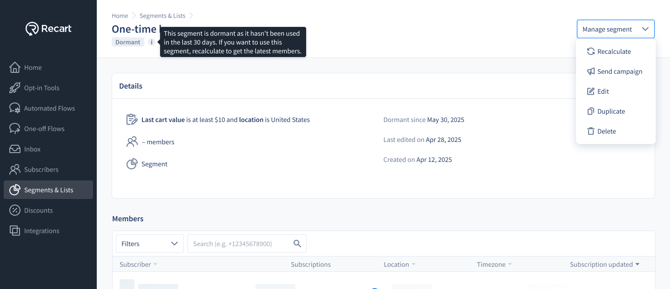
- A segment becomes dormant after it hasn't been used for 30 days (14 days for Klaviyo segments), as long as it isn't tied to anything live like a scheduled campaign, an active flow, or a custom trigger.
- Going dormant pauses calculation and clears the current member list, but the segment's conditions are always kept — nothing is deleted.
- To bring it back, open the segment and click Recalculate (or Resync for Klaviyo segments) — or use the same option from the segment's row on the Segments & Lists page. Recart rebuilds the members with your latest subscribers and returns it to active.
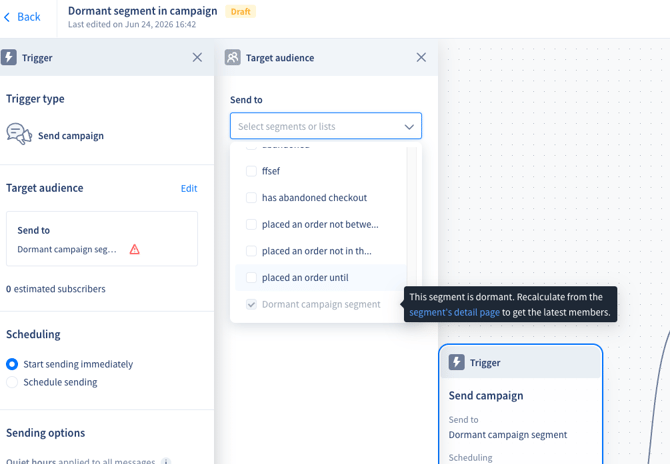
You can see each segment's status on the Segments & Lists page and filter by status to find dormant ones quickly. Dormant segments appear greyed out when you're choosing an audience for a campaign, flow, or custom trigger — recalculate first and they'll be selectable again.
If a campaign or flow won't send and points to a segment, that segment likely went dormant after it was added — recalculate it, then send.
Targeting and excluding segments and lists
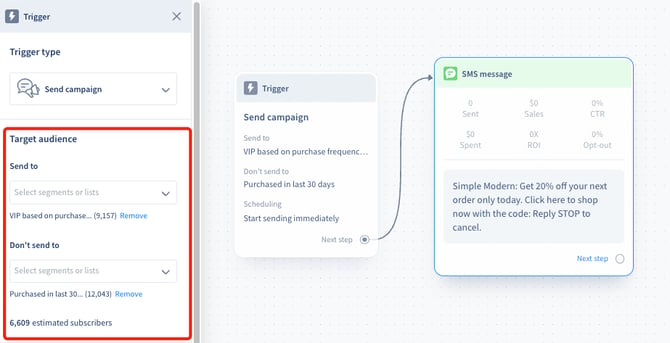
Choose the segment or list in the editor at the campaign settings when creating a campaign:
-
you can target and exclude multiple segments and lists
-
In the 'Send to' section the segment(s) and list(s) to target can be chosen from the dropdown
-
In the ‘Don’t send to’ section the segment(s) to and list(s) exclude can be chosen from the dropdown
-
the number after the segment’s and list’s name is indicating how many members the segment or list has
-
once the segments are set up, you will see the estimated number of subscribers who will receive the message
If you have any remaining questions about segments and lists, do not hesitate to contact the Customer Support team.