
Table of Contents
- Before You Begin
- CSV File Requirements
- How to Import Subscribers
- Understanding Import Statuses
- What Happens to Existing Subscribers
- Best Practices
- Troubleshooting
- What's Next
Before You Begin
To comply with SMS marketing regulations, you can only message subscribers who gave explicit consent to receive promotional texts. Make sure every contact in your import has proper opt-in records before proceeding.
For more details on SMS compliance requirements, visit our SMS Compliance and Deliverability article.
CSV File Requirements
Your file must meet these criteria:
- Format: CSV only
- Header row: Required
- Phone number column: Required
- File size: Maximum 50MB
Important Note: Always include the country code - e.g., +12025550123, not 2025550123. A missing country code is the most common reason an import is not successful.
Optional columns you can include:
- First name
- Last name
- Date of birth
- Country
- Region
- City
- ZIP code
- Timezone
- Locale
Note: If your CSV contains columns beyond those listed above (such as email), you can still upload the file, Recart will simply skip those fields during import.
Formatting requirements
A few fields must follow a specific format, or they won't import correctly:
Country: Use the 2-letter ISO country code — e.g., US, not United States. If the country code is missing or incorrect, that contact's region, city, and ZIP won't import. See the full list of 2-letter ISO country codes.
Timezone: Use the IANA timezone format — e.g., America/Los_Angeles, not PST or Pacific Time.
Locale: Use the language_COUNTRY format — e.g., en_US, en_GB, fr_FR. See the language tag reference for more options.
Date of birth: Use the YYYY-MM-DD format — e.g., 1990-05-14.
How to Import Subscribers
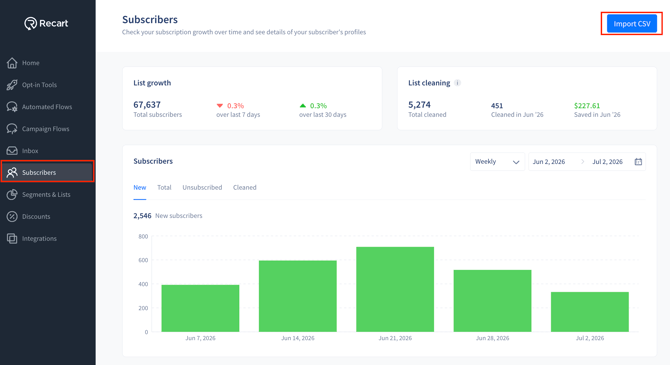
- Go to Subscribers in the left-hand menu.
- Click Import CSV in the upper right corner.
- Choose whether to add subscribers to an existing list or create a new list.
- If creating a new list, enter a name for it.
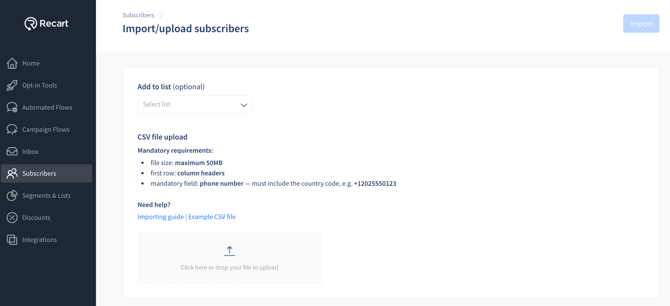
- Click or drag your CSV file into the upload area.
- Match your CSV columns to the correct Recart fields using the dropdown menus. Leave any unsupported columns unmatched.
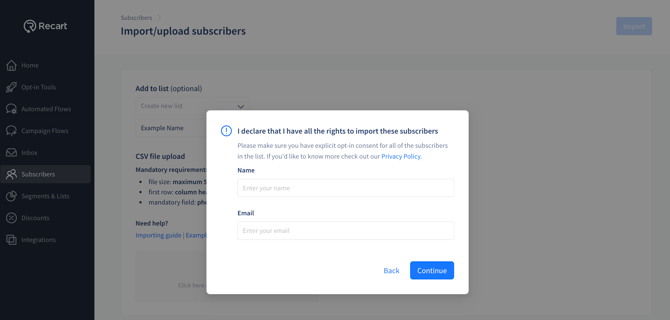
- A compliance declaration appears. Enter your name and email address to confirm you have proper consent to message these subscribers and click Continue.
- Review the import summary on the Import Review screen.
- Click Import to finalize.
Note: Recart does not store your CSV file. It is deleted after the upload completes.
Understanding Import Statuses
Your imports appear on the Subscribers page. Each import displays one of these statuses:
- Uploading – Import is in progress
- Uploaded – Import is complete
Once uploaded, you'll see a breakdown of:
- New subscribers – Contacts added to your list for the first time
- Updated subscribers – Existing contacts whose information was refreshed
- Failed imports – Contacts that did not meet the criteria
Note: The import name matches your CSV file name. This cannot be edited in Recart.
What Happens to Existing Subscribers
When you import a contact that already exists in your Recart list, here's what happens:
| Scenario | Result |
|---|---|
| Phone number is new | New subscriber created |
| Phone number matches an existing subscriber | Existing subscriber updated |
| Phone number matches but subscriber has unsubscribed |
Subscriber is not updated or re-subscribed |
Best Practices
- Required: Only import contacts with documented opt-in consent.
- Recommended: Clean your CSV before uploading - remove duplicates, incomplete numbers, and landlines.
- Recommended: If your file exceeds 50MB, split it into multiple CSVs and upload separately.
- Avoid: Uploading purchased lists or contacts who haven't explicitly opted in.
Recart is keeping your Subscriber list compliant with our Automated List Cleaning.
Troubleshooting
If some subscribers weren't imported:
Check that all phone numbers are valid and correctly formatted. Common issues include:
- Missing country code (e.g., 2025550123 instead of +12025550123) — this is the most common reason an import fails
- Toll-free numbers with extensions
- Landlines (not mobile numbers)
- Incomplete or incorrectly formatted numbers
If a contact's region, city, or ZIP didn't import:
Check that the Country column uses the 2-letter ISO code (US, not United States). If the country code is missing or incorrect, the region, city, and ZIP for that contact won't import.
If you need to delete an import: There is no self-serve option to delete imported contacts. Contact our Customer Support team to request removal or unsubscription of an imported list.

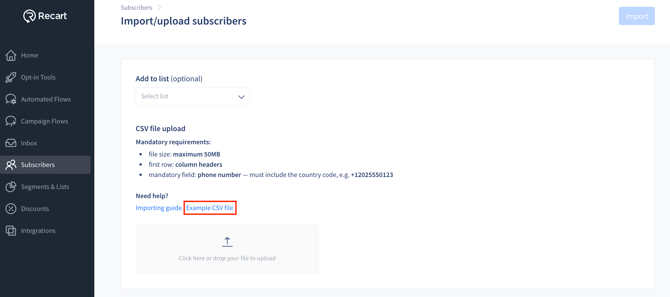
You can also download our example CSV file for reference in your Subscribers import page.
What's Next
Once your import is complete, you can:
- Create a segment or list to organize and target these subscribers
- Send your first SMS campaign to start engaging your audience
If you have questions, contact our Customer Support team, we're happy to help.