
Table of contents
- Generate Recart API Key
- Connect Recart to Loop
- Turn on Automated Flows
Integrating Recart with Loop Subscriptions allows you to sync your subscriber data and power SMS marketing for your Loop customers. Follow the steps below to get set up.
Step 1: Generate your Recart API Key
- Log in to your Recart account
- Navigate to Settings
- Scroll down to the API section and generate your API Key
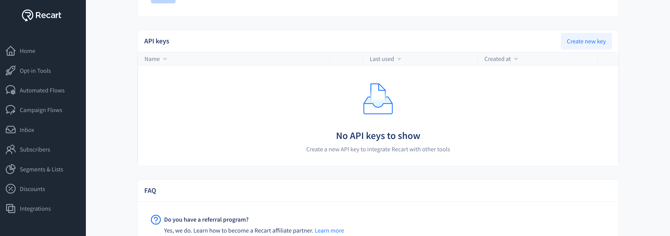
- Click Create New in the top right corner and name your API Key
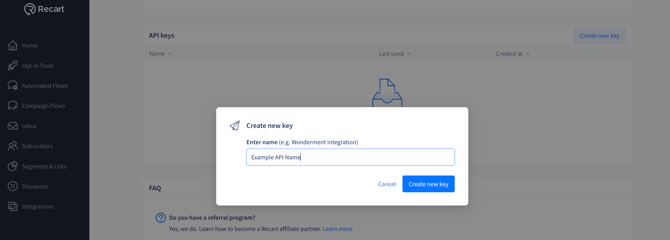
- Click Create new key — and you will see a green banner confirming that the key was created successfully
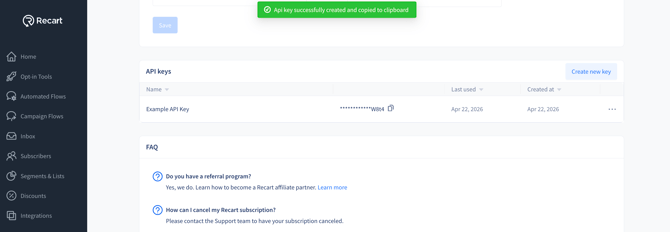
- Copy the key — you'll need it in the next step
Step 2: Connect Recart to your Loop account
- Log in to your Loop Admin
- Go to Tools & Apps → Apps → All Apps
- Scroll down to find Recart
- Follow the on-screen setup instructions
- Paste your Recart API Key into the field provided
.png?width=670&height=362&name=loop%20(1).png)
- Click Connect
You're all set! Recart is now connected to your Loop Subscriptions account.
Step 3: Turn on Loop Automated Flows
- Go to Automated Flows
- Click on Integrations
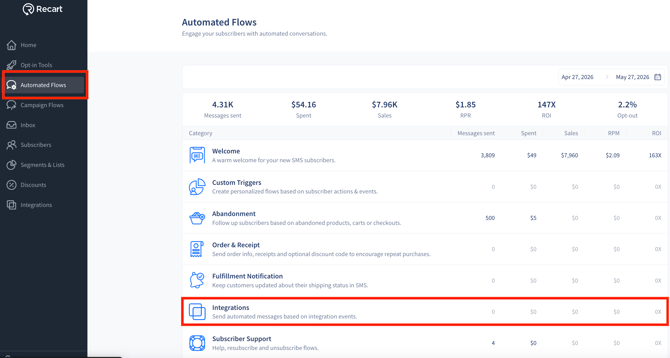
- Click on Loop Flows
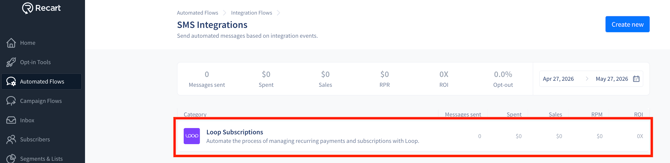
- Activate the flows you would like to have turned on by clicking on each flow, review your message text and clicking activate at the top right. By going into each flow, you are able to confirm text and to make any changes before turning them off.
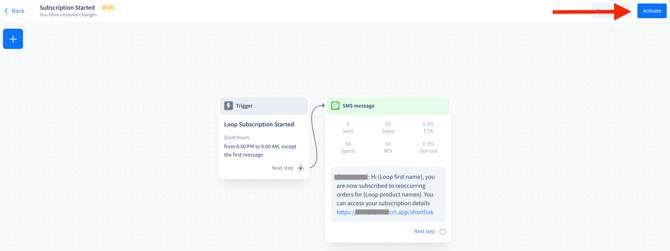
Note: To deactivate a flow, follow steps 1-4 from above and click deactivate at the top right.
Need Help?
If you have any questions, do not hesitate to contact the Customer Support team, we are always happy to help. 😊