
How to connect Recart to Omnisend?
In Omnisend
-
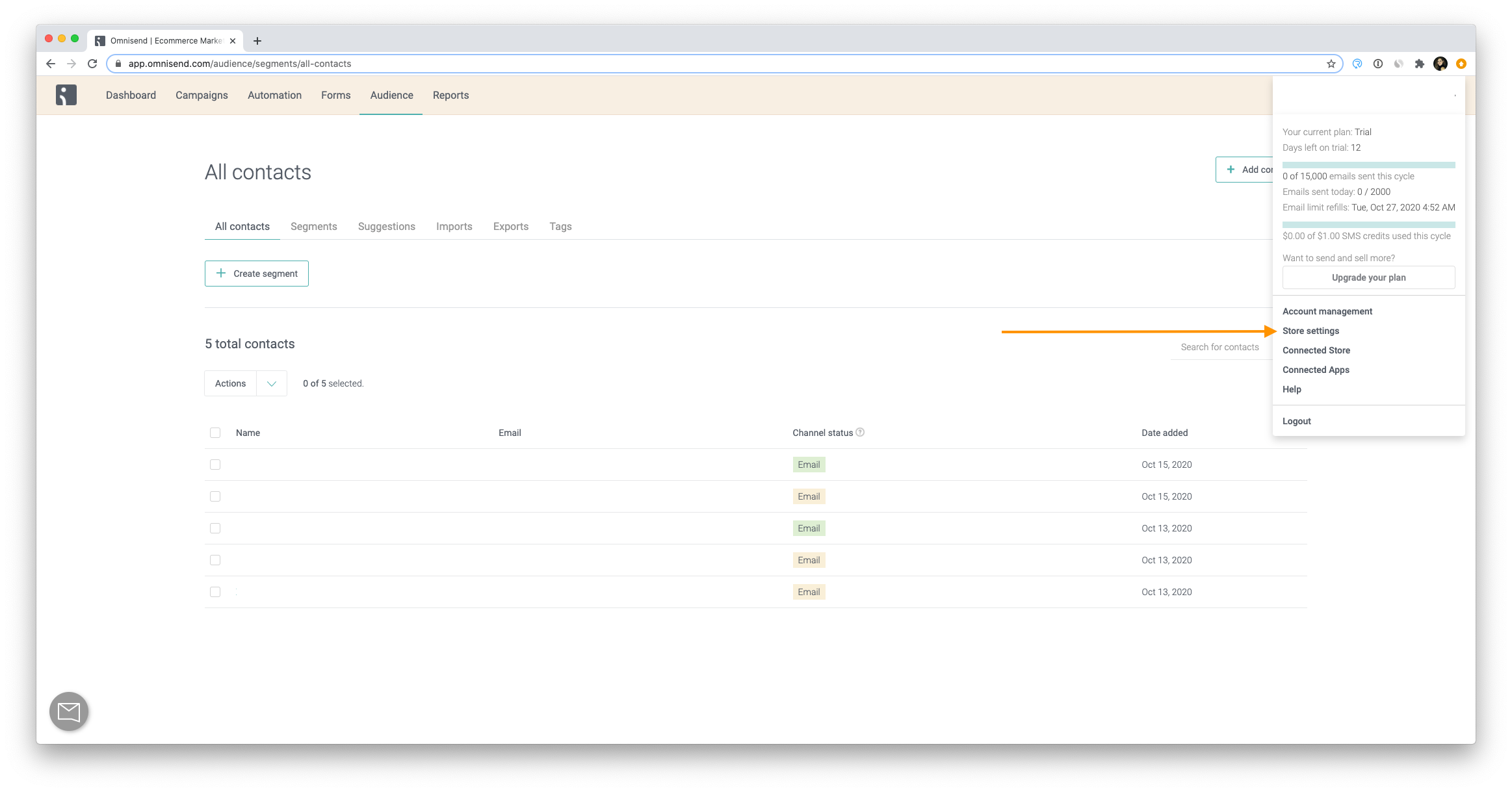
log in to your Omnisend account and navigate to Store Settings from your profile, in the upper right corner of the page
- Click on Integrations & API
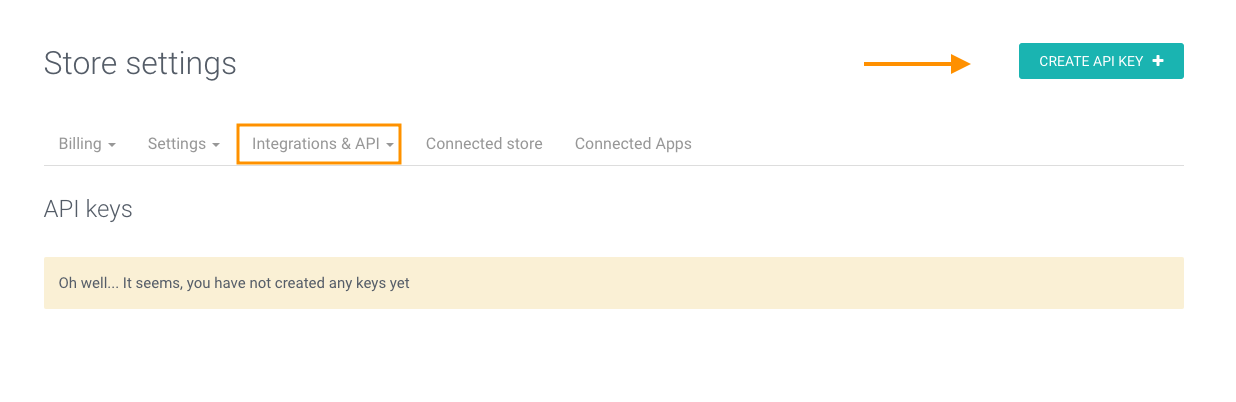
- Click on Create API key, then select "I want to set up custom permissions for this API key." It is essential that you have the Contacts permission ticked
- This is required for Recart to sync subscribers to Omnisend. Then, click on the Save button
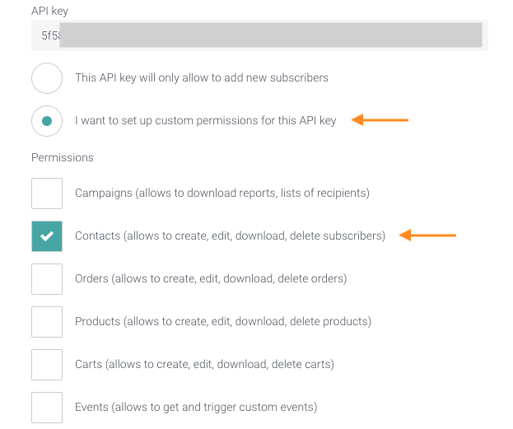
- This is required for Recart to sync subscribers to Omnisend. Then, click on the Save button
In Recart
- Log in to your Recart account
- Go to the Integrations page in Recart
- Find the Omnisend card and open it
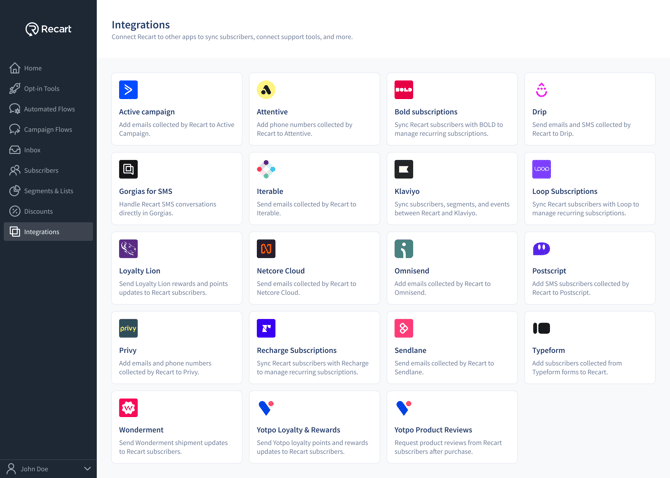
- Paste the API key and click Connect Omnisend
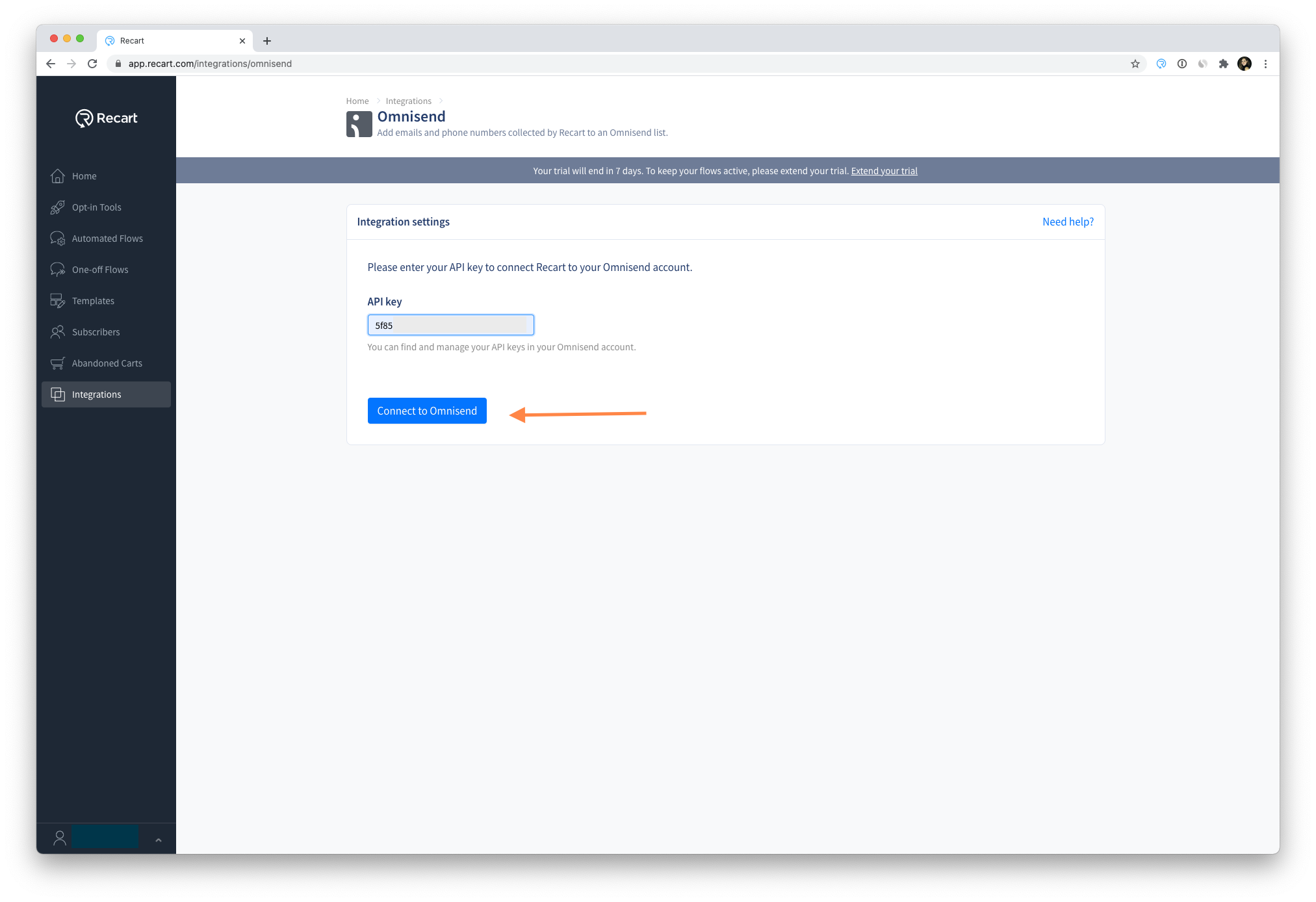
- Once the connection is verified, you'll see a success message and the integration will switch to Active
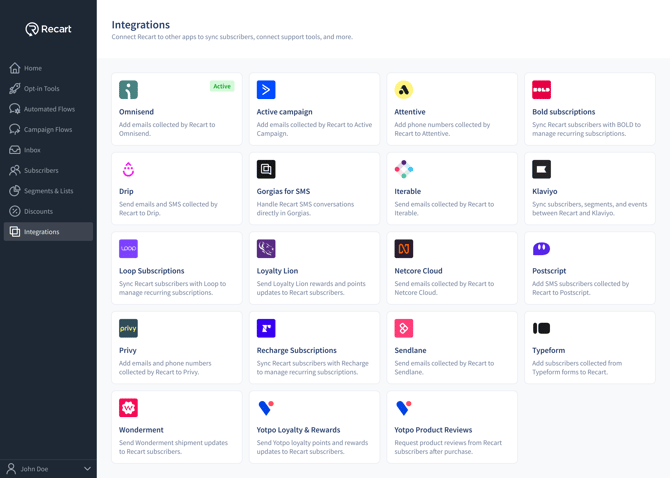

Updating Your Integration
-
You can deactivate it with the toggle on the top of the page.
-
In case you need to, you can change the API key by clicking on the Change button.

-
Subscribers who opt-in and provide their e-mail address or phone number after you activated the integration, will be synced to your Omnisend account.
What information will be synced between Recart and Omnisend?
In addition to the subscriber's basic contact details, the opt-in tool name is also synced to the subscriber's profile in Omnisend. You can use this property to segment your audience or trigger different automations based on which opt-in tool a subscriber came from.
For more information on how to use synced properties in Omnisend, see: Locating and Using Custom Properties for Contacts – Omnisend Help Center.
Need Help?
If you have any questions, do not hesitate to contact the Customer Support team, we are always happy to help. 😊