
Table of contents:
- Your store time zone
- Sending a campaign: store time zone vs. subscriber time zone
- How we determine a subscriber's time zone
- Viewing time zone on a subscriber's profile
- Frequently asked questions
Your store time zone
Your store time zone is used for displaying dates across your Recart dashboard and for scheduling campaigns when you choose to send by store time zone.
To view or update your store time zone:
- Go to Settings → General, or click your name in the bottom-left corner of the dashboard and select Settings
- Scroll to the Time zone section
- Select your time zone from the dropdown
- The label below the dropdown will confirm the full time zone name (e.g., America/New_York)
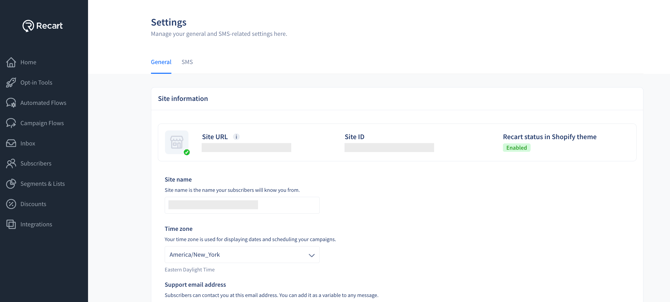
Your store time zone is used for displaying dates and scheduling your campaigns.
Sending a campaign: store time zone vs. subscriber time zone
When you schedule a campaign, you can choose between two send-time options:
- Store time zone (default) — your campaign sends at the scheduled time based on your store's time zone. All subscribers receive the message at the same moment.
- Subscriber time zone — your campaign sends at the scheduled local time for each subscriber. For example, a 10:00 AM send will reach each subscriber at 10:00 AM in their own time zone.
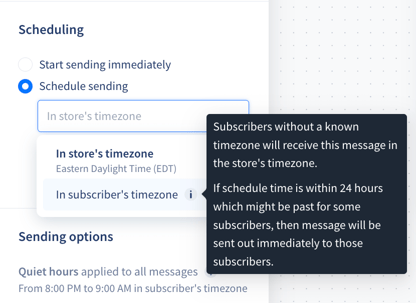
Note: Regardless of which option you select, quiet hours are always enforced for both campaigns and automated flows. If a send falls within a subscriber's quiet hours, the message will be held until quiet hours end. Read more about quiet hours here.
How we determine a subscriber's time zone
We use a priority system to assign each subscriber the most accurate time zone possible, and we update it automatically as new, reliable signals come in.
Priority order (highest to lowest):
- Order address — shipping and billing address (when they match), valid for 180 days
- Browser session — the device's real-time time zone from a recent site visit
- Public API integration — time zone passed in via API
- Subscriber import — time zone provided during CSV import
- Phone dial code — country code from the subscriber's phone number
- Store default — your store's time zone as a final fallback
How we keep it accurate:
- Order address only counts when shipping and billing addresses agree
- After 180 days without a new order, on the subscriber's next visit, we will update the timezone accordingly
- Gift orders (where the shipping name differs from the customer name) are ignored, so a gift shipped across the country won't change the subscriber's time zone
This system means time zones stay current even as subscribers move or travel, while avoiding false updates from one-off signals like VPNs or vacation visits.
Viewing time zone on a subscriber's profile
You can see a subscriber's current time zone and the history of any updates on their profile.
To view a subscriber's time zone:
- Go to Subscribers (or click Subscribers in the left-hand menu)
- Scroll down to the Profiles section
- Click a subscriber to open their profile
- Under Personal Info, you'll see the Timezone field with the current value (e.g., Pacific Daylight Time (UTC -07:00))
- Scroll to Subscriber history to see when and why the time zone was set or updated
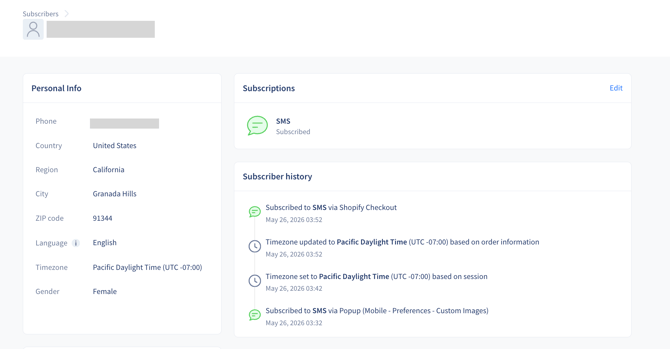
Each time zone update in the history shows which signal triggered it — for example, "Timezone updated to Pacific Daylight Time (UTC -07:00) based on order information" or "Timezone set to Pacific Daylight Time (UTC -07:00) based on session."
You can also see each subscriber's time zone at a glance from the Profiles list on the Subscribers page, alongside their location and last (un)subscribed date.
Frequently asked questions
What happens if a subscriber doesn't have a known time zone?
Every subscriber is always assigned a time zone. If none of the higher-priority signals are available (order address, browser session, API, import, or phone dial code), we fall back to your store's default time zone. This means campaigns sent by subscriber time zone will always have a valid time zone to use.
Does Recart adjust for daylight saving time?
Yes — you don't need to do anything. Recart automatically accounts for daylight saving time when scheduling sends and displaying dates.
Which time zone is used in reports and analytics?
Reports and analytics are displayed in UTC.
If I change my store time zone, will already-scheduled campaigns shift?
No. Already-scheduled campaigns will send at their originally scheduled date and time and won't be rescheduled when you change your store time zone.
If you have any questions or need support with time zones, feel free to reach out to us at support@recart.com — we're happy to help.