
-
Table of Contents
What Is the Subscribers Page?
The Subscribers page is your central place to monitor the health and growth of your SMS list, view cleaning activity, and look up individual subscriber profiles. You can access it at any time from the main dashboard.
Subscriber Growth Chart
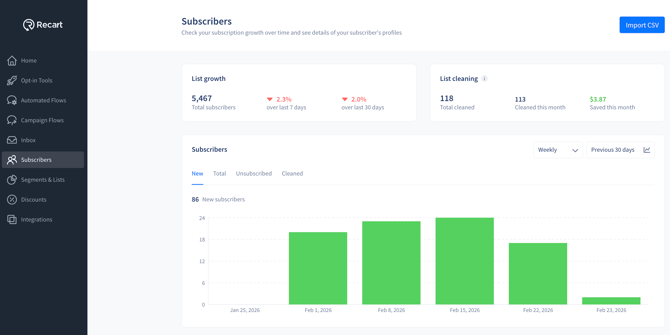
The Subscriber Growth chart shows how your list has grown over time. It displays the number of new SMS subscribers per day for the selected date range.
By default, the chart shows the last 30 days. You can adjust the date range using the dropdown in the top-right corner of the chart.
List Cleaning Chart & Saved This Month
Recart automatically cleans your SMS list daily by removing deactivated numbers, known TCPA litigators, landlines, and reassigned numbers. The List Cleaning chart and Saved This Month widget give you full visibility into this activity.
Subscribers Chart
Below the summary cards, the Subscribers chart gives you a deeper view of list activity over time. You can adjust the time period using the Weekly dropdown and the Previous 30 days selector in the top-right corner of the chart.
Chart Tabs
Use the tabs above the chart to switch between views:
| Tab | What It Shows |
|---|---|
| New | New subscribers added over time |
| Total | Total active subscriber count over time |
| Unsubscribed | Subscribers who opted out over time |
| Cleaned | Subscribers automatically removed by Recart's List Cleaning |
Cleaned Tab
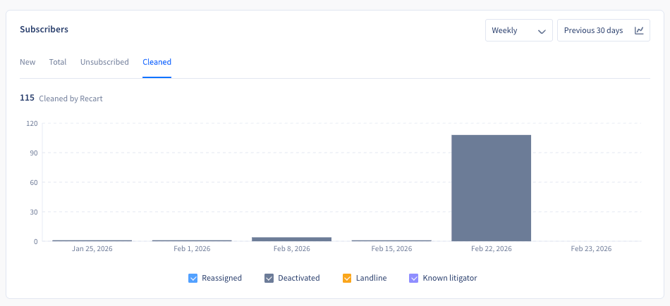
The Cleaned Tab shows the number of subscribers automatically removed each day, broken down by removal category:
| Category | What It Means |
|---|---|
| Deactivated | Number disconnected or no longer in service, confirmed via carrier data |
| Litigator | Number flagged in a third-party TCPA litigator database |
| Landline | Number that cannot receive SMS messages |
| Reassigned | Number identified as reassigned to a new owner (Maine compliance requirement) |
How Saved This Month Is Calculated
- Recart uses your actual sending frequency and blended cost per SMS segment as the baseline
- Savings are calculated across all cleaned subscribers — not just those removed this month — since cleaned numbers are no longer receiving any of your messages
- The figure grows over time as more numbers are cleaned
Note: For new merchants without historical sending data, Recart uses average sending values to estimate savings.
Subscriber Profiles
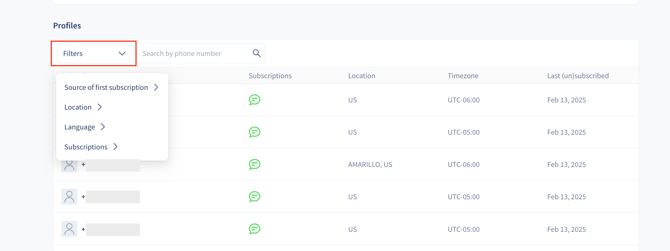
In the Profiles section below the charts, you'll see a table of all your subscribers. Each row shows:
| Column | What It Shows |
|---|---|
| Subscriber | Name (if available) or phone number. Displays as "Subscriber" if the contact opted in via Guest Mode |
| Subscriptions | Channels the subscriber has opted into. Green icon = active SMS subscription; grey = inactive |
| Location | Subscriber's location |
| Timezone | Subscriber's local time zone |
| Last (un)subscribed | Date of the subscriber's most recent subscription or unsubscription event |
Searching and Filtering Profiles
Use the Search bar at the top of the Profiles section to look up subscribers by:
- Phone number
- First name
- Last name
- Email address
Note: Search works with individual terms only. For example, to find "John Smith," search for "John" or "Smith" separately — a full name search will not return results.
To narrow down your list further, open the Filters dropdown above the table. You can classify subscribers based on different criteria such as subscription channel, status, and more.
Subscriber Detailed View
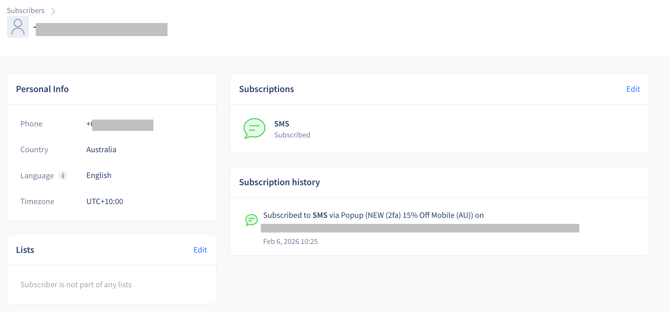
Click on any subscriber's name to open their detailed profile. This view includes:
- Personal information (name, phone number, location, timezone)
- Full subscription history, including any automated list cleaning events with the specific removal reason recorded (e.g., Deactivated number, Litigator risk)
- Order history linked from Shopify
Manually Unsubscribing or Resubscribing
You can manage a subscriber's status directly from their profile.
To unsubscribe a subscriber:
- Open the subscriber's profile by clicking their name
- Click Edit
- Select Unsubscribe
- Click Done
Once unsubscribed, all automated flows, campaigns, and manual messages will be blocked for that subscriber.
To resubscribe a subscriber:
Follow the same steps and select Resubscribe from the Edit menu.

Note: If a subscriber was unsubscribed by Automated List Cleaning (e.g., a deactivated or litigator number), re-subscribing them manually is not recommended. These numbers are removed for compliance and cost reasons.
Important: Toll-Free Numbers (TFN) — If a subscriber has previously texted STOP, the carrier blocks all messages at the network level. Manually resubscribing them in Recart will not override this block. The subscriber must first text START or UNSTOP to lift the carrier block before they can receive messages again, even if they are resubscribed through the dashboard or your popup.
Best Practices
- Recommended: Check the Cleaned Tab regularly to understand your list health and spot any unusual spikes in removals.
- Recommended: Use the Saved This Month widget when reporting on SMS ROI — it reflects real avoided spend.
- Recommended: If a subscriber contacts support claiming they stopped receiving messages, check their profile History section to see if they were removed by Automated List Cleaning, and what the reason was.
- Avoid: Manually resubscribing contacts that were auto-cleaned as litigators or deactivated numbers.
What's Next
- Learn how Automated List Cleaning works — understand what gets removed and why
- Manage how subscribers are unsubscribed and resubscribed
- Import existing subscribers to your list
If you have questions, contact our Customer Support team — we're happy to help.