> For the complete documentation index, see [llms.txt](https://help.recart.com/llms.txt). Markdown versions of documentation pages are available by appending `.md` to page URLs; this page is available as [Markdown](https://help.recart.com/getting-started-with-recart.md).
# Getting started with Recart
Finish setting up Recart on your Shopify store, step by step.
When you install Recart, the dashboard walks you through a short setup. You pick a goal, then finish seven steps. This article explains each screen and what to enter.
The example store in the screenshots is a made-up shop called Northwind Coffee Co.
### Before you start
Have these ready:
* Your name, email and a contact phone number.
* A support email and support phone number for your customers.
* Links to your store's terms of service and privacy policy (optional, but recommended).
* Your billing address.
* A payment method for the free trial. The trial screen asks for a card.
### Choose your goal
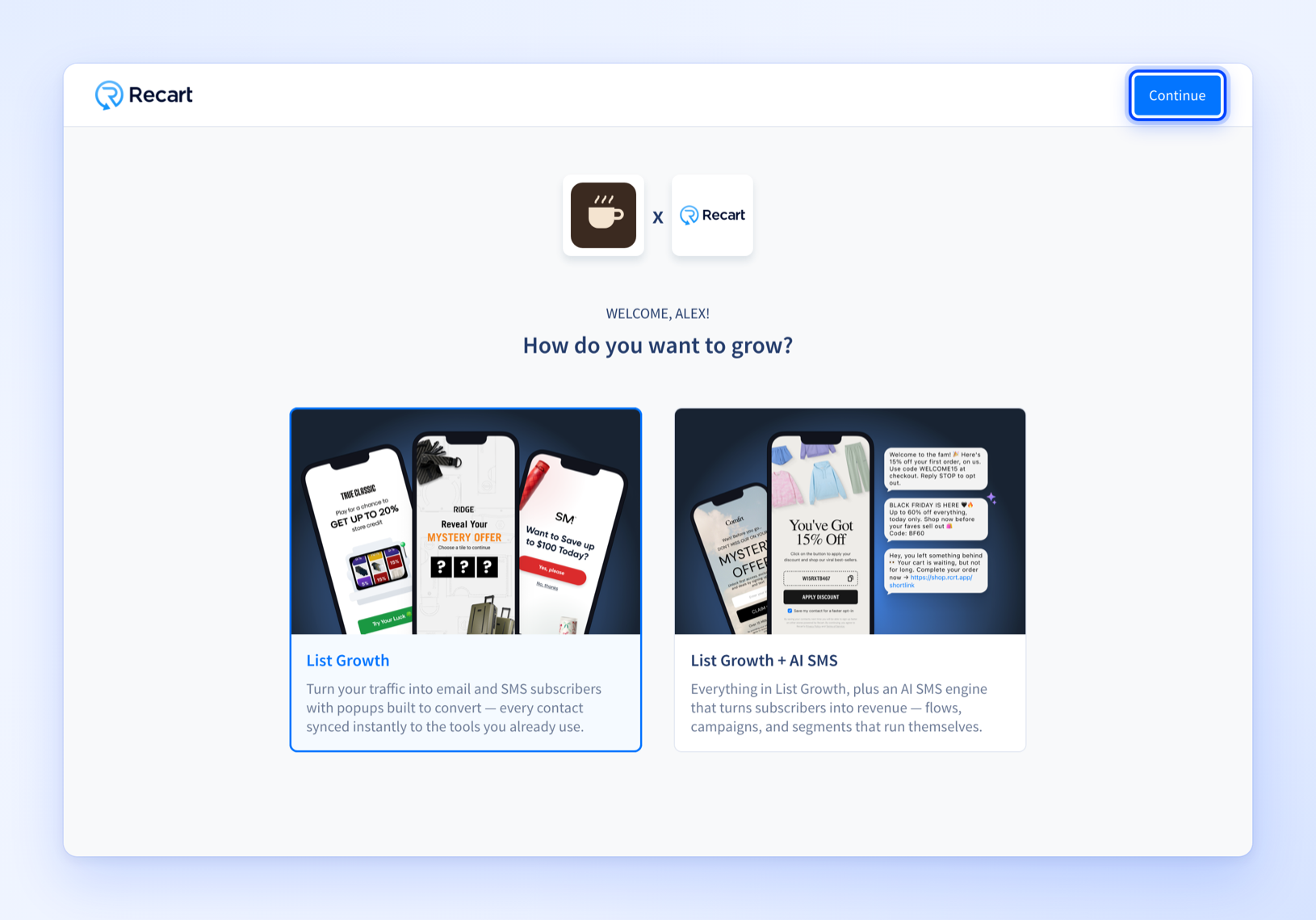
The first screen asks **How do you want to grow?** Pick one card:
* **List Growth**: popups that turn your traffic into email and SMS subscribers, synced to the tools you already use.
* **List Growth + AI SMS**: everything in List Growth, plus flows, campaigns and segments for SMS.
Click **Continue** to move on. Your choice sets the plan you see first on the last step. You can still switch on that step.
### Your account is created
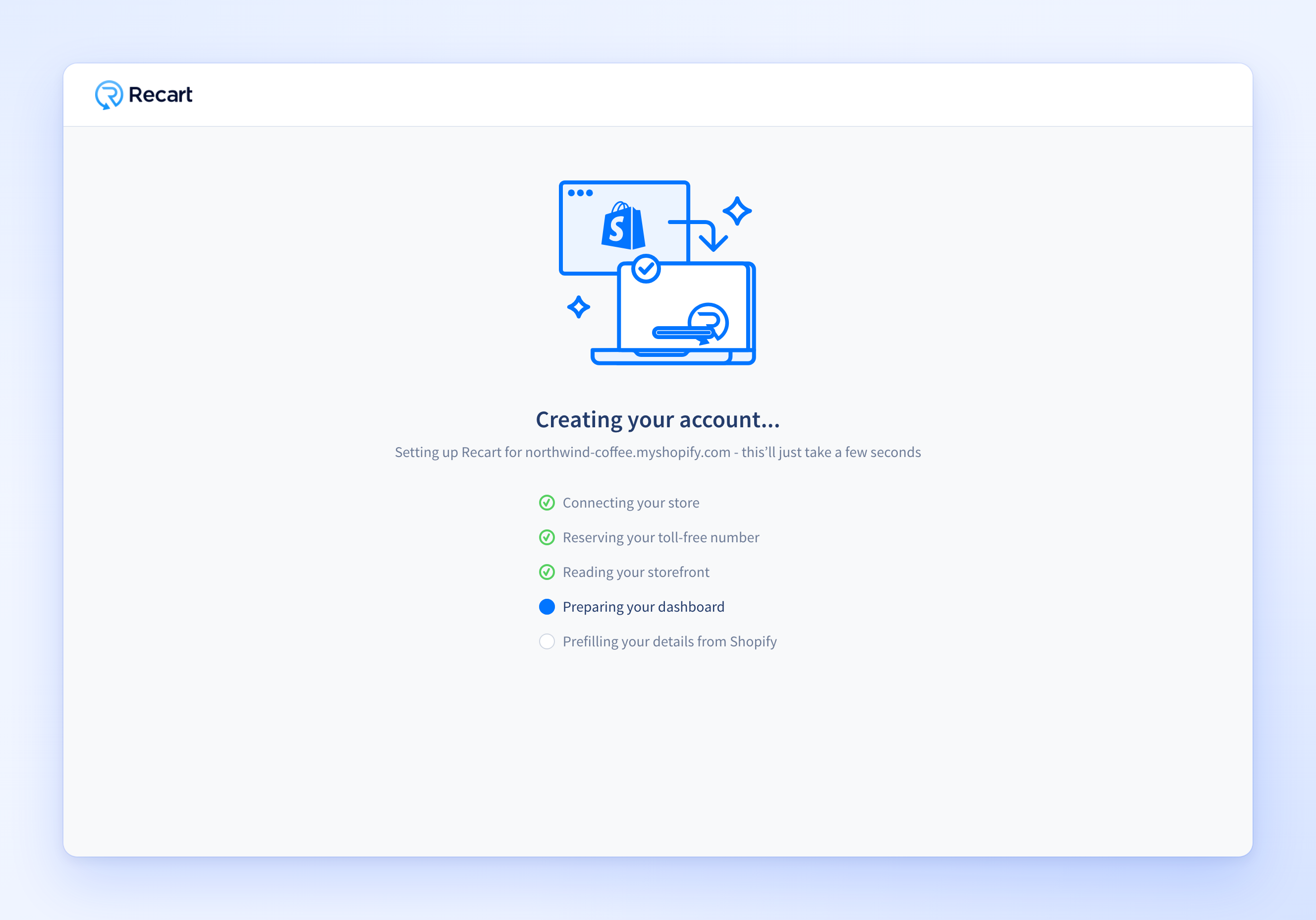
Recart then shows a short loading screen. It lists what it is doing: **Connecting your store**, **Reserving your toll-free number**, **Reading your storefront**, **Preparing your dashboard** and **Prefilling your details from Shopify**. You do not need to do anything. It takes you to your dashboard when it is done.
### Your setup checklist
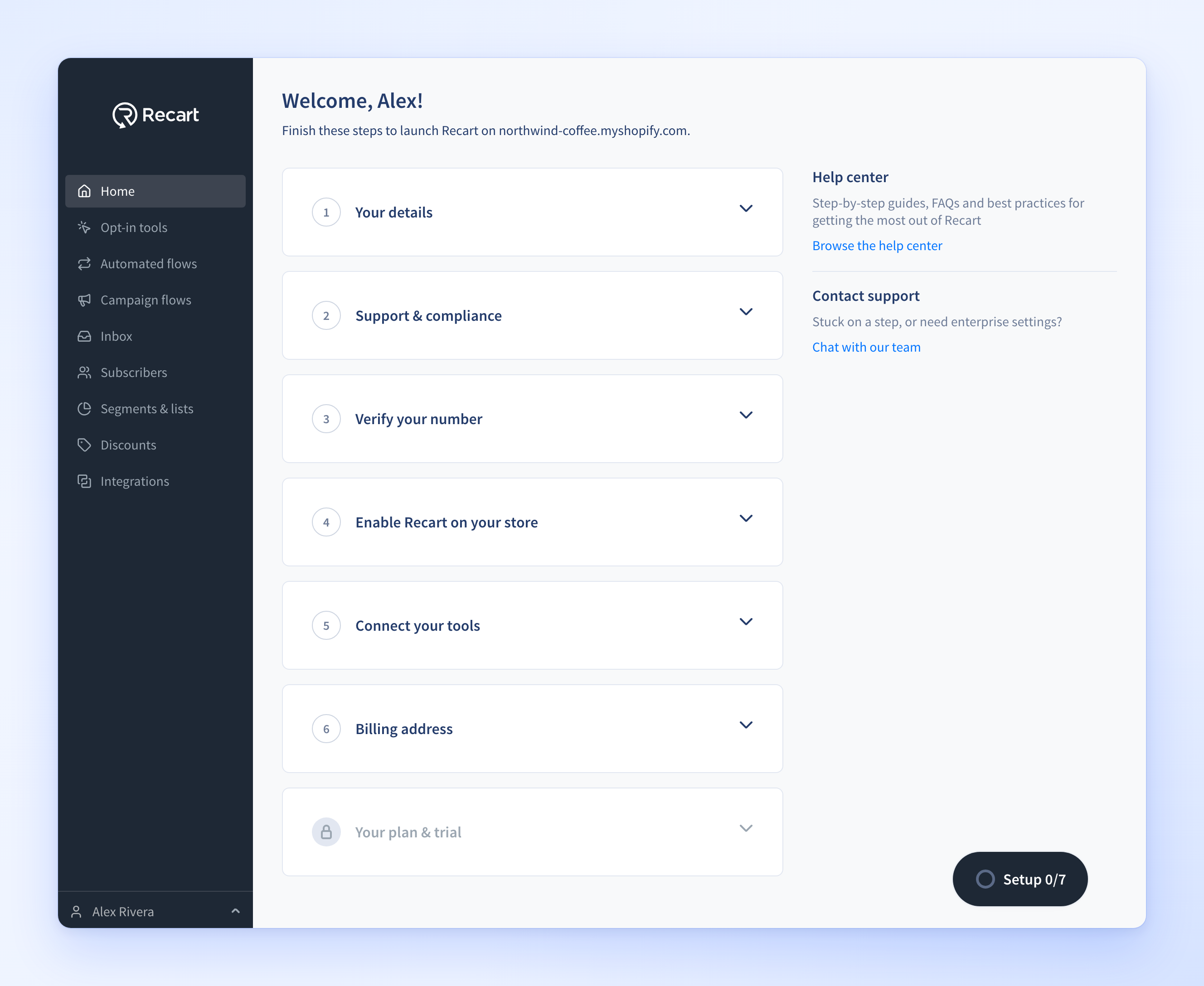
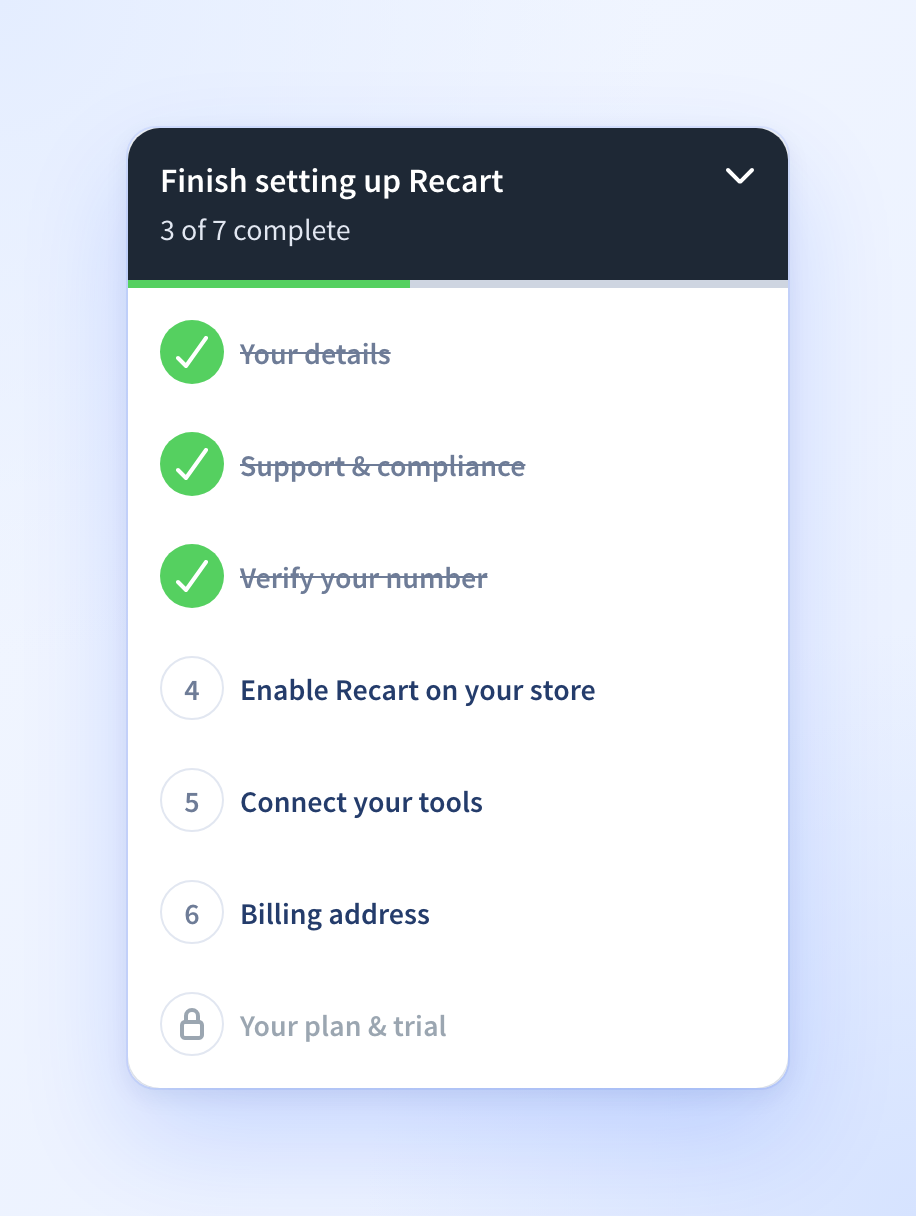
Your dashboard home shows seven steps. Open a step to see its form. The steps are:
1. **Your details**
2. **Support & compliance**
3. **Verify your number**
4. **Enable Recart on your store**
5. **Connect your tools**
6. **Billing address**
7. **Your plan & trial**
Recart opens the next unfinished step for you. On the right you will find a **Browse the help center** link and a **Chat with our team** link if you get stuck.
### Step 1: Your details
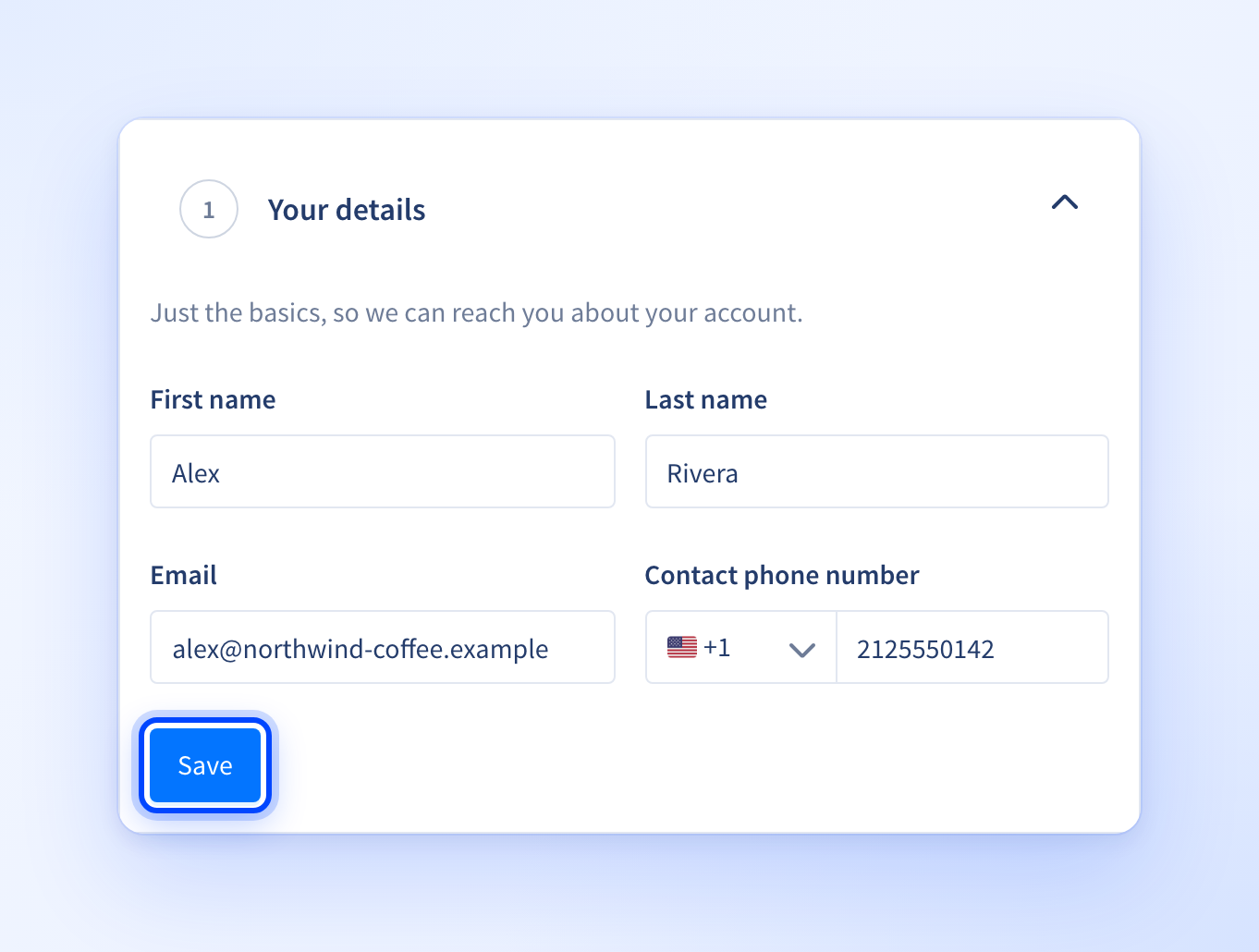
Enter your **First name**, **Last name**, **Email** and **Contact phone number**. Recart fills in what it already knows. Check it, then click **Save**. This is so Recart can reach you about your account.
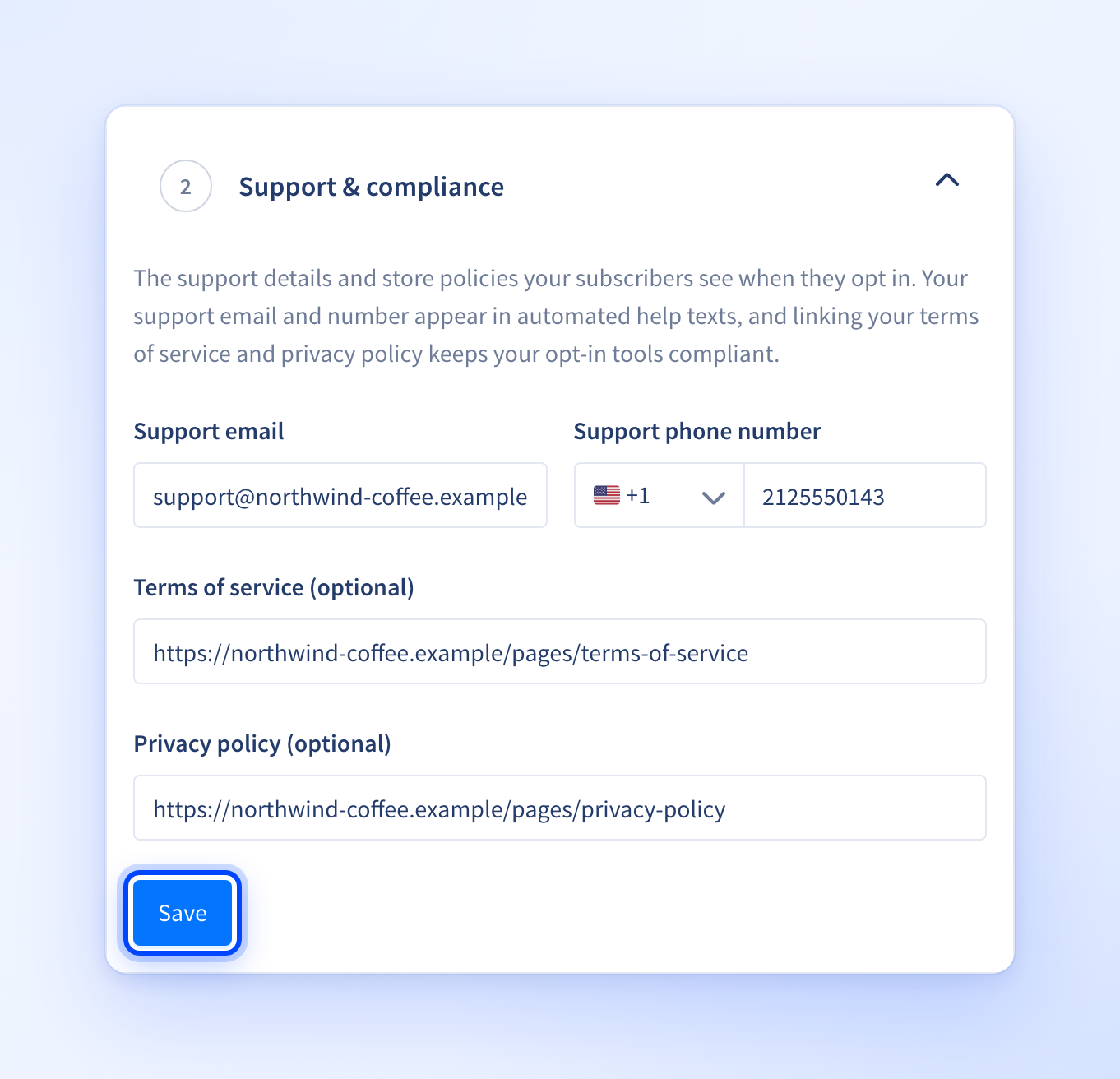
### Step 2: Support & compliance
Enter:
* **Support email** and **Support phone number**. They appear in automated help texts.
* **Terms of service (optional)** and **Privacy policy (optional)**. Paste the full link to each page, for example `https://yourstore.com/pages/privacy-policy`. Linking them helps keep your opt-in tools compliant.
Click **Save**.
### Step 3: Verify your number
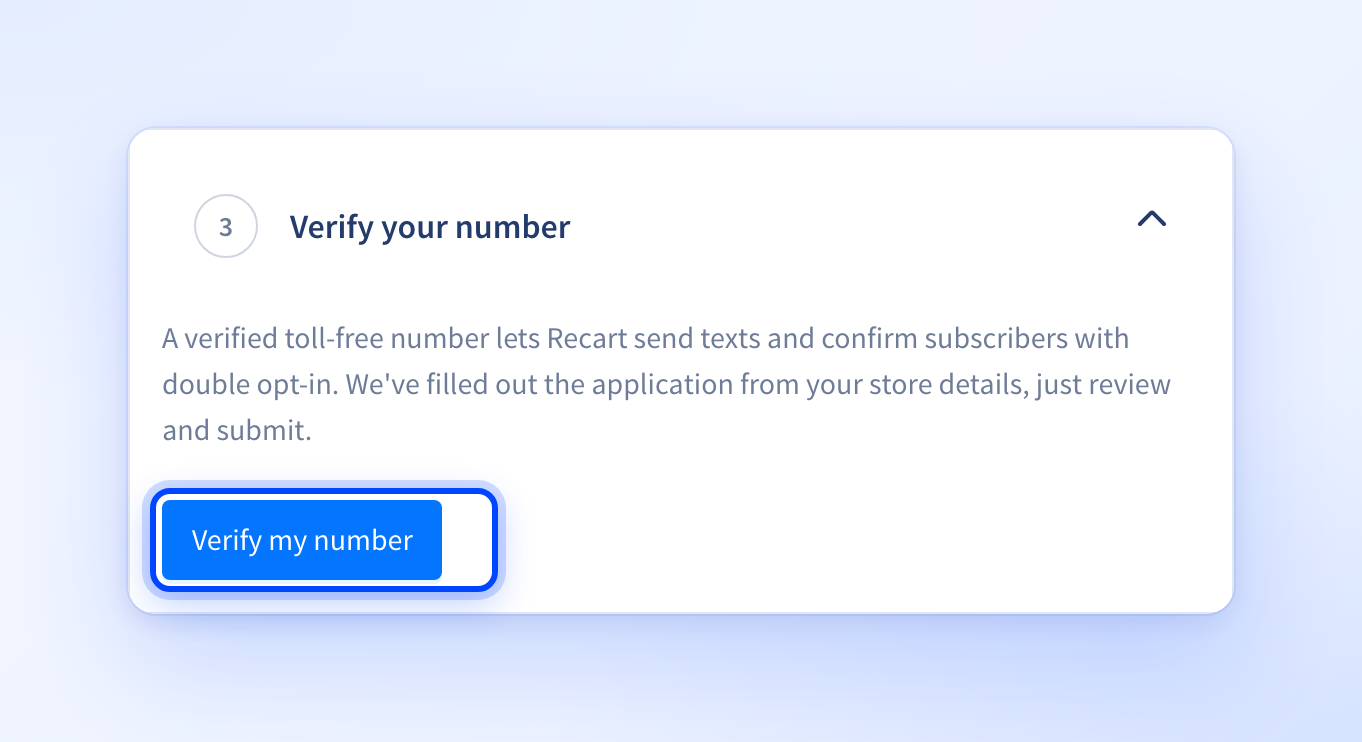
Recart texts from a toll-free number. It must be verified before Recart can send texts and confirm subscribers with double opt-in. Recart fills out the application from your store details. You review it and submit.
Click **Verify my number**, check the application and submit it. The step is marked complete once your application is submitted. After that, the button changes to **View my application**.
### Step 4: Enable Recart on your store
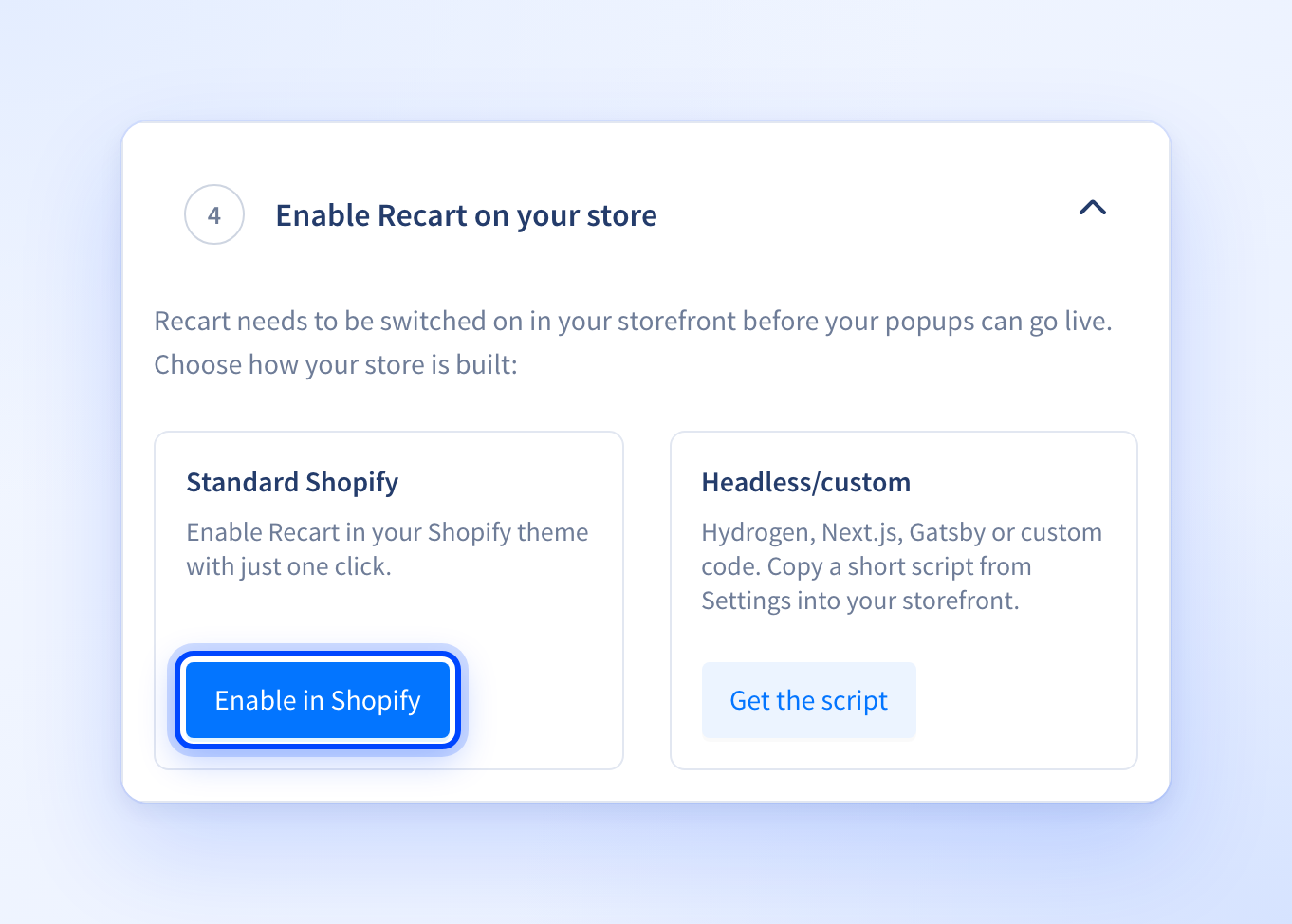
Recart has to be switched on in your storefront before your popups can go live. Choose how your store is built.
* **Standard Shopify**: click **Enable in Shopify**. It opens in a new tab and enables Recart in your Shopify theme with one click. The step completes once Recart detects that it is enabled. If you come back later, the button reads **Open theme editor**.
* **Headless/custom** (Hydrogen, Next.js, Gatsby or custom code): click **Get the script**. Recart marks the step done and takes you to Settings, where you copy a short script into your storefront.
### Step 5: Connect your tools
Connect the tools you already use so Recart can sync your subscribers, events and data.
* Click **Connect a tool** to open the Integrations page.
* Or click **Skip for now**. This step is optional, and you can connect tools later from Integrations.
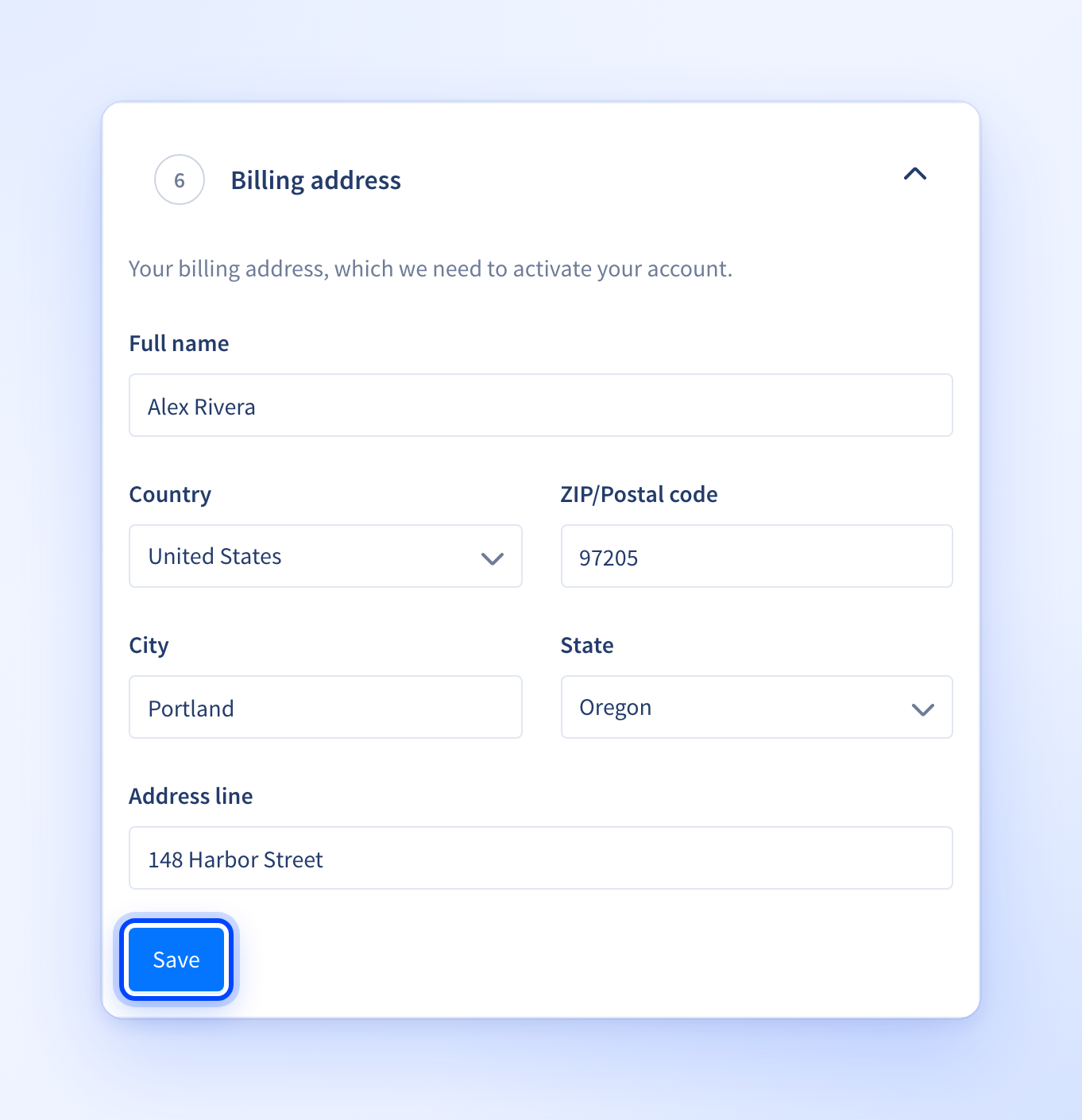
### Step 6: Billing address
Enter your billing address. Recart needs it to activate your account. The form asks for **Full name**, **Country**, **ZIP/Postal code**, **City**, **State** and **Address line**. Recart prefills it from your other details when it can. Check it and click **Save**.
### Step 7: Your plan & trial
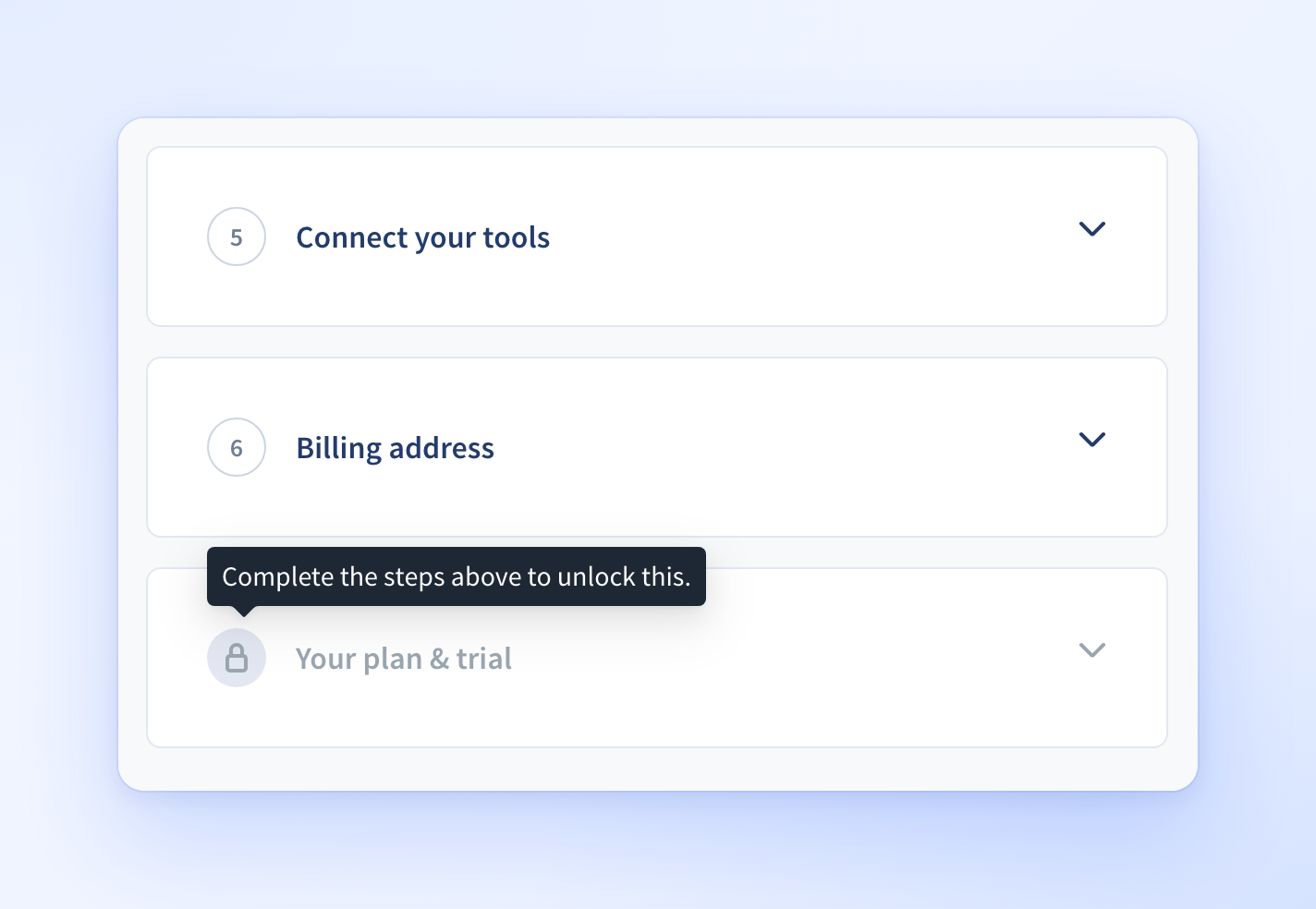
**Your plan & trial** stays locked until you finish steps 1 to 6. While it is locked, it shows a lock icon. If you hover over it you see: "Complete the steps above to unlock this."
Once it unlocks:
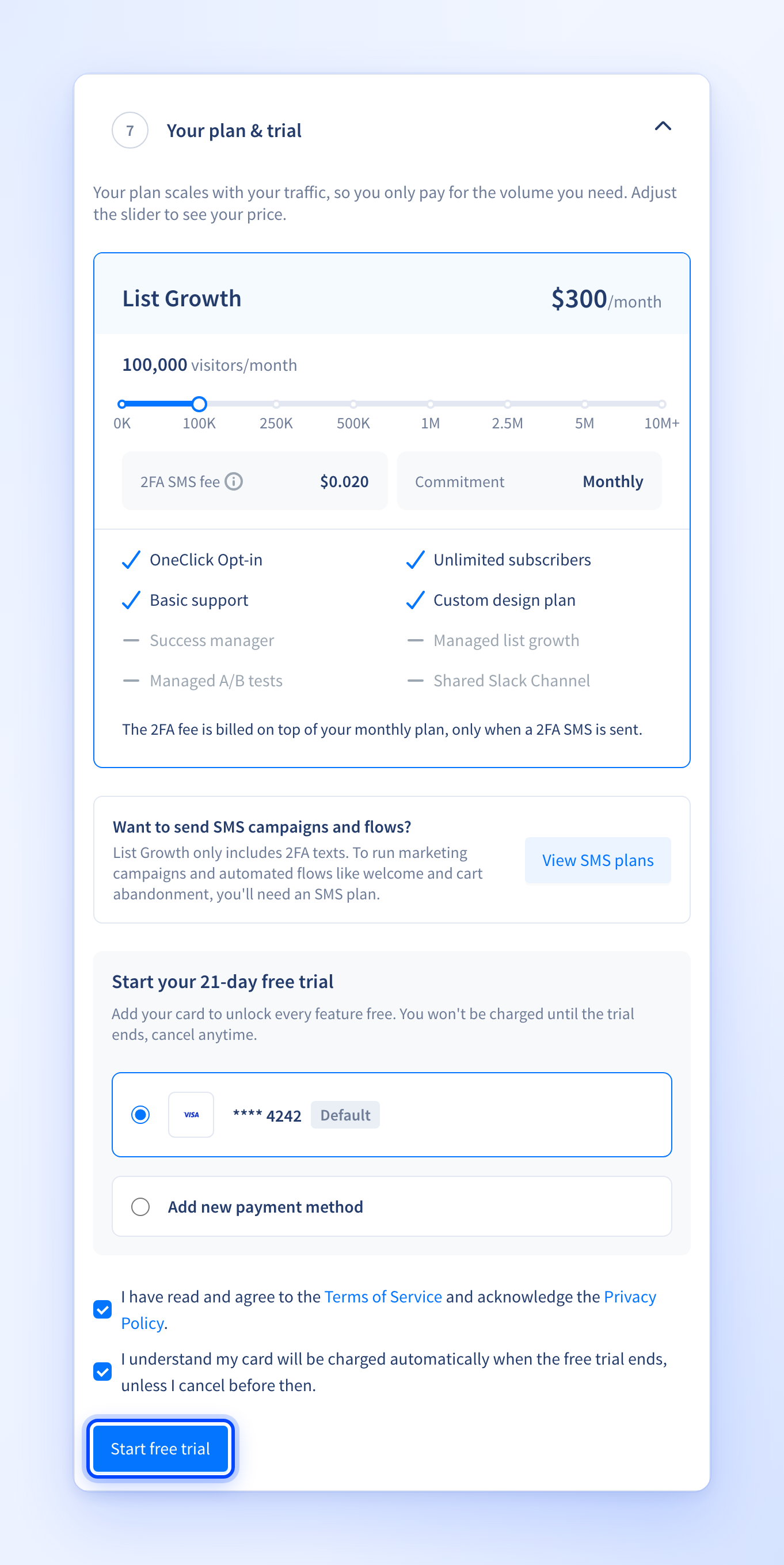
1. Use the slider to pick your traffic level. The price is shown for the plan you select. The page says your plan scales with your traffic, so you only pay for the volume you need.
2. If you want to send SMS campaigns and flows, click **View SMS plans**. List Growth only includes 2FA texts.
3. Under **Start your 21-day free trial**, choose a saved card, or choose **Add new payment method**. Card details are entered in a Stripe form. The screen says they are safely encrypted and stored by Stripe.
4. Tick both boxes. One is for the Terms of Service and Privacy Policy. The other confirms that your card will be charged automatically when the free trial ends, unless you cancel before then.
5. Click **Start free trial**.
The screen says: "You won't be charged until the trial ends, cancel anytime."
If your store is not eligible for a trial, this step is called **Your plan** instead. It asks you to **Add your payment method**, and the button reads **Start plan**. In that case the screen says you are billed the monthly price starting today.
### Come back later
If you leave setup halfway, use the **Finish setting up Recart** checklist. It sits in the bottom right corner of the dashboard as a **Setup** button with your progress. Click it to see all seven steps, and click an unfinished step to jump straight to it. Locked steps cannot be opened yet. The checklist disappears when every step is complete.
If you get stuck during setup, click **Chat with our team** on the dashboard home.
If you have any questions, do not hesitate to [contact the Recart Support team.](/contact-recart-support.md) We'd be happy to help!
---
# Agent Instructions
This documentation is published with GitBook. GitBook is the documentation platform designed so that both humans and AI agents can read, navigate, and reason over technical content effectively. Learn more at gitbook.com.
## Querying This Documentation
If you need additional information that is not directly available in this page, you can query the documentation by asking a question.
Perform an HTTP GET request on the following URL with the `ask` and `goal` query parameters:
```
GET https://help.recart.com/getting-started-with-recart.md?ask=&goal=
```
`ask` is the immediate question: it should be specific, self-contained, and written in natural language.
`goal` is what the user is ultimately trying to achieve, the reason they need the answer. Sharing it helps GitBook give you a better, more relevant answer. A goal is most helpful when it describes the outcome the user wants rather than restating the question. For example, with `ask=how do I create an API token`, a goal like `automate deployments from our CI pipeline` lets GitBook tailor the answer to that use case.
The response will contain a direct answer to the question and relevant excerpts and sources from the documentation.
Use this mechanism when the answer is not explicitly present in the current page, you need clarification or additional context, or you want to retrieve related documentation sections.