> For the complete documentation index, see [llms.txt](https://help.recart.com/llms.txt). Markdown versions of documentation pages are available by appending `.md` to page URLs; this page is available as [Markdown](https://help.recart.com/integrations/email-and-sms-platforms/klaviyo-recart-integration.md).
# Klaviyo <> Recart Integration
Shows how to connect Klaviyo and Recart via OAuth to sync subscribers and trigger real-time flows.
Connect your Klaviyo and Recart accounts to sync subscribers, apply segmentation, and trigger real-time flows using a secure OAuth connection.
### 1. Overview
Recart helps you grow your subscriber list through high-converting pop-ups and SMS-first opt-in tools. If you use Klaviyo for email marketing, you can connect your Klaviyo account to Recart to streamline your data and power more personalized automations.
This integration allows you to:
* Automatically sync emails and phone numbers collected by Recart into a Klaviyo list of your choice
* Use Klaviyo-created segments within Recart for targeting and flow logic
* Show popups only to visitors in a Klaviyo segment
* Trigger Recart flows in real-time based on Klaviyo email events, such as email opens or clicks
* Manage your syncs using a secure OAuth connection, with daily segment syncs and webhook-based event syncing
**Note:** Data moves both ways. Recart sends the subscribers it collects to your Klaviyo list, and uses your Klaviyo segments and email events for targeting and flows in Recart.
### 2. How to Connect Your Klaviyo Account
Recart uses a secure OAuth connection. You no longer need to enter API keys manually.
### In Recart
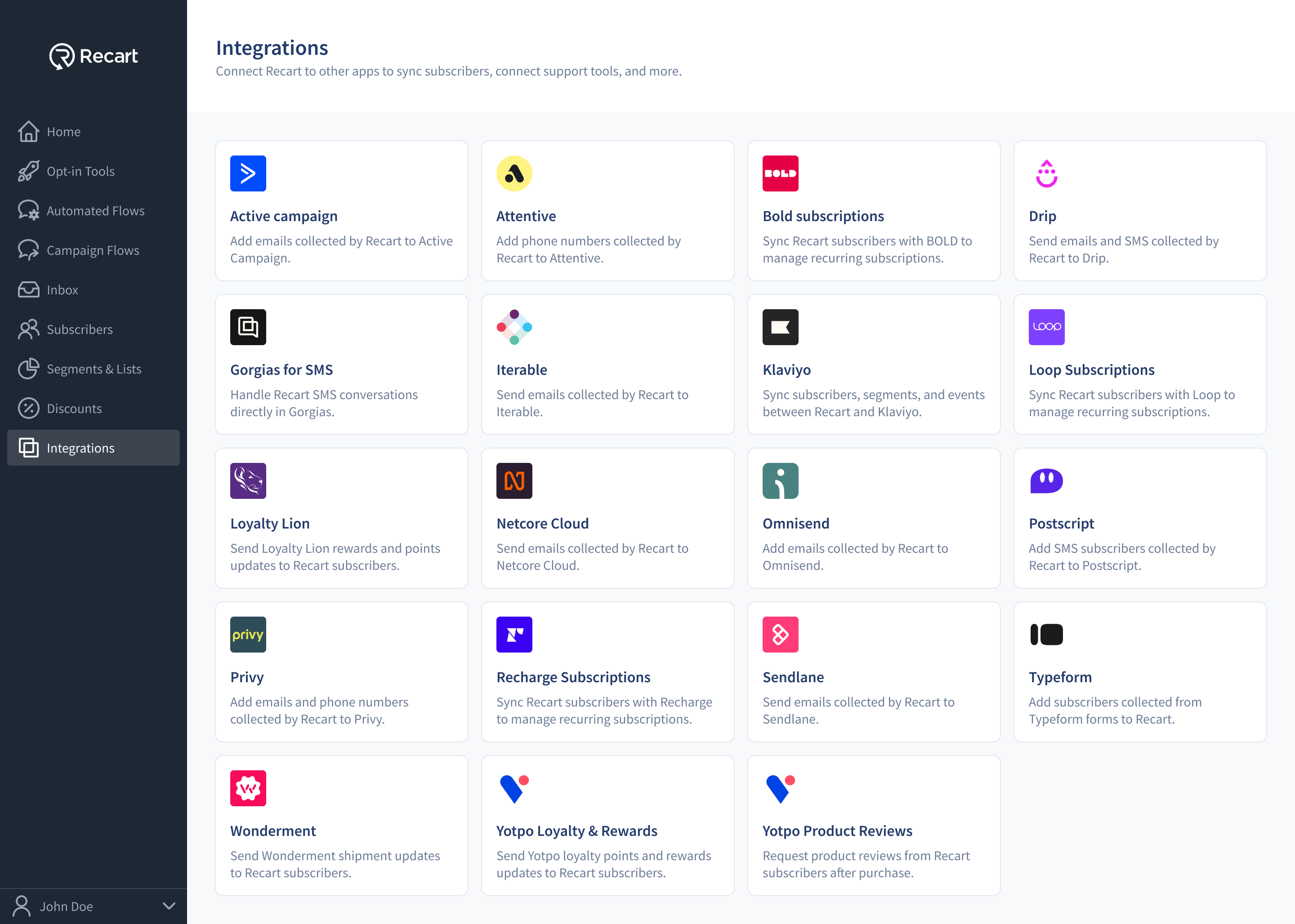
1. Go to the [Integrations page](https://app.recart.com/integrations) in Recart
2. Find the **Klaviyo** card and open it
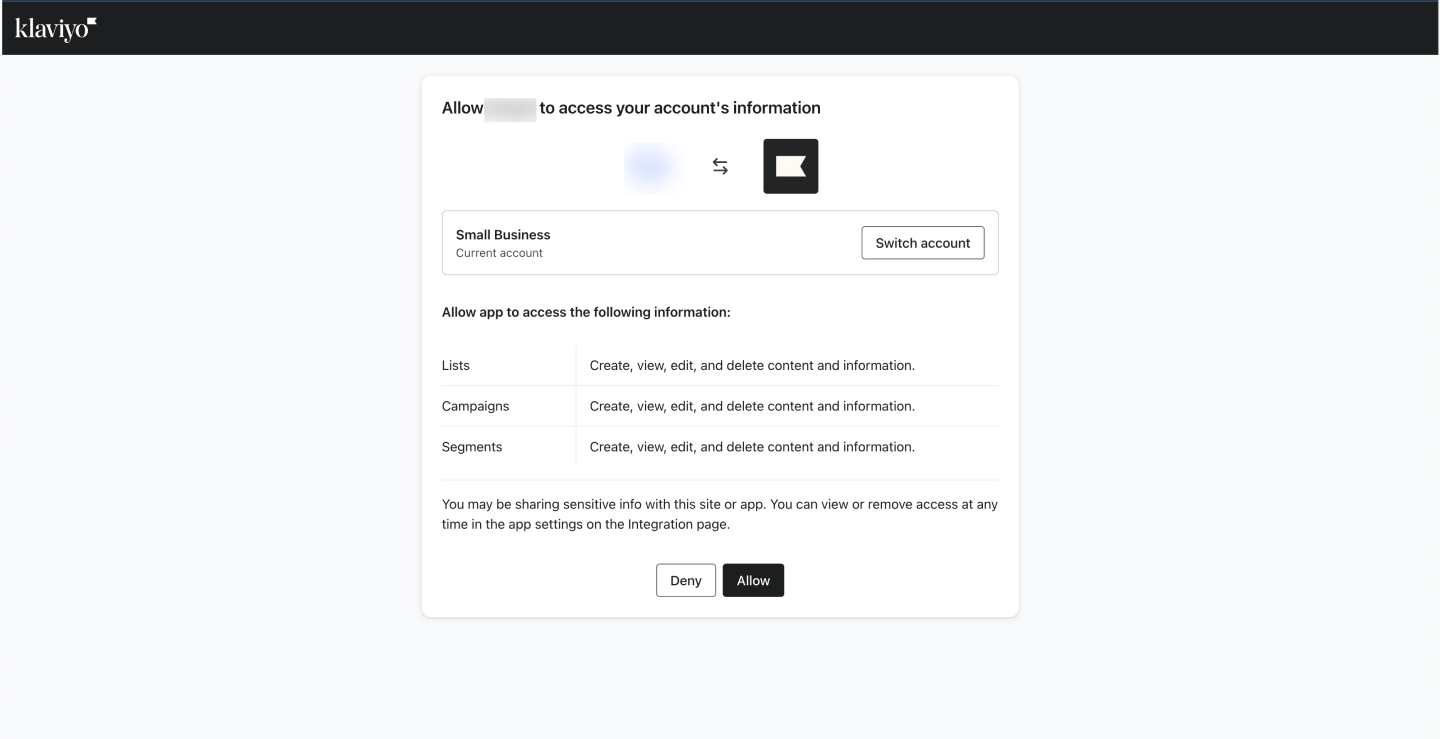
3. You’ll be prompted to log in to your Klaviyo account (if not already) and to be sure you're connected to the correct account
4. Click **Continue to Klaviyo**
5. Authorize Recart to access your Klaviyo data by clicking **Allow**
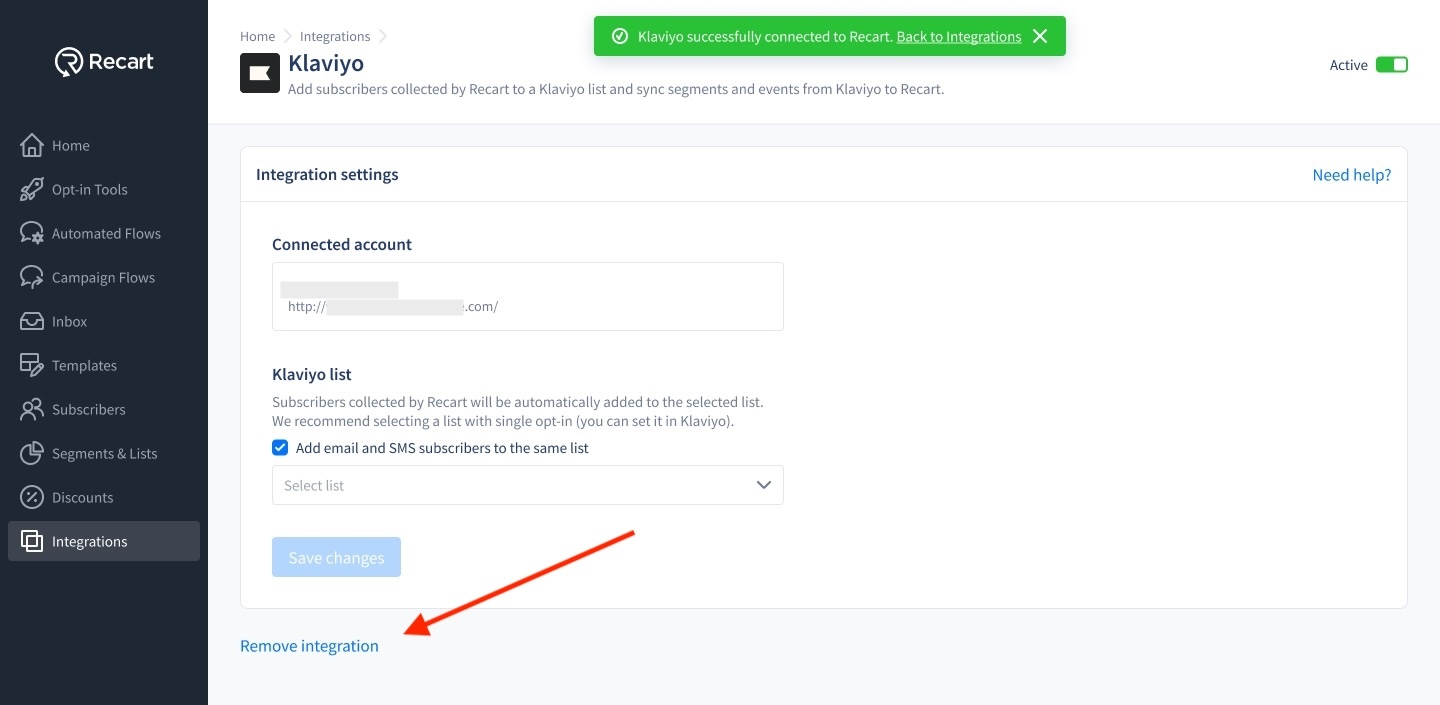
6. Once the connection is verified, you'll see a success message and the integration will switch to **Active**
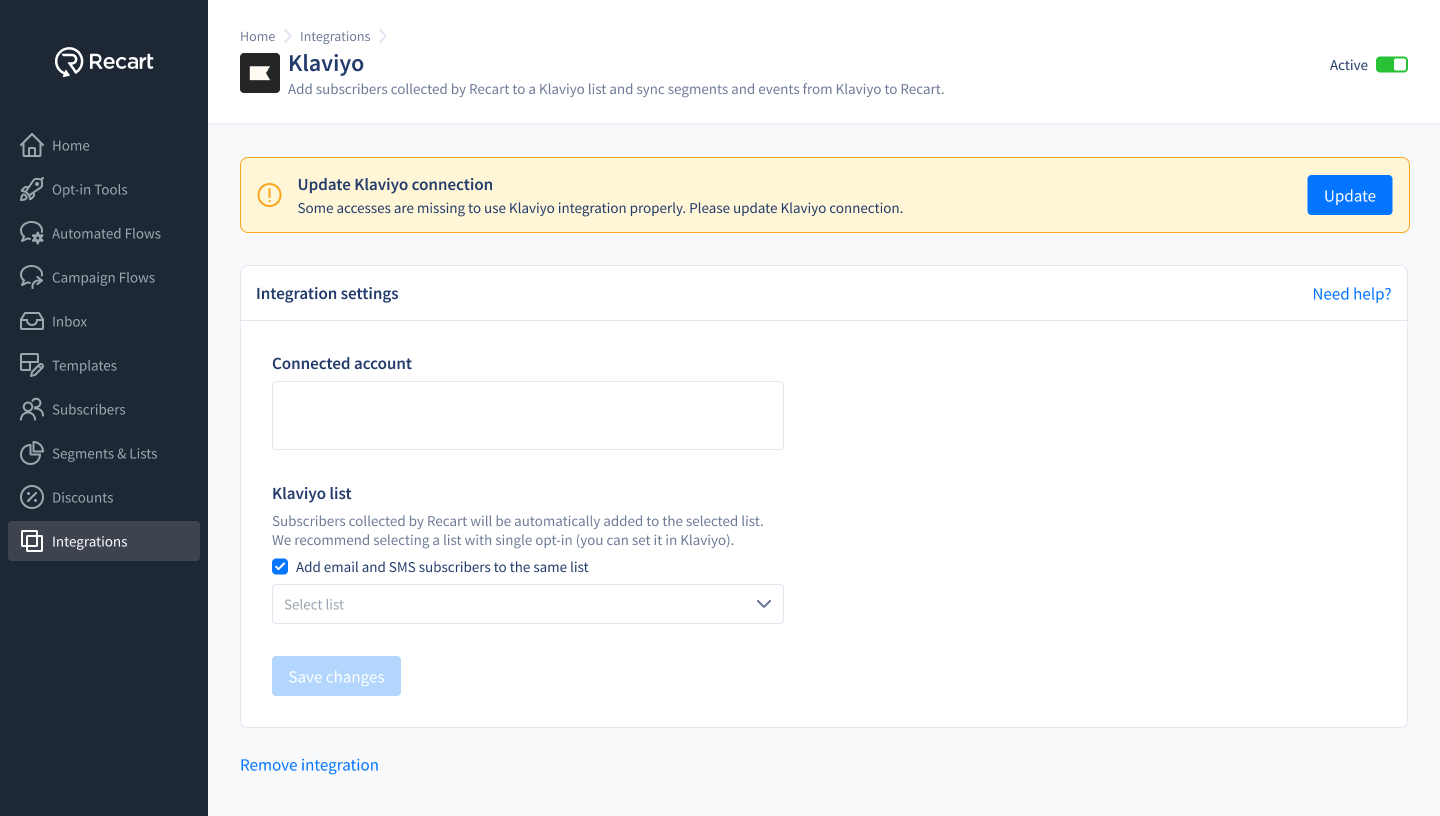
7. If access is incomplete, you may see a banner asking you to **Update Connection** — simply follow the prompt to re-authorize
### 3. Syncing Subscribers to Your Klaviyo List
Once connected, you can choose which Klaviyo list to send your Recart subscribers to.
To set it up:
1. In the Klaviyo integration page in Recart, select the list you want to sync to
2. (Optional) Tick the checkbox to **“Add email and SMS subscribers to the same list”**
3. Click **Save changes**
All email addresses and phone numbers collected via Recart will be automatically added to the selected Klaviyo list.
Recart uses single opt-in by default — subscribers will not receive a Klaviyo confirmation email.
### 4. Segmentation Sync
Recart supports syncing Klaviyo-created segments for use in audience targeting. This allows you to apply Klaviyo segmentation logic within Recart when planning campaigns or building audiences.
#### What you can do:
* Use the condition Is / Is not part of Klaviyo segment in Recart
* Search and select your Klaviyo segments
* Target campaigns based on synced segments
#### Where to set this up:
* Go to [Segments & Lists](https://app.recart.com/segments) in your Recart dashboard
* Click **Create Segment**
* In the builder, select:
→ Is Member of Klaviyo segment/list
→ Choose from the list of synced Klaviyo segments
Once added, you can combine this condition with additional filters like purchase timing, product tags, or custom attributes.
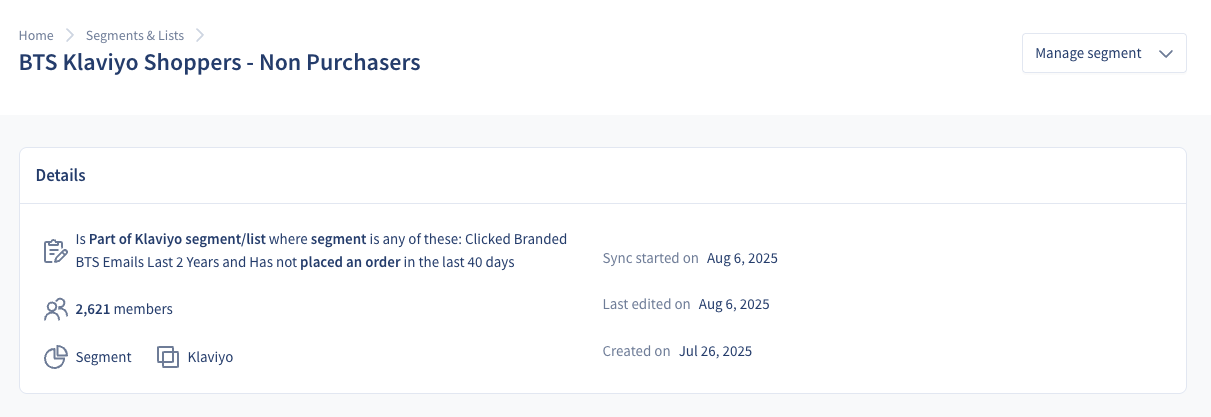
#### Example Completed Segment:
**Sync details:**
* Segments sync **once every 24 hours**
* A **manual sync** button is available in your Recart dashboard
* Synced segments are labeled in Recart with a reminder that data is **not real-time**
⚠️ **Klaviyo segments in Recart are asynchronous.** Any updates to segments in Klaviyo may take up to 24 hours to reflect in Recart.
### 5. Popup Targeting
You can show a popup only to visitors who are in a Klaviyo segment - for example, a "Download our app" popup only for people who don't have your app yet. The popup editor shows your Klaviyo segments automatically, so you don't need to sync them first.
See [Target Popups by Klaviyo Segment](/list-growth/popups/target-popups-by-klaviyo-segment.md) for how to set it up.
### 6. Event-Based Triggering
For advanced use cases, Recart supports real-time flow triggering based specifically on Klaviyo Flow events (not Campaigns). This enables you to respond dynamically to subscriber actions with personalized automation.
Event-based triggering works automatically once your Klaviyo integration is connected - create a Klaviyo flow in Recart and it starts listening for the events. If you turn off all your Klaviyo flows, the triggers pause until you turn one back on.
#### What you can do:
* Trigger Recart flows when a subscriber:
* **Receives a Klaviyo email**
* **Clicks a Klaviyo email**
* Personalize flow paths and timing based on email engagement
* Build behavior-driven journeys across email and SMS
#### Additional info:
* This is a **separate feature** from segmentation
* Event triggers are only available in **Recart Automated Flows** (not in campaigns or segmentation filters)
* Only **Klaviyo Flows** can be used as trigger sources — Campaigns are not supported
* These use a **real-time webhook sync**, separate from the daily segment sync
#### Where to set this up:
To set up a Klaviyo event-based flow:
1. Go to [Automated Flows](https://app.recart.com/automated-flows) in your Recart dashboard
2. Select [Integration Flows](https://app.recart.com/sequences/sms-integrations) and choose **Klaviyo**
3. Within **Klaviyo Automated Flows**, click **Create New**
4. From the **trigger source list**, choose **Klaviyo**
5. Choose your event trigger:
* **Email received**
* **Email clicked**
6. Build your flow with any desired logic (e.g., delays, conditions, message steps)
### 7. Troubleshooting & Tips
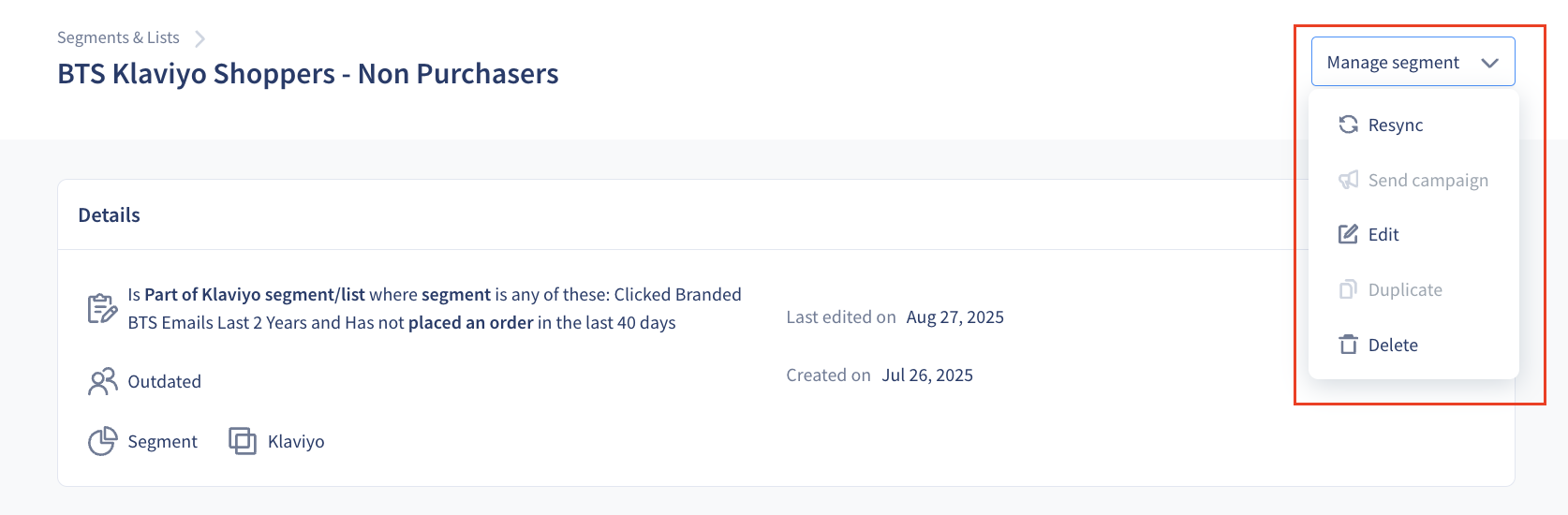
* Klaviyo segments that aren’t used in any draft or active flow, or in a scheduled campaign, will stop syncing after 2 weeks. They’ll be marked as outdated, but you can recalculate them manually from the Segment Page. Click on your outdated segment → context menu → click resync.
* If your integration becomes inactive, simply toggle it back on from the Klaviyo integration page.
* If you encounter the **“Update Klaviyo Connection”** message, click **Update** and follow the OAuth prompt.
* You can remove the integration at any time by clicking **Remove Integration** at the bottom of the Klaviyo integration page in Recart.
### 8. Use Cases
Here are a few example use cases to give you an idea of what’s possible.
#### Segmentation-Based
**`Segmentation Sync Use Case (Basic)`**
**Follow up with email engagers who didn’t convert**
If you’ve sent a Klaviyo campaign but didn’t include an SMS, you can create a synced Klaviyo segment in Recart of users who **clicked the email but didn’t purchase**. From there, send a targeted SMS campaign reminding them of the product or offer, or even include a limited-time discount to increase urgency.
> This is a great way to recover potential revenue from high-intent users without spamming your entire list.
**`Segmentation Sync Use Case (Advanced – Tapcart example)`**
**Follow up with Tapcart users using Klaviyo abandoned cart emails**
Although Recart doesn’t integrate directly with Tapcart, you can still create a synced segment of users who **received a Klaviyo abandoned cart email but didn’t complete their purchase**. Then, send them a follow-up SMS from Recart to recover the abandoned cart.
> This bridges the gap between tools and ensures your mobile shoppers don’t fall through the cracks.
#### Event-Based
**`Event-Based Triggering Use Case (Basic)`**
**Trigger SMS after a key email click**
Set up an event-based automation in Recart to trigger when someone **clicks a link in a Klaviyo flow email**. For example, if they click a product recommendation or a shipping update, you can follow up instantly with an SMS for more details, a promotion, or a support nudge.
> This enables real-time follow-ups that feel personal and relevant — without manual work.
**`Event-Based Triggering Use Case (Advanced – Back in stock example)`**
**Trigger back-in-stock messages via Klaviyo flows**
If you’re using Klaviyo to send **back-in-stock email flows** based on product availability, you can also trigger a Recart flow when the email is received. This lets you follow up with SMS — even though Recart doesn’t yet support native back-in-stock automation.
> It’s a clever workaround to amplify reach during high-intent moments.
**Note:** Recart currently cannot process dynamic product variables, so SMS messages should either be:
• General (e.g., “Your favorite item is back — don’t miss out!”), or
• Sent via separate Klaviyo flows per product.
If you have any questions, do not hesitate to [contact the Recart Support team.](/contact-recart-support.md) We'd be happy to help!
---
# Agent Instructions
This documentation is published with GitBook. GitBook is the documentation platform designed so that both humans and AI agents can read, navigate, and reason over technical content effectively. Learn more at gitbook.com.
## Querying This Documentation
If you need additional information that is not directly available in this page, you can query the documentation by asking a question.
Perform an HTTP GET request on the following URL with the `ask` and `goal` query parameters:
```
GET https://help.recart.com/integrations/email-and-sms-platforms/klaviyo-recart-integration.md?ask=&goal=
```
`ask` is the immediate question: it should be specific, self-contained, and written in natural language.
`goal` is what the user is ultimately trying to achieve, the reason they need the answer. Sharing it helps GitBook give you a better, more relevant answer. A goal is most helpful when it describes the outcome the user wants rather than restating the question. For example, with `ask=how do I create an API token`, a goal like `automate deployments from our CI pipeline` lets GitBook tailor the answer to that use case.
The response will contain a direct answer to the question and relevant excerpts and sources from the documentation.
Use this mechanism when the answer is not explicitly present in the current page, you need clarification or additional context, or you want to retrieve related documentation sections.




.png?alt=media)