> For the complete documentation index, see [llms.txt](https://help.recart.com/llms.txt). Markdown versions of documentation pages are available by appending `.md` to page URLs; this page is available as [Markdown](https://help.recart.com/integrations/helpdesk/gorgias.md).
# Gorgias <> Recart Integration
Shows how to sync SMS replies to Gorgias so your support team can reply from a single dashboard.
Sync SMS replies to your Gorgias account to increase the efficiency of your Customer Service
### What is Gorgias?
Gorgias is a customer service tool that provides an excellent way to centralize your customer interactions in one dashboard, no matter where your customers reach out to you.
### Why integrate Gorgias with Recart SMS?
When your customers reply to your SMS messages, you have the option to reply to them from your Recart account’s Inbox menu. But your customers probably reply to your messages on multiple channels, and replying separately on each channel can be very time-consuming.
**With Gorgias, you can increase the efficiency of your Customer Service by channeling all your customer replies into one platform.**
### How to set up the integration?
Have both Recart and Gorgias installed on your store.
### In Gorgias
Only the Gorgias account owner and admins can see the API credentials.
1. Log in to your [Gorgias account](https://www.gorgias.com/login)
2. Click the **Settings** icon in the bottom-left corner, choose **Account**, then **REST API**
3. Keep this page open. You'll need the **Base API URL**, **Username** and **Password (API Key)**.
* If there's no key yet, click **Create API key** under **Password (API Key)**.
### In Recart
1. Log in to your [Recart account](https://app.recart.com/)
2. Go to the [Integrations page](https://app.recart.com/integrations) in Recart
3. Find the **Gorgias for SMS** card and open it
4. Copy each value from your Gorgias REST API page into the matching field:
* **Base API URL** into **Gorgias URL (Base API URL)**
* **Username** into **Gorgias Username (your email address)**
* **Password (API Key)** into **Gorgias Password (API Key)**
5. Click **Connect to Gorgias**
6. Once the connection is verified, you'll see a success message and the integration will switch to **Active**
### If your account uses OAuth
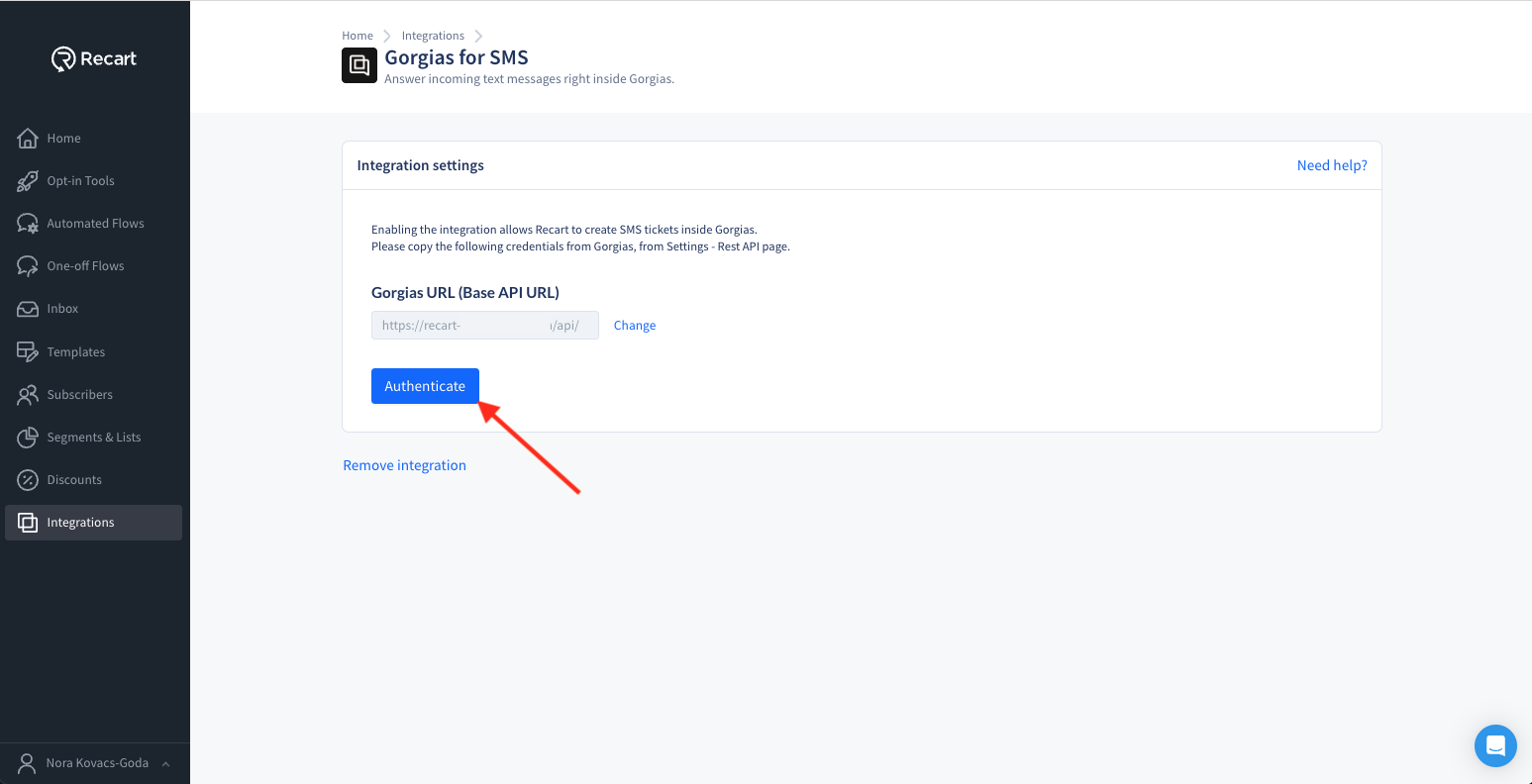
Some accounts connect to Gorgias with OAuth instead. If OAuth is turned on for your account, your **Gorgias for SMS** settings show only a **Gorgias URL (Base API URL)** field and an **Authenticate** button. You only need the **Base API URL** from Gorgias.
1. Open the **Gorgias for SMS** card on the [Integrations page](https://app.recart.com/integrations)
2. Paste the **Base API URL** from your Gorgias REST API page into **Gorgias URL (Base API URL)**, then click **Authenticate**
3. Gorgias opens and asks you to give Recart access. Click **Authorize app**
4. Once you're back in Recart and the connection is verified, the integration will switch to **Active**
If **Authenticate** doesn't connect, [contact the Recart Support team](https://help.recart.com/contact-recart-support.md) and we'll help you connect.
### Change or remove the integration
* **To change your details** (API key connection): click **Change** next to a field, enter the new value and click **Save changes**.
* **To disconnect Gorgias:** click **Remove integration** at the bottom of the Gorgias for SMS settings.
### Replace your API key
If you connected with the three fields (Gorgias URL, Username and Password (API Key)), Recart uses your Gorgias API key. To replace it (for example, if you think it's been exposed):
1. In Gorgias, go to **Settings** > **Account** > **REST API**
2. Click **Reset** next to **Password (API Key)**, then click **OK**
* This creates a new key and **the old key stops working right away**. Update Recart straight after, so new SMS replies keep reaching Gorgias.
3. In Recart, open the **Gorgias for SMS** settings, click **Change** next to **Gorgias Password (API Key)**, paste the new key and click **Save changes**
{% hint style="warning" %}
* **The key belongs to one Gorgias user.** If a different admin resets it, also change **Gorgias Username (your email address)** in Recart to that admin's email.
* **Using the same key in other apps?** They stop working too until you paste the new key there as well.
{% endhint %}
### How does the integration work?
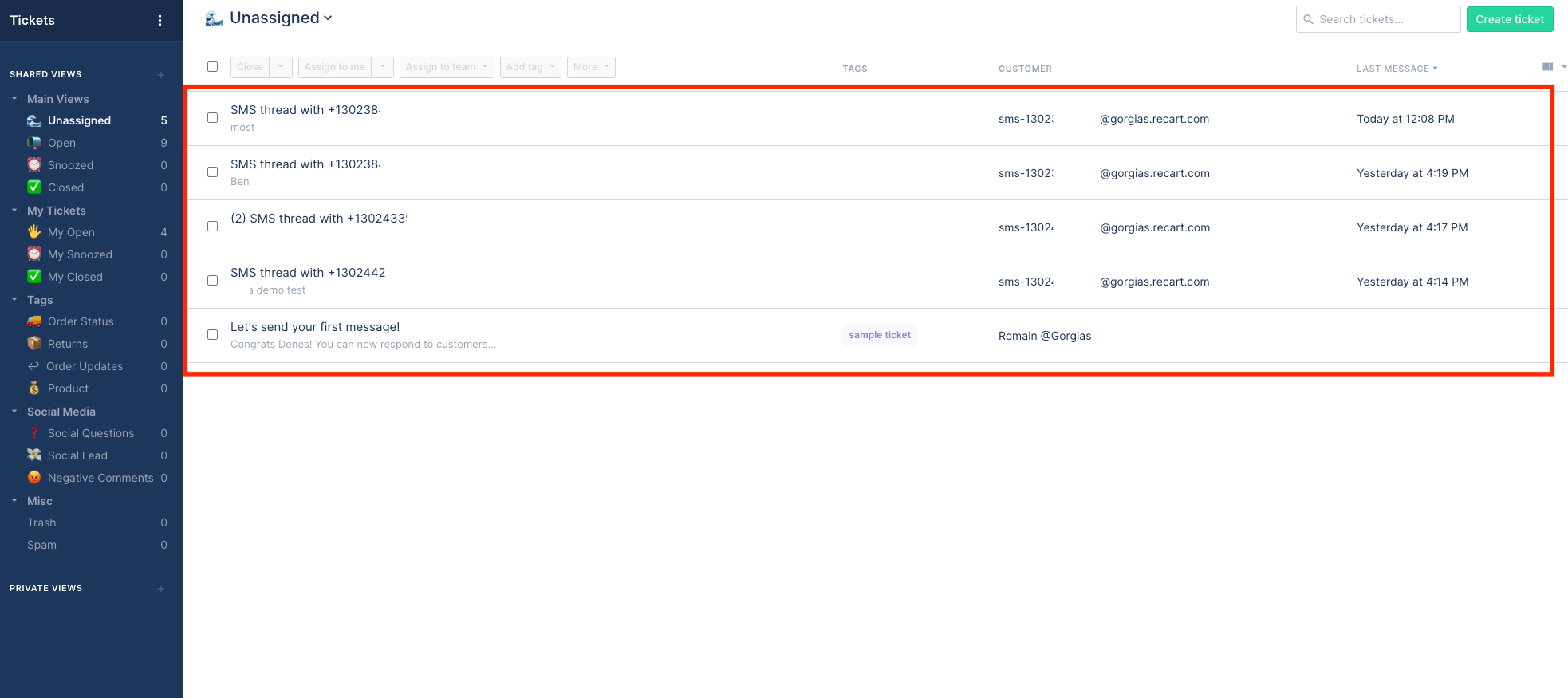
Once the integration is active, and a customer replies to your Recart SMS message, it will appear in your Gorgias account under the Tickets.
You can click on the thread and reply to the customer directly from Gorgias. The customer will see the reply in the SMS thread. Please note that if you close the ticket in Gorgias and the customer replies again, a new ticket will be created. Otherwise, if the conversation is not closed, new replies will appear in the same thread.
If you have any questions, do not hesitate to [contact the Recart Support team.](https://help.recart.com/contact-recart-support.md) We'd be happy to help!
---
# Agent Instructions
This documentation is published with GitBook. GitBook is the documentation platform designed so that both humans and AI agents can read, navigate, and reason over technical content effectively. Learn more at gitbook.com.
## Querying This Documentation
If you need additional information that is not directly available in this page, you can query the documentation by asking a question.
Perform an HTTP GET request on the following URL with the `ask` and `goal` query parameters:
```
GET https://help.recart.com/integrations/helpdesk/gorgias.md?ask=&goal=
```
`ask` is the immediate question: it should be specific, self-contained, and written in natural language.
`goal` is what the user is ultimately trying to achieve, the reason they need the answer. Sharing it helps GitBook give you a better, more relevant answer. A goal is most helpful when it describes the outcome the user wants rather than restating the question. For example, with `ask=how do I create an API token`, a goal like `automate deployments from our CI pipeline` lets GitBook tailor the answer to that use case.
The response will contain a direct answer to the question and relevant excerpts and sources from the documentation.
Use this mechanism when the answer is not explicitly present in the current page, you need clarification or additional context, or you want to retrieve related documentation sections.