> For the complete documentation index, see [llms.txt](https://help.recart.com/llms.txt). Markdown versions of documentation pages are available by appending `.md` to page URLs; this page is available as [Markdown](https://help.recart.com/list-growth/other-opt-in-tools/embedded-form-opt-in-tool.md).
# Opt-in Tools - Embedded Form
Explains how to activate an Embedded Form opt-in that sits directly inside your site's content.
Learn how to activate the Embedded Form opt-in tool and grow your SMS subscriber list further
***
The Embedded Form Opt-in Tool will help you collect subscribers and grow your text list. It is a built-in form, integrated directly into your website's content, and appears as a form that users can fill out with their email address and/or phone number. These opt-ins will serve the purpose of subscribing users and collecting valuable data.
Embedded opt-ins will blend in with the site and will be present on the storefront as part of the site. You can decide where the form is embedded on your website.
This seamless integration makes it convenient for both website owners and users to facilitate communication and stay connected.

### How to Create an Embedded Form Opt-in Tool
### In the Recart App
1. Go to your **Opt-in Tools** page in the Recart app
2. Click **Create New** and select **Embedded Form** 
3. Select the settings you would like to use and click **Continue Editing** 
4. Under **layout** edit the look of your form to suit your brand and your website
* **PRO TIP:** In the background tab, ensure that you drag the opacity slider all the way to the bottom. This way, the background becomes transparent, allowing your website's colors to shine through.

5. Under **general** connect your embedded form to a welcome flow
6. Copy the embedded form code and click **save as active** 
7. If you are activating an embedded form for the first time, a popup will appear after you have clicked save as active where you can also copy the embedded form code

#### 🎥 Watch this video for detailed instructions on setting up an Embedded Form Opt-in Tool in Recart
🎥 [Watch the video](https://play.hubspotvideo.com/v/4890437/id/153623598490)
### In Shopify
#### On All Site Pages
1. Log in to your Shopify account and click on the **Sales channels**
2. Then click **Themes** under your Online Store
3. Click **Customize** on the left-hand side

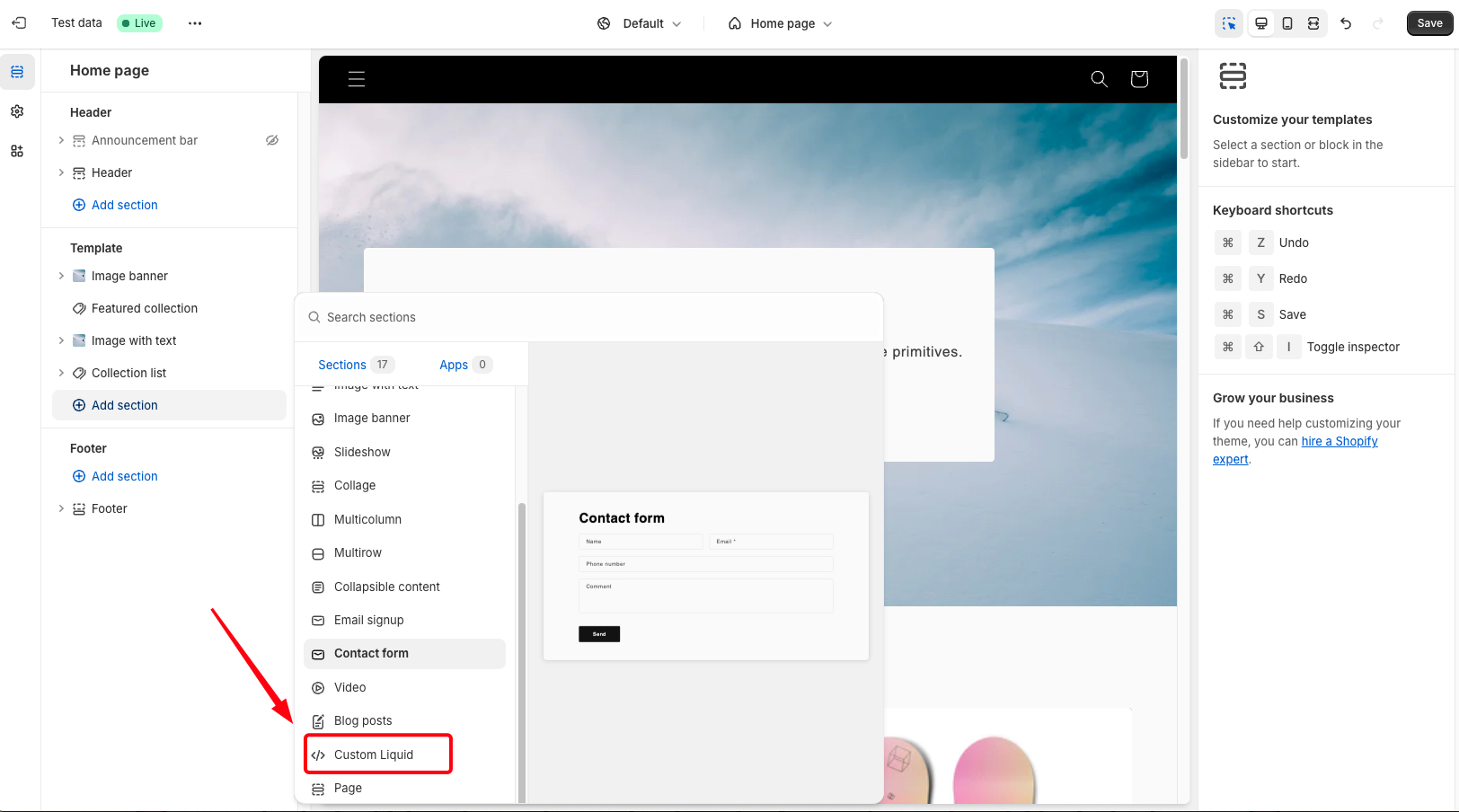
4. Decide where you want the form to go: in the Header, Footer, or Template (body) of your site

5. Select **\ Custom Liquid**
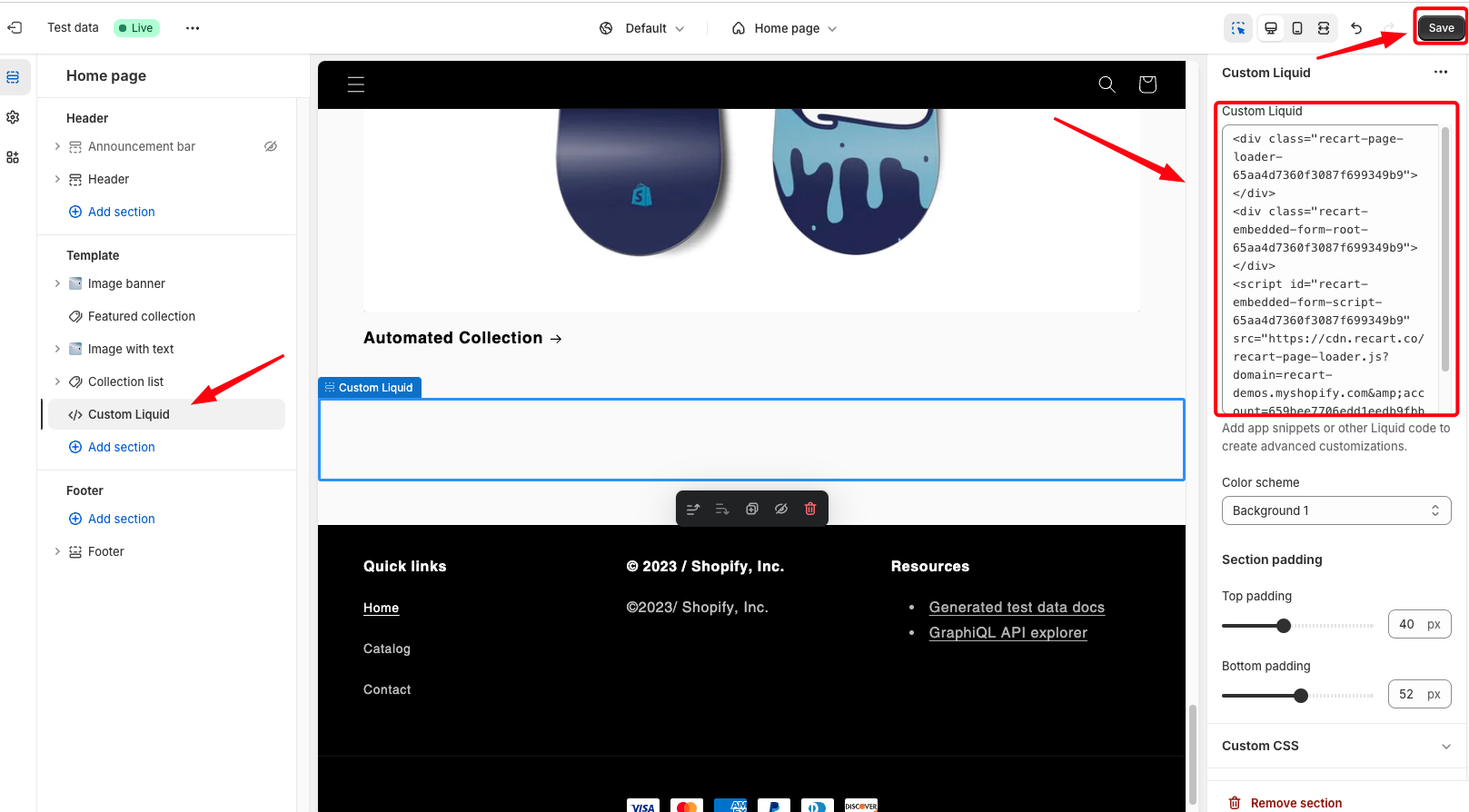
6. Drag **\ Custom Liquid** on the right to the exact place on the page you would like the form to display
7. Paste the Embedded form code on the left-hand side in the **Custom Liquid box** and click **Save**
8. The form will now be displayed in this panel on all pages of your website

#### 🎥 Watch this video for detailed instructions on setting up an Embedded Form in Shopify for all site pages
🎥 [Watch the video](https://play.hubspotvideo.com/v/4890437/id/153623865506)
#### On Specific Pages
1. Log in to your Shopify account and click **Pages** under your Online Store
2. Click on the page you want the form to be shown on

3. Click on the **eye symbol** (view template) next to Online store on the left side

4. Decide where you want the form to go: in the Header, Footer, or Template (body) of your site
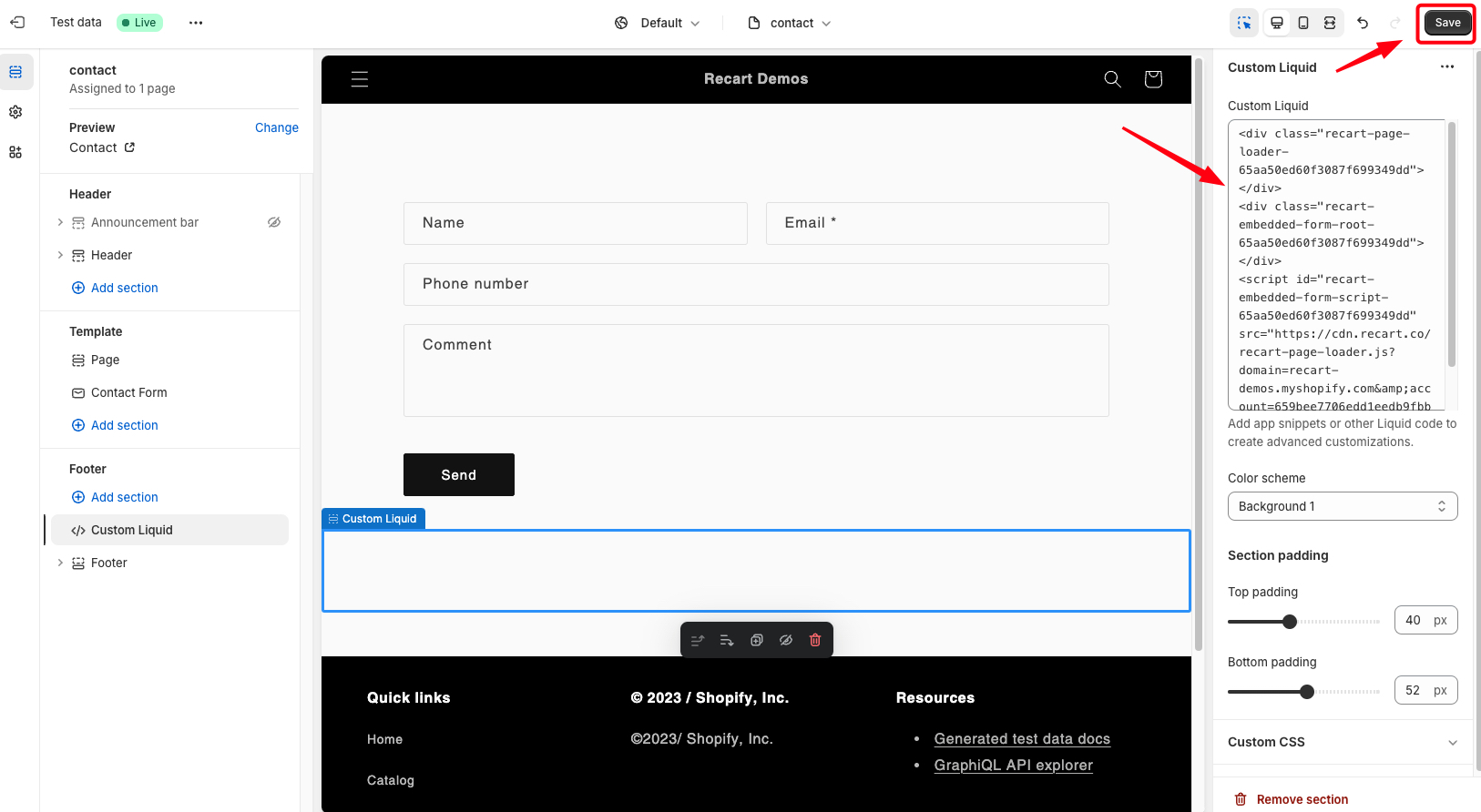
5. Select **\ Custom Liquid** and drag it on the right to the exact place on the page you would like the form to display

6. Paste the Embedded form code on the left-hand side in the **Custom Liquid box** and click **Save**
7. The form will now be displayed in this panel on the page/s you selected for your website

#### 🎥 Watch this video for detailed instructions on setting up an Embedded Form in Shopify for specific pages
🎥 [Watch the video](https://play.hubspotvideo.com/v/4890437/id/153624081778)
**Use case:** a specific product is out of stock and you want people to opt-in to receive a notification once the product has restocked


If you have any questions, do not hesitate to [contact the Recart Support team.](/contact-recart-support.md) We'd be happy to help!
---
# Agent Instructions
This documentation is published with GitBook. GitBook is the documentation platform designed so that both humans and AI agents can read, navigate, and reason over technical content effectively. Learn more at gitbook.com.
## Querying This Documentation
If you need additional information that is not directly available in this page, you can query the documentation by asking a question.
Perform an HTTP GET request on the following URL with the `ask` and `goal` query parameters:
```
GET https://help.recart.com/list-growth/other-opt-in-tools/embedded-form-opt-in-tool.md?ask=&goal=
```
`ask` is the immediate question: it should be specific, self-contained, and written in natural language.
`goal` is what the user is ultimately trying to achieve, the reason they need the answer. Sharing it helps GitBook give you a better, more relevant answer. A goal is most helpful when it describes the outcome the user wants rather than restating the question. For example, with `ask=how do I create an API token`, a goal like `automate deployments from our CI pipeline` lets GitBook tailor the answer to that use case.
The response will contain a direct answer to the question and relevant excerpts and sources from the documentation.
Use this mechanism when the answer is not explicitly present in the current page, you need clarification or additional context, or you want to retrieve related documentation sections.