> For the complete documentation index, see [llms.txt](https://help.recart.com/llms.txt). Markdown versions of documentation pages are available by appending `.md` to page URLs; this page is available as [Markdown](https://help.recart.com/list-growth/popups/engagement-tools.md).
# Engagement Tools
Add an interactive element, like Spin the Wheel, Plinko or Mystery Box, to your popup's Teaser step so visitors play before they opt in.
Engagement tools are interactive elements you add to a popup to make signing up feel like a game. Visitors spin a wheel, drop a ball or pick a box, then land on your offer, which makes them more likely to finish signing up.
Some engagement tools you can add yourself in the popup editor. Others are set up for you by the Recart team on request.
### Available engagement tools
| Tool | What the visitor sees | How to get it |
| ------------------------------------- | ------------------------------------------------------------- | ----------------------------------- |
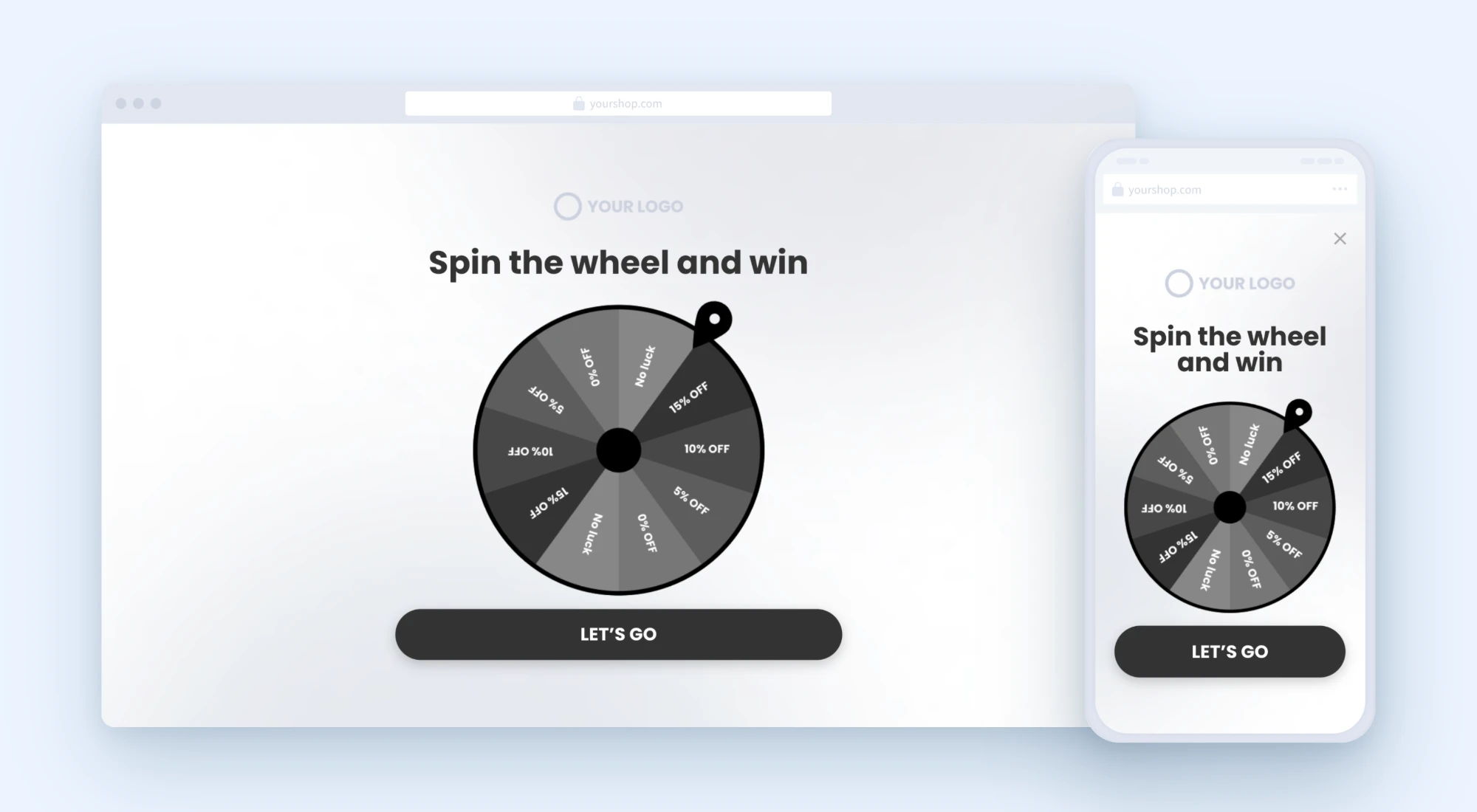
| [**Spin the Wheel**](#spin-the-wheel) | A prize wheel that spins and stops on your winning slice | Add it yourself in the popup editor |
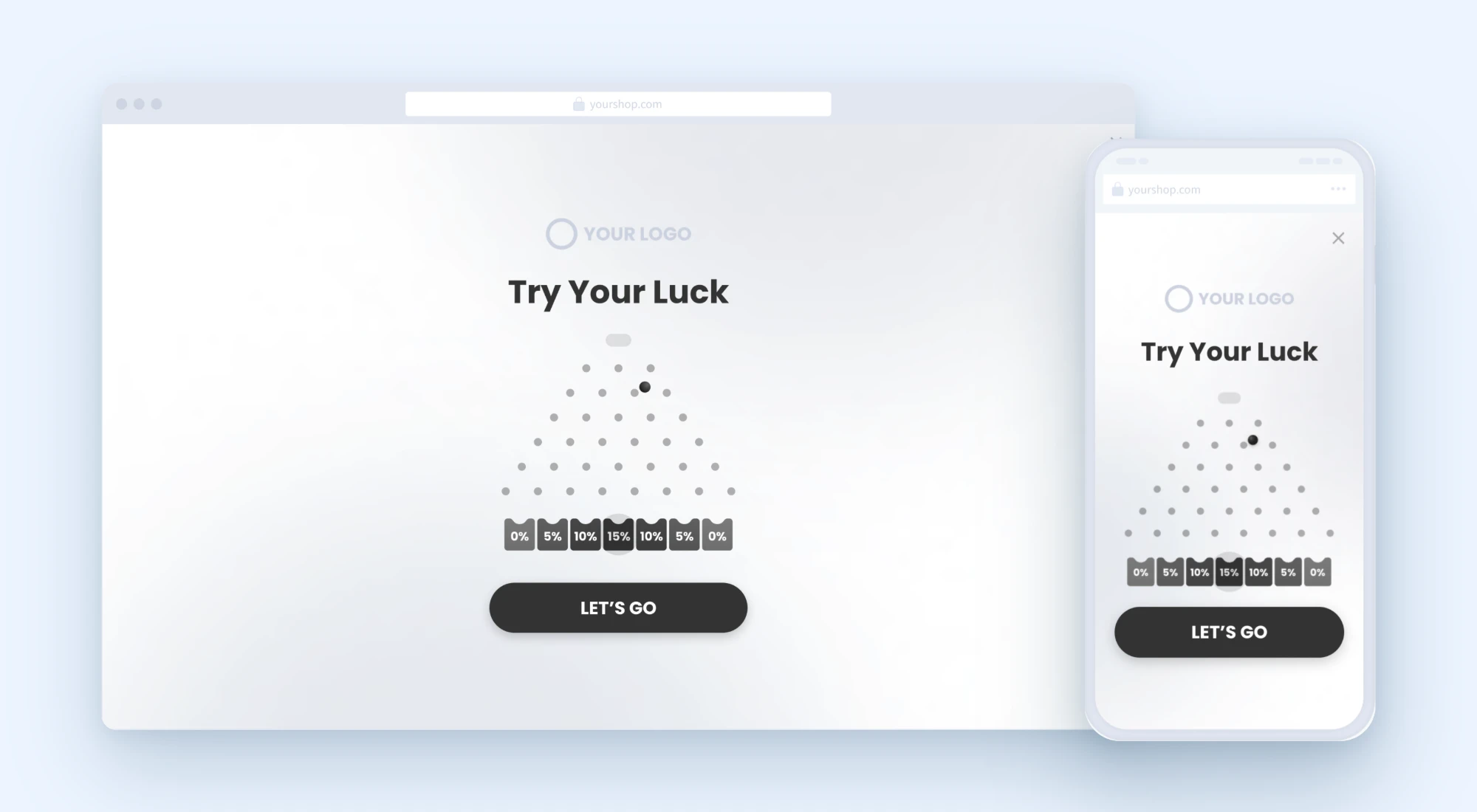
| [**Plinko**](#plinko) | A ball that drops through pegs and lands in your winning slot | Add it yourself in the popup editor |
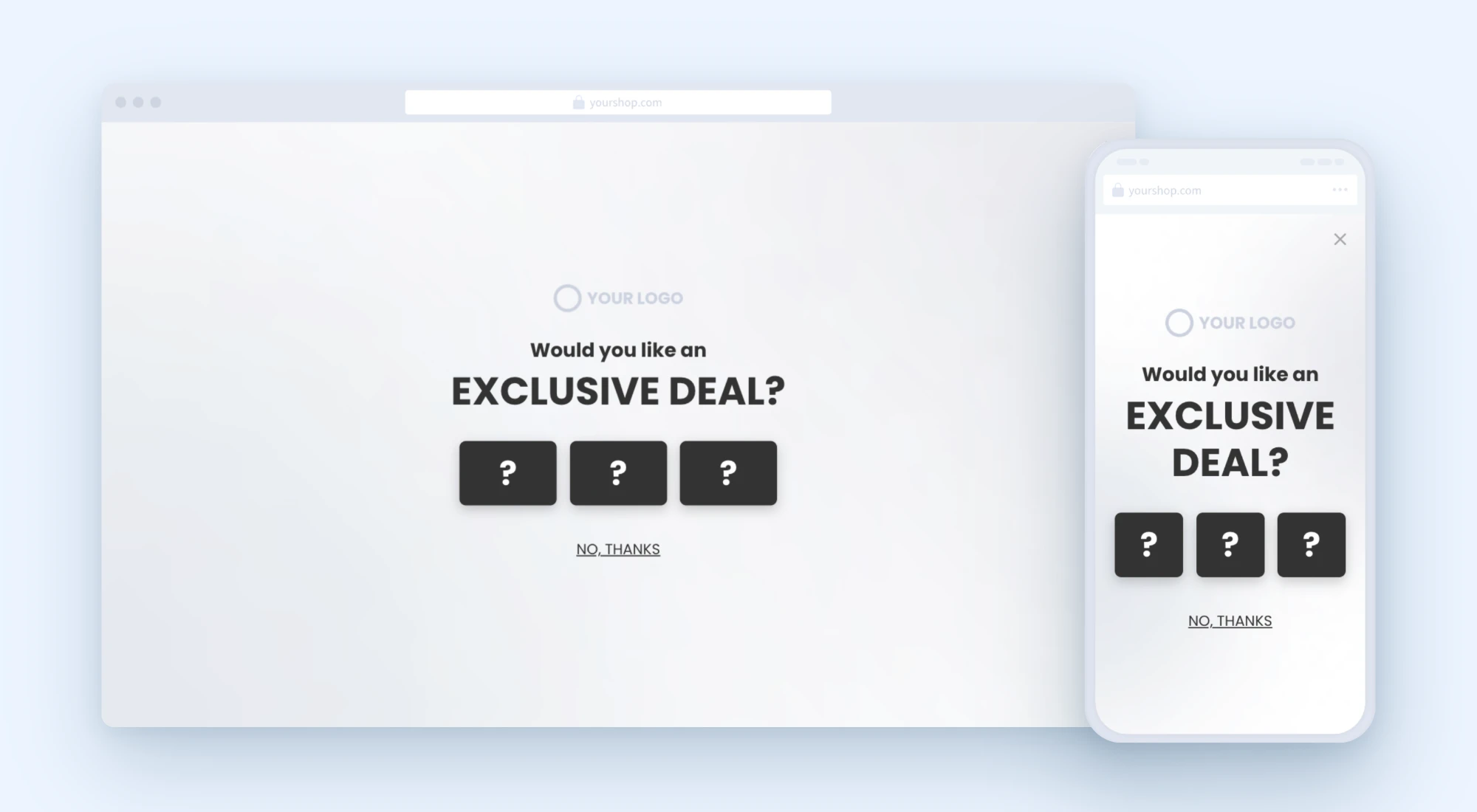
| [**Mystery Box**](#mystery-box) | Three boxes. The visitor picks one to reveal your offer | Add it yourself in the popup editor |
| [**Scratch Card**](#scratch-card) | A card the visitor scratches to reveal your offer | On request |
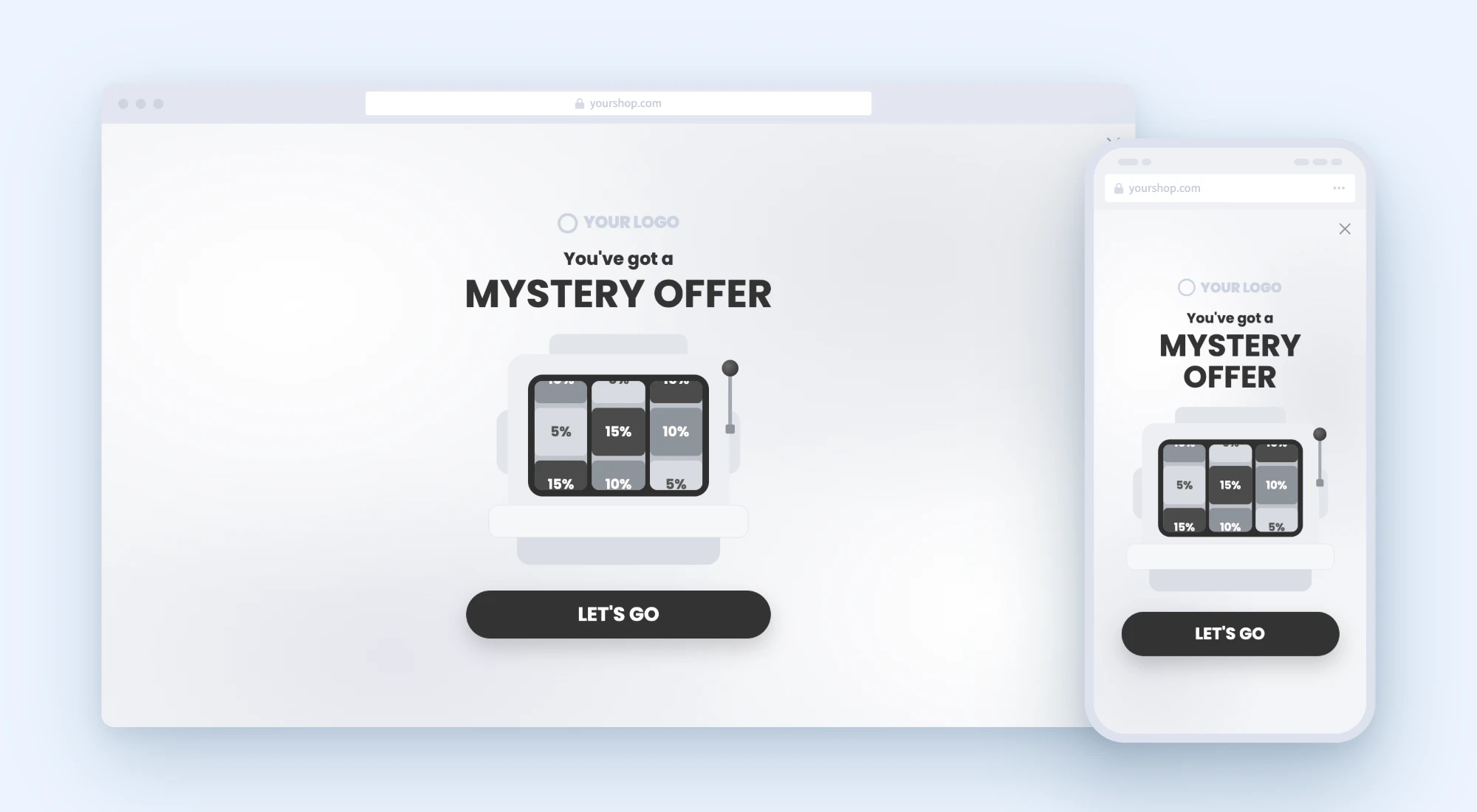
| [**Slot Machine**](#slot-machine) | Reels that spin and line up on your offer | On request |
More engagement tools will be added over time, and tools that are on request today will move into the editor. This page will be updated as they're released.
### How it works
The game sits on the **Teaser step** of your popup:
1. The visitor starts the game: they click the button on the Teaser step (Spin the Wheel and Plinko) or click one of the boxes (Mystery Box)
2. The game animation plays
3. The popup moves on to the next step, where the visitor opts in as usual
Every game comes with a mobile and a desktop design.
{% hint style="info" %}
**The result is always the same.** You choose the winning prize, and the game always lands on it. There's no randomness or probability, so every visitor wins the prize you picked. Mystery Box has no winner at all: every box leads to the same next step.
{% endhint %}
{% hint style="warning" %}
**Prize labels don't create discount codes.** The prizes shown in the game are text only. Set up the real discount on the steps that follow, the same way you would for any popup. See [Update Your Discount](/list-growth/popups/updating-your-popup-discount.md).
{% endhint %}
### Spin the Wheel
A prize wheel with your offers on its slices. The visitor clicks the button, the wheel spins, and it stops on the winning slice you picked.
Select the wheel on the Teaser step to open its settings in the side panel. You can:
* Edit each slice's label and color
* Add, remove and reorder slices
* Set **Repeat slices**, which sets how many times your set of slices repeats around the wheel
* Choose the **Winner**, which is the slice the wheel always stops on
* Style the slice labels: font, size and line height
To add it to a popup, see [Add an engagement tool to a popup](#add-an-engagement-tool-to-a-popup).
### Plinko
A board of pegs with prize slots along the bottom. The visitor clicks the button, a ball drops through the pegs, and it lands in the winning slot you picked.
Select the Plinko board on the Teaser step to open its settings in the side panel. You can:
* Edit each slot's label and color
* Choose the **Winner**, which is the slot the ball always lands in
* Style the slot labels
To add it to a popup, see [Add an engagement tool to a popup](#add-an-engagement-tool-to-a-popup).
For both Spin the Wheel and Plinko, the text color of the labels applies to all slices or slots at once. You can't set it per slice or slot. The game's mechanics and animation are fixed and can't be edited.
### Mystery Box
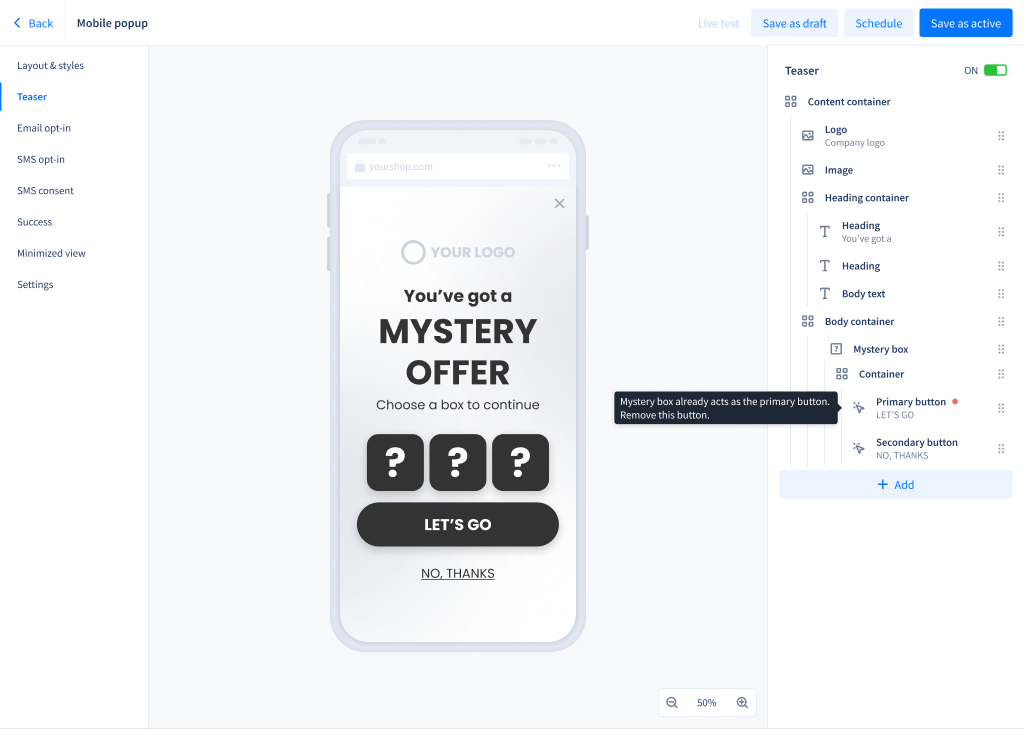
Three closed boxes with a "?" on them. The visitor picks any box, it opens with a short reveal animation, and the popup moves on to the next step.
Mystery Box works a little differently from Spin the Wheel and Plinko:
* **The boxes are the button.** There's no separate primary button on the Teaser step. Clicking a box is what moves the visitor forward. You can still add a secondary button under the boxes, for example "No, thanks"
* **There's no winner and no prize per box.** All three boxes lead to the same next step, so you can't set a different prize for each box. Write your offer in the heading of the next step, for example "You unlocked 20% off"
* **There are always three boxes.** The number of boxes can't be changed
In the editor, the boxes show as a still picture. The reveal animation plays on your store.
#### Edit the boxes
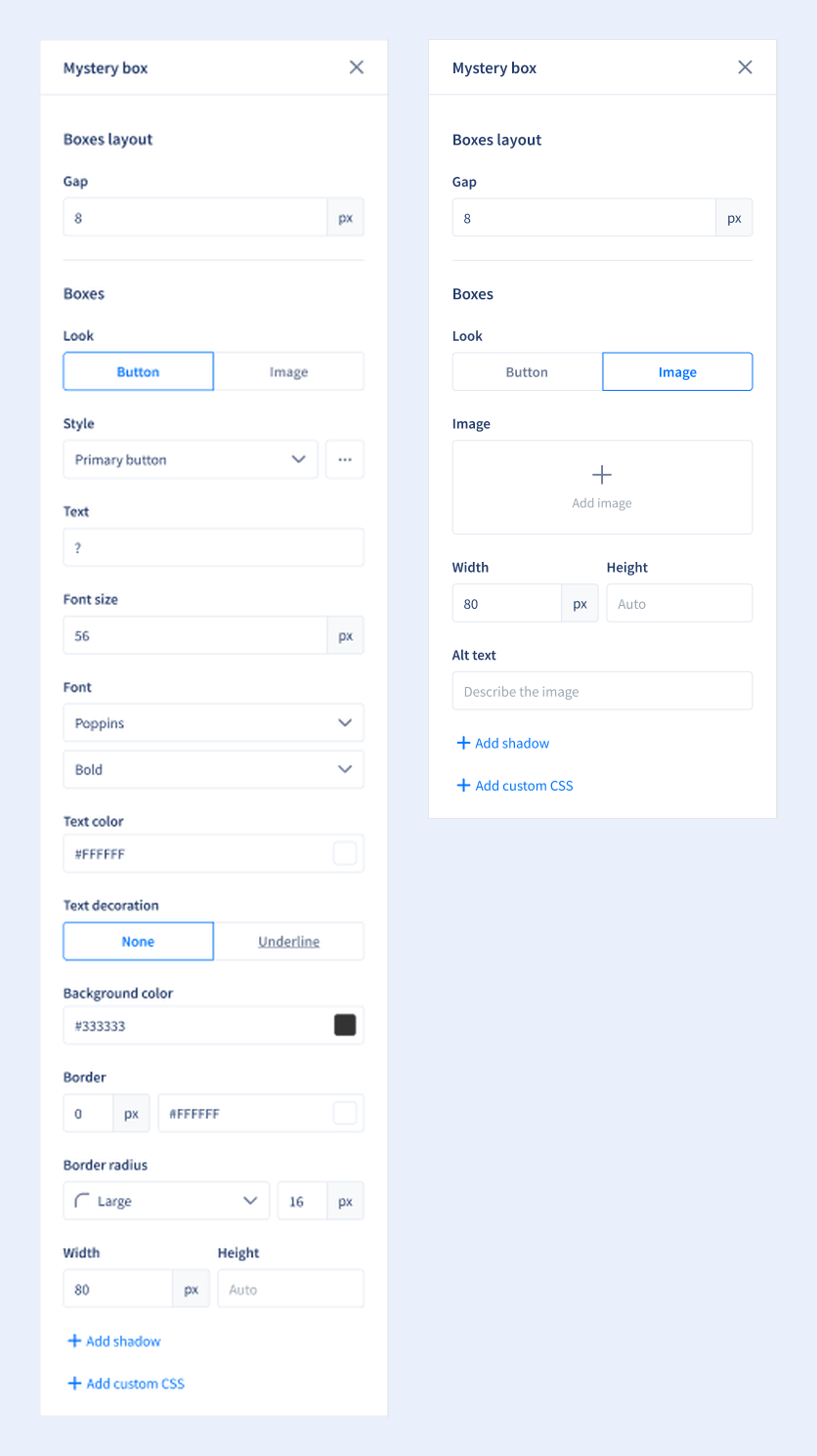
Select the Mystery box on the Teaser step to open its settings in the side panel.
Under **Boxes layout**, set the **Gap** between the boxes.
Under **Boxes**, choose a **Look**:
* **Button** (default): the boxes use your popup's **Primary button** style, so they match your buttons. If you change the primary button's general style, the boxes change with it. Use the **⋯** menu next to **Style** to edit, reset, apply or unlink the general style, the same way as for buttons. You can also change:
* The **Text** on the boxes (default "?"), its font, size, color and decoration
* The background color and border
* The **Border radius**: None, Small or Large
* **Width** and **Height**. Leave Height on **Auto** to keep the boxes square
* A shadow and custom CSS
* **Image**: upload one picture, and it's shown on all three boxes. You can set its width and height, alt text, a shadow and custom CSS. We recommend at least 160×160 px for mobile popups and 240×240 px for desktop popups, and the uploader warns you if your picture is smaller. Files must be under 3 MB
If you switch from Image back to Button, your button settings are still there.
To add it to a popup, see [Add an engagement tool to a popup](#add-an-engagement-tool-to-a-popup).
### Scratch Card
A card with a scratch-off layer. The visitor scratches the card to uncover your offer.
{% hint style="info" %}
**Available on request.** Scratch Card isn't in the popup editor yet. The Recart team sets it up on your popup for you, including the design and the offer. To request it, [contact the Recart Support team](/contact-recart-support.md) or your Customer Success Manager.
{% endhint %}
### Slot Machine
A set of slot machine reels. The visitor clicks the button, the reels spin, and they line up on your offer.
{% hint style="info" %}
**Available on request.** Slot Machine isn't in the popup editor yet. The Recart team sets it up on your popup for you, including the design and the offer. To request it, [contact the Recart Support team](/contact-recart-support.md) or your Customer Success Manager.
{% endhint %}
For any on-request tool, let us know which popup you'd like it on and the offer you want visitors to win. Changes later on, like a new offer or new colors, also go through the Recart team until the tool is added to the editor.
### Add an engagement tool to a popup
You can add Spin the Wheel, Plinko or Mystery Box yourself.
#### When you create a new popup
1. Go to [**Opt-in Tools**](https://app.recart.com/optin-tools) and click **Create New**
2. In the setup wizard, open the **Engagement type** dropdown and choose **Spin the wheel**, **Plinko** or **Mystery box**. If you also see a **Template** dropdown, keep it on **Opt-in offer**
3. The editor opens with a fully built popup, with the game already working. Edit it to match your offer
For Mystery Box, the Teaser step comes with your logo, the heading "You've got a MYSTERY OFFER", the text "Choose a box to continue" and the three boxes. There's an empty space below the boxes where you can add a secondary button.
#### On an existing popup
1. Open the popup in the editor and go to the **Teaser step**
2. Click **Add** in the layer list
3. Under **Engagement tools**, choose **Spin the wheel**, **Plinko** or **Mystery box**
You can add, swap or remove the game on the Teaser step at any time. If the step already has an engagement tool, the others are greyed out with the message "Only one engagement tool per step. Delete the one you added to swap it."
#### On a duplicated popup
When you duplicate a popup, for example to run an [A/B test](/list-growth/testing-and-scheduling/popup-a-b-testing.md), the copy keeps the game and its settings, like colors, prizes and winner. The template dropdown doesn't appear in the wizard for duplicates, but you can still change or add a game in the editor.
If you switch to a different game template on a duplicated popup, the Teaser heading is kept and everything else resets to the new game's defaults.
If you add a Mystery Box to a copy that already has a primary button on the Teaser step, delete that button (see [Rules and limits](#rules-and-limits)).
### Rules and limits
* **One engagement tool per step.** A Teaser step can have one game or one button group. To swap it, delete the one you added first
* **Teaser step only.** Games can only be placed on the Teaser step
* **Spin the Wheel and Plinko need a button.** The Teaser step needs a primary CTA button, since it starts the game and moves the visitor to the next step. The game and the button are separate elements, so you can reorder them on the Teaser step
* **Mystery Box can't have a primary button.** The boxes already act as the button. If there's a primary button on the same step, for example after duplicating a popup, its layer shows a red dot with the message "Mystery box already acts as the primary button. Remove this button." Delete the button to fix it
* **Spin the Wheel and Plinko need a winner.** Pick a winning slice or slot. Mystery Box has no winner
* **Mystery Box images need alt text.** If you use the Image look, add a picture and alt text
You can save a popup with any of these errors as a draft, but you can't activate or schedule it until they're fixed. The steps with errors are marked with a red dot.
### Frequently asked questions
**Can visitors win different prizes?**
No. Every visitor lands on the winner you selected. If you want to test different offers, run an [A/B test](/list-growth/testing-and-scheduling/popup-a-b-testing.md) with a different winner on each popup.
**Can each Mystery Box have a different prize?**
No. All three boxes lead to the same next step, where you show your offer. To test different offers, run an [A/B test](/list-growth/testing-and-scheduling/popup-a-b-testing.md) with a different offer on each popup.
**Does the prize in the game create a discount code?**
No. Prize labels are text only. Add the discount on the following steps as usual.
**Can I add more than one game to a popup?**
No, each popup can have one game, on the Teaser step.
**Can I A/B test one game against another?**
Yes. Duplicate your popup, swap the game on the copy, and run an [A/B test](/list-growth/testing-and-scheduling/popup-a-b-testing.md) between them. This works for on-request games too. Ask the Recart team to set up the variant.
**I already have a Mystery Box that the Recart team set up. What happens to it?**
The Recart team switches it to the Mystery Box you can edit yourself, so you don't need to do anything. If the popup is in an A/B test, it's switched once the test ends. If anything looks off afterwards, [contact the Recart Support team](/contact-recart-support.md).
**Can I preview the game before going live?**
Yes. [Preview](/list-growth/popups/opt-in-tools-popup-preview.md) supports gamified popups, so you can see the game on your store before it goes live.
If you have any questions, do not hesitate to [contact the Recart Support team.](/contact-recart-support.md) We'd be happy to help!
---
# Agent Instructions
This documentation is published with GitBook. GitBook is the documentation platform designed so that both humans and AI agents can read, navigate, and reason over technical content effectively. Learn more at gitbook.com.
## Querying This Documentation
If you need additional information that is not directly available in this page, you can query the documentation by asking a question.
Perform an HTTP GET request on the following URL with the `ask` and `goal` query parameters:
```
GET https://help.recart.com/list-growth/popups/engagement-tools.md?ask=&goal=
```
`ask` is the immediate question: it should be specific, self-contained, and written in natural language.
`goal` is what the user is ultimately trying to achieve, the reason they need the answer. Sharing it helps GitBook give you a better, more relevant answer. A goal is most helpful when it describes the outcome the user wants rather than restating the question. For example, with `ask=how do I create an API token`, a goal like `automate deployments from our CI pipeline` lets GitBook tailor the answer to that use case.
The response will contain a direct answer to the question and relevant excerpts and sources from the documentation.
Use this mechanism when the answer is not explicitly present in the current page, you need clarification or additional context, or you want to retrieve related documentation sections.