> For the complete documentation index, see [llms.txt](https://help.recart.com/llms.txt). Markdown versions of documentation pages are available by appending `.md` to page URLs; this page is available as [Markdown](https://help.recart.com/sms/automated-flows/automated-flows-keyword-reply.md).
# Automated Flows - Keyword Reply
Shows how to set up Keyword Replies so subscribers can trigger a flow by texting back a specific word.
Use this guide to set up Keyword Replies in your automated flows so you can create interactive, two-way conversations with your subscribers.
***
### What Is a Keyword Reply?
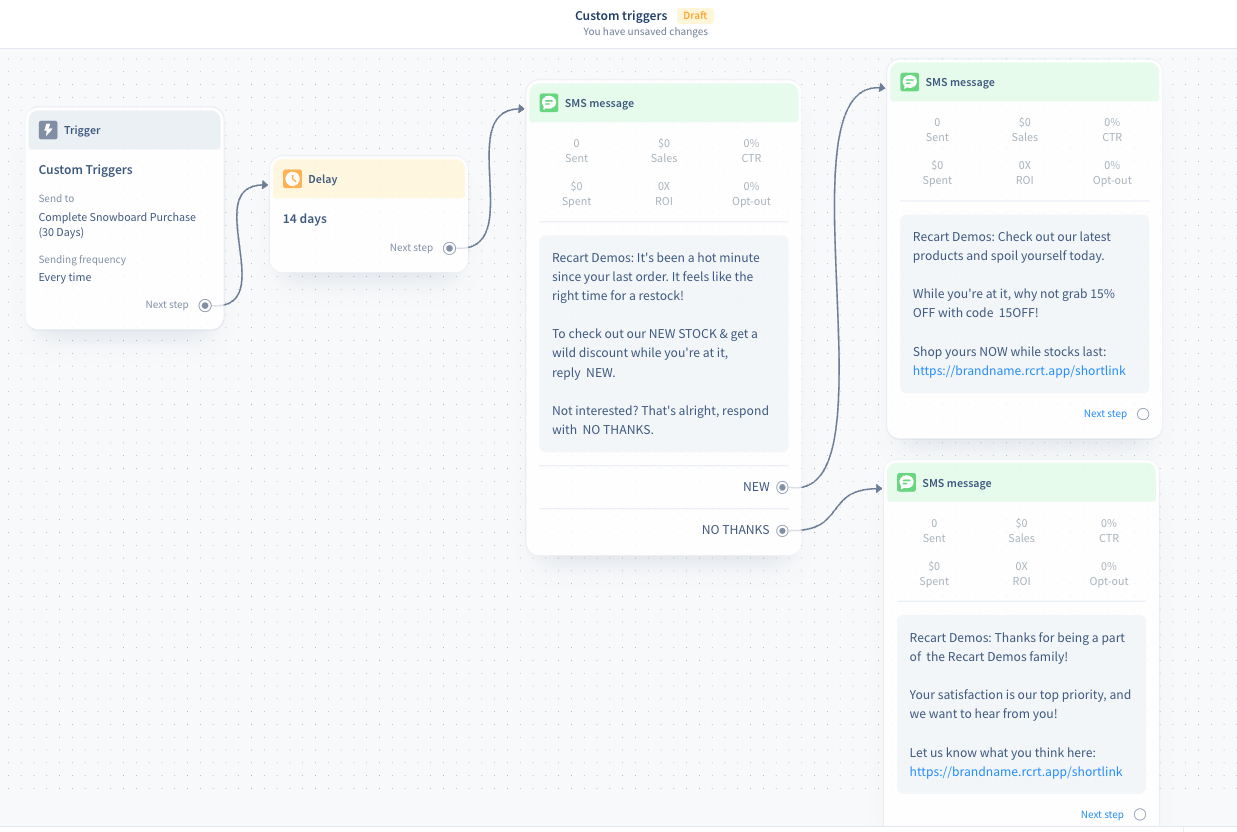
A **Keyword Reply** lets subscribers respond to your SMS message with a specific word to trigger an action, deal, or follow-up message. This turns one-way texts into interactive, two-way conversations.
You're not limited to a single question — you can include multiple questions and keyword options in the same flow to collect detailed preferences from your subscribers. Keyword Replies also work in MMS messages.
**Note:** Keyword Reply only works in **Two-way messaging countries** (such as the US and Canada). Subscribers in one-way countries will receive the message but will not be able to respond.
### Keyword Reply vs. Compliance Keywords
It's important to understand the difference between conversational Keyword Replies and compliance keywords — they serve completely different purposes.
| Type | Purpose | Examples | Managed By |
| ------------------------------------- | --------------------------------------------------------------- | --------------------------------------------------- | -------------------------------- |
| **Keyword Reply** (conversational) | Triggers a follow-up message or action inside an automated flow | DEAL, YES, REVIEW, SHOP | You (in the flow editor) |
| **Compliance keywords** (operational) | Manages subscription status (opt-in, opt-out, help) | STOP, UNSUBSCRIBE, START, UNSTOP, RESUBSCRIBE, HELP | Mobile carriers & SMS aggregator |
**Key differences:**
* **Compliance keywords** are handled at the carrier level. When a subscriber texts **STOP**, they are blocked by the carrier — not by Recart. To opt back in, they must text **START**, **UNSTOP**, or **RESUBSCRIBE**. A popup alone will not resubscribe them.
* **You cannot use compliance keywords** (opt-in, opt-out, or help keywords) as conversational Keyword Replies in your flows.
### How to Add a Keyword Reply to an Automated Flow
1. Go to your [**Automated Flows**](https://app.recart.com/automated-flows) page.
2. Select the **flow** you want to edit.

3. Open the **text editor** of the SMS message where you want to add a keyword.
4. Click the **Keyword icon** in the editor toolbar.
5. Type the keyword you want to use.
6. Click **Insert keyword**.

7. Once inserted, the keyword appears below the message item as a **branch option**.

8. **Connect the keyword to the next item** in your flow (another message, delay, conditional split, etc.) to define what happens when a subscriber replies.

**Important**: You must connect each keyword to another item in the flow. Without a connection, nothing will happen when a subscriber replies with the keyword.
### Keyword Guidelines
Follow these rules when creating keywords:
| Rule | Details |
| -------------------------- | ---------------------------------------------------------------------------- |
| **Characters** | Use alphanumeric characters only (A–Z and 0–9) |
| **Length** | Between 1 and 20 characters |
| **No special characters** | Characters like !, @, $, or spaces are not allowed |
| **No emojis** | Emojis render differently across devices and cannot be used |
| **Single word only** | Keywords cannot contain spaces, phrases, or sentences |
| **Not case-sensitive** | "DEAL" and "deal" are treated the same |
| **No compliance keywords** | You cannot use STOP, START, HELP, UNSUBSCRIBE, or other operational keywords |
> **Avoid common words** like "the," "that," "yes," "no," "can," "here," or "and." Subscribers may accidentally trigger a keyword during normal conversation.
### Some use cases for Keyword Reply in automated flows
**Use case:** SMS Receipt feedback follow up - send link to a feedback survey; OR ask customers who loved the product to leave a review while contacting those who were not too happy.


**Use case:** Send VIP customers a special discount and increase engagement with them.

**Use case:** Send a follow-up message to customers who enter a segment because they have purchased a certain product whether they are interested in your new stock or would like to leave a review.
**Use case:** Send a follow-up message to customers who enter a segment because they have purchased a certain product about restocking their supplies.

**Use case:** get interactive in your welcome flow by asking customers whether they want to view reviews.
**Use case:** get interactive in your welcome flow by offering customers the chance to enter a competition

**Use case:** get interactive in your welcome flow by offering customers the chance to enter a competition

**More ideas:**
* Ask subscribers to enter a competition by replying with a keyword
* Direct customers to track their order by replying with a keyword
* Collect feedback on delivery speed or customer support quality
* Let customers rate your service on a scale (1–5) and route responses accordingly
* Create a chatbot-like experience in your Help flow using multiple keyword branches
### Important Notes
**Editing keywords** You cannot edit a keyword after creating it. To change a keyword, delete the existing one and create a new one.
**Keyword status** A keyword inherits the status of its automated flow. Keywords only trigger follow-up messages when the flow is **active**.
**Reusing keywords across flows** You can use the same keyword in different flows and even multiple times within the same flow. If a subscriber receives multiple messages containing the same keyword, their reply is matched to the **most recently sent** message with that keyword.
**Misspelled or unexpected responses** If a subscriber misspells the keyword or sends a longer response than expected, **no auto-response is sent**. The message is routed to your **Inbox** instead, so you can respond manually.
**Quiet Hours and Smart Sending** When a subscriber replies with a keyword, they expect an immediate response. For this reason, **Quiet Hours and Smart Sending are automatically disabled** for the next message after a keyword reply.
**Two-way vs. one-way countries** Keyword Reply only works in **two-way messaging countries** (such as the US and Canada). Recart does not block sending to one-way countries — subscribers will receive the message but cannot respond. A warning is displayed when your segment includes one-way subscribers.

### Troubleshooting
**Subscriber replied but didn't receive a follow-up:** Check that the keyword is connected to a follow-up item in the flow, and that the flow is active. Also verify the subscriber is in a two-way messaging country.
**Keyword isn't triggering the right response:** If you use the same keyword in multiple messages, the system matches the reply to the most recently sent message. Review your flow to make sure keywords are unique where needed.
**Subscriber's reply went to the Inbox instead:** This means the subscriber misspelled the keyword or included extra text. Keyword matching requires an exact, single-word match.
### Best Practices
* **Required:** Always connect your keyword to a follow-up item in the flow — an unconnected keyword does nothing.
* **Recommended:** Use short, clear, action-oriented keywords (e.g., SHOP, YES, DEAL, REVIEW) that are easy to type and hard to misspell.
* **Recommended:** Avoid common everyday words to prevent accidental triggers during normal conversation.
* **Recommended:** Include the keyword in your message text so subscribers know exactly what to reply (e.g., "Reply **DEAL** to claim your discount").
* **Avoid:** Using keywords that are similar to compliance keywords (STOP, HELP, START) — this can confuse subscribers.
If you have any questions, do not hesitate to [contact the Recart Support team.](/contact-recart-support.md) We'd be happy to help!
---
# Agent Instructions
This documentation is published with GitBook. GitBook is the documentation platform designed so that both humans and AI agents can read, navigate, and reason over technical content effectively. Learn more at gitbook.com.
## Querying This Documentation
If you need additional information that is not directly available in this page, you can query the documentation by asking a question.
Perform an HTTP GET request on the following URL with the `ask` and `goal` query parameters:
```
GET https://help.recart.com/sms/automated-flows/automated-flows-keyword-reply.md?ask=&goal=
```
`ask` is the immediate question: it should be specific, self-contained, and written in natural language.
`goal` is what the user is ultimately trying to achieve, the reason they need the answer. Sharing it helps GitBook give you a better, more relevant answer. A goal is most helpful when it describes the outcome the user wants rather than restating the question. For example, with `ask=how do I create an API token`, a goal like `automate deployments from our CI pipeline` lets GitBook tailor the answer to that use case.
The response will contain a direct answer to the question and relevant excerpts and sources from the documentation.
Use this mechanism when the answer is not explicitly present in the current page, you need clarification or additional context, or you want to retrieve related documentation sections.