> For the complete documentation index, see [llms.txt](https://help.recart.com/llms.txt). Markdown versions of documentation pages are available by appending `.md` to page URLs; this page is available as [Markdown](https://help.recart.com/sms/campaigns/ai-generated-variants.md).
# AI-Generated Variants
Let Recart's AI write the variants for your Adaptive Campaign from your Control message, in your brand voice.
In an [Adaptive Campaign](/sms/campaigns/adaptive-campaigns.md), you test your **Control** message against one or more variants, and Recart sends the winner to the rest of your audience. Instead of writing every variant yourself, you can let Recart's AI write them for you.
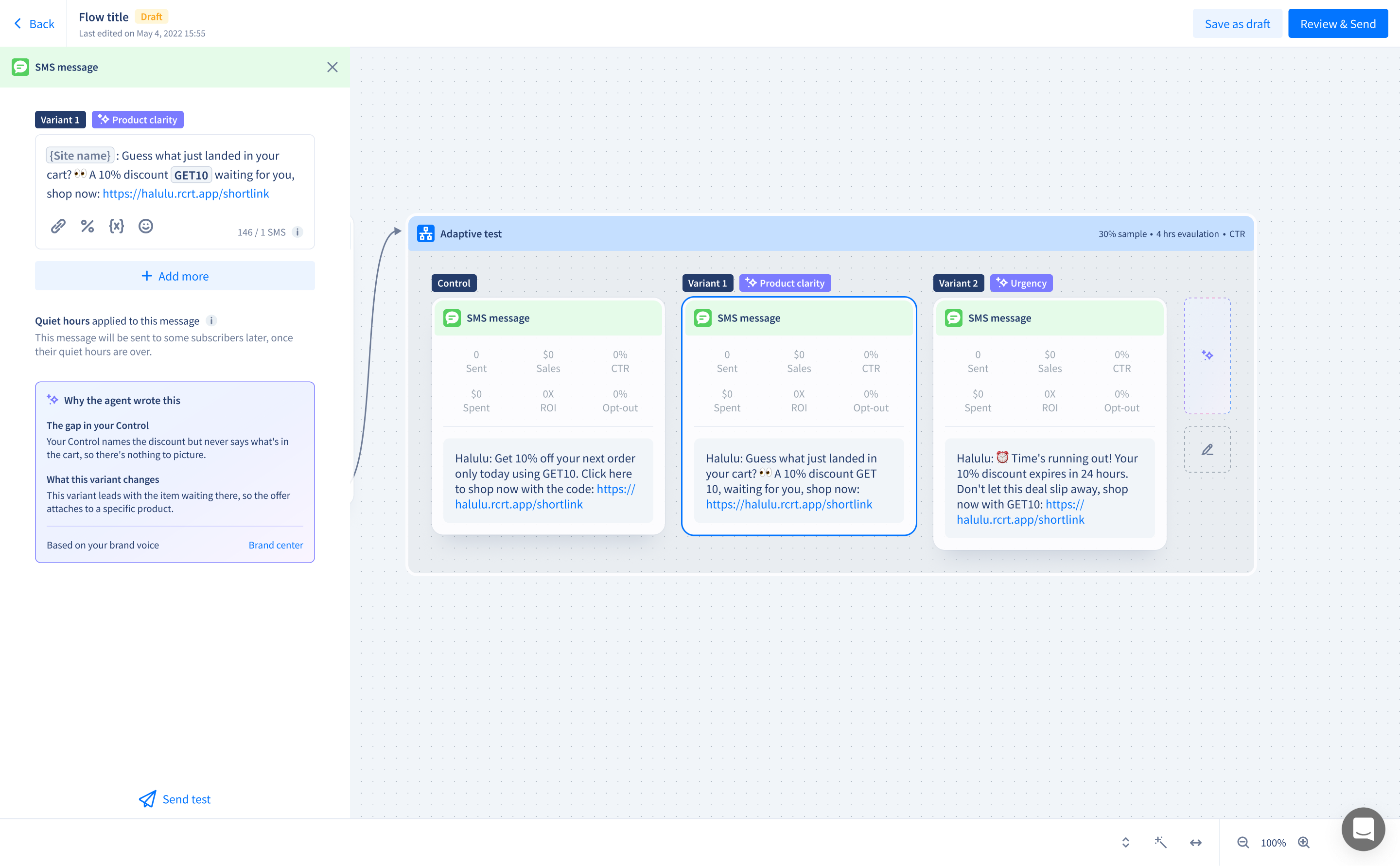
The AI reads your Control, finds its weak spots, and writes one variant for each. Every variant changes a different part of the message, like the hook, the offer or the urgency, so you're testing real differences rather than small rewordings. Each one is written in your brand voice.
{% hint style="info" %}
**AI variants need your brand voice.** Set it up once in the [Brand center](https://help.recart.com/sms/writing-messages/brand-center). It only takes a few minutes.
{% endhint %}
### Generate AI variants
1. Create an [Adaptive Campaign](/sms/campaigns/adaptive-campaigns.md) and write your **Control** message
2. In the **Adaptive test**, click **Generate AI variants**
3. The **AI generated variants** panel opens and the AI starts writing. You'll see each step as it happens: reading your Control, analyzing your audience, reading your brand voice, writing the variants and checking their length and content
4. Review the variants. Each one has a label showing what it changes. Hover over the **i** next to the label to see why the AI wrote it
5. Untick any variant you don't want to test
6. Click **Add variants to test**
The AI writes up to 3 variants at a time. The label on each one shows which part of the message it changes: **Hook & opener**, **Offer framing**, **Product clarity**, **Urgency**, **Social proof**, **Call to action**, **Emotional register** or **Audience specificity**.
You can mix AI variants with your own. Click **Write manual variant** to add one by hand.
### Rewrite, regenerate or edit
* **Rewrite one variant:** click the rewrite icon on a variant (**Rewrite this message**) to get a new version of just that one
* **Regenerate all:** click **Regenerate variants** for a completely new set. Variants you've already added to the test stay on the canvas
* **Edit after adding:** once a variant is in the test, it's a normal SMS message, so you can edit it like any other. The **Why the agent wrote this** card shows the gap the AI found in your Control and what the variant changes
When you edit an AI variant, its label changes to **Edited AI variant**. To go back to the AI's version, hover over the label and click **Restore AI original**.
### Limits
* **Up to 3 variants per generation**
* **Up to 5 messages per test**, including your Control. If you select more variants than fit, deselect some before adding them
* **SMS rules still apply.** Check each variant's length and segment count, the same as for a message you write yourself. See [SMS Character Counting and Limits](/sms/writing-messages/sms-character-counting-and-limits.md)
* **Check every variant before you send.** The AI works from your Control message, including its discount code and link, but you're in charge of what goes out
### If something goes wrong
**"The agent needs your brand voice first"**
You don't have a brand voice yet. Click **Go to brand center** and set it up. You only need to do this once.
**"We couldn't generate all 3 variants"**
Sometimes fewer than 3 variants come back. Click **Try generating again** to fill the set.
**"Generation failed"**
Click **Try again**. If it keeps failing, [contact the Recart Support team](/contact-recart-support.md).
### Frequently asked questions
**Can I use AI variants in automated flows or emails?**
No. AI variants are only available in Adaptive Campaigns, for SMS.
**Can I write my own variants too?**
Yes. Use **Write manual variant** to add your own alongside the AI's, up to 5 messages in total.
**The variants don't sound like my brand. What can I do?**
Regenerate them, or improve your brand voice in the [Brand center](https://help.recart.com/sms/writing-messages/brand-center). The more accurate your brand voice, the better the variants.
**Do I have to use all the variants the AI writes?**
No. Untick the ones you don't want before you add them to the test.
If you have any questions, do not hesitate to [contact the Recart Support team.](/contact-recart-support.md) We'd be happy to help!
---
# Agent Instructions
This documentation is published with GitBook. GitBook is the documentation platform designed so that both humans and AI agents can read, navigate, and reason over technical content effectively. Learn more at gitbook.com.
## Querying This Documentation
If you need additional information that is not directly available in this page, you can query the documentation by asking a question.
Perform an HTTP GET request on the following URL with the `ask` and `goal` query parameters:
```
GET https://help.recart.com/sms/campaigns/ai-generated-variants.md?ask=&goal=
```
`ask` is the immediate question: it should be specific, self-contained, and written in natural language.
`goal` is what the user is ultimately trying to achieve, the reason they need the answer. Sharing it helps GitBook give you a better, more relevant answer. A goal is most helpful when it describes the outcome the user wants rather than restating the question. For example, with `ask=how do I create an API token`, a goal like `automate deployments from our CI pipeline` lets GitBook tailor the answer to that use case.
The response will contain a direct answer to the question and relevant excerpts and sources from the documentation.
Use this mechanism when the answer is not explicitly present in the current page, you need clarification or additional context, or you want to retrieve related documentation sections.