> For the complete documentation index, see [llms.txt](https://help.recart.com/llms.txt). Markdown versions of documentation pages are available by appending `.md` to page URLs; this page is available as [Markdown](https://help.recart.com/sms/writing-messages/add-images-to-sms-messages.md).
# Add Images to SMS Messages
Shows how to add images or GIFs to a text message, which converts it into an MMS message.
Use this guide to add images and GIFs to your SMS messages so you can send visually engaging, branded communications to your subscribers.
### How It Works
When you add an image or GIF to a text message, it automatically converts to an **MMS message**. You can add images directly in the campaign or flow editor.
1. Open the **Campaign** or **Flow** editor.
2. Click **+ Add more** and select **Image/GIF**.
3. Add your image in one of two ways:
1. **Drag and drop** your file into the upload box.
2. Click **Product images** to pull images directly from your Shopify store. You can search by product name.
4. To replace or remove an image, hover over the image element in the editor and use the controls that appear.

**Note:** Each message can contain a maximum of one text element and one image element. To include additional images, add a separate message block.


### Supported File Types & Size Requirements
| Type | Supported Formats | Max Size |
| ----- | -------------------------------------------------- | -------- |
| Image | JPG, JPEG, PNG, WebP (converted to JPEG on upload) | 25 MB |
| GIF | GIF (no sound supported) | 500 KB |
Keep image files as small as possible — **200 KB or under is recommended** for best delivery speed. Exceeding the size limits will prevent the file from uploading or cause the message to fail delivery.
### Image Orientation & Dimensions
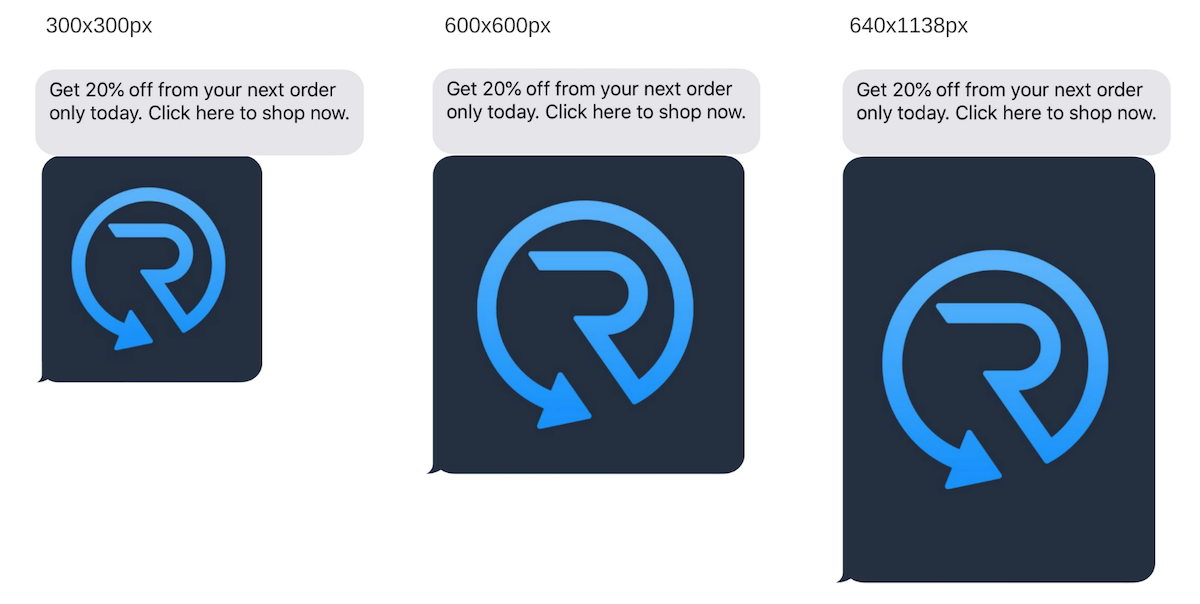
Images that exceed the recommended dimensions may be cropped on the recipient's device, requiring them to tap to expand.
### Character Limit for MMS Messages
When a message is converted to MMS (by adding an image or GIF), the character limit increases from the standard SMS limit to **1,000 characters**.
If you need more text, add a separate message block — either a plain SMS or another MMS with an image.
### Best Practices
**Required:**
* Stay within the 500 KB GIF size limit. Larger files will fail to upload or deliver.
**Recommended:**
* Use square (1:1) or vertical (9:16) images — these display best across most mobile devices.
* Keep images under 200 KB to improve delivery speed.
* Use short GIF animations. Long GIFs are often skipped before they finish playing.
* Keep GIF content simple — product shots, collection banners, or promotional graphics work best.
* Stick to a consistent image size once you find what works for your brand.

**Avoid:**
* Adding images or GIFs to **welcome flows or time-sensitive messages.** MMS delivery can be delayed by several hours compared to standard SMS.
* Sending landscape images unless necessary — they are less optimized for mobile viewports.
If you have any questions, do not hesitate to [contact the Recart Support team.](/contact-recart-support.md) We'd be happy to help!
---
# Agent Instructions
This documentation is published with GitBook. GitBook is the documentation platform designed so that both humans and AI agents can read, navigate, and reason over technical content effectively. Learn more at gitbook.com.
## Querying This Documentation
If you need additional information that is not directly available in this page, you can query the documentation by asking a question.
Perform an HTTP GET request on the following URL with the `ask` and `goal` query parameters:
```
GET https://help.recart.com/sms/writing-messages/add-images-to-sms-messages.md?ask=&goal=
```
`ask` is the immediate question: it should be specific, self-contained, and written in natural language.
`goal` is what the user is ultimately trying to achieve, the reason they need the answer. Sharing it helps GitBook give you a better, more relevant answer. A goal is most helpful when it describes the outcome the user wants rather than restating the question. For example, with `ask=how do I create an API token`, a goal like `automate deployments from our CI pipeline` lets GitBook tailor the answer to that use case.
The response will contain a direct answer to the question and relevant excerpts and sources from the documentation.
Use this mechanism when the answer is not explicitly present in the current page, you need clarification or additional context, or you want to retrieve related documentation sections.