
Table of Contents
- What Is a Landing Page Opt-in?
- Step 1 – Create Your Landing Page
- Step 2 – Customize the Design
- Step 3 – Save and Activate
- Fixing Empty Space (Margin Customization)
- Viewing and Sharing Your Landing Page
- Statistics and status of Landing Page Opt-in Tools
- Landing Page for Non-Shopify Stores
- Best Practices
- What's Next
What Is a Landing Page Opt-in?
A landing page opt-in is a standalone page on your store where visitors enter their phone number and/or email address to subscribe. Unlike a popup, it lives at a unique URL you control — making it easy to drive traffic directly to it from any channel.
Common use cases:
- Linking from Instagram bio or social media stories
- Including in promotional emails
- Creating a QR code for in-store signage, packaging, or printed materials
- Running paid ads to a dedicated opt-in page
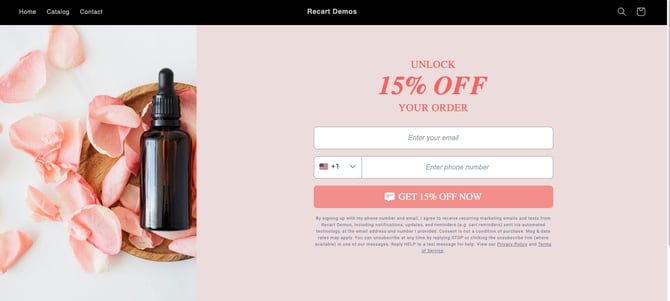
How to create a Landing Page Opt-in Tool?
Step 1 – Create Your Landing Page
- In your Recart dashboard, go to Opt-in Tools.
- Click Create New and select Landing Page.
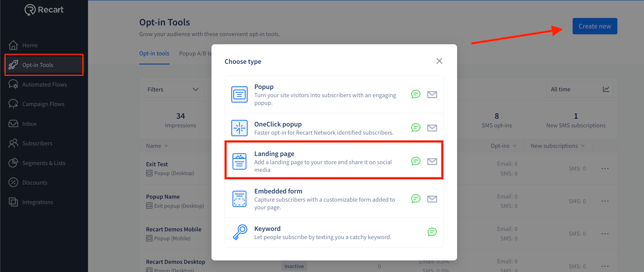
3. Name your landing page, configure the following settings, then click Continue to Editing:
| Setting | Options |
|---|---|
| Channels | SMS only, or Email + SMS |
| Steps (Email + SMS only) | One step – both fields on one screen (email can be optional or required) · Two steps – email first, then phone number on a separate screen |
Step 2 – Customize the Design
The editor has separate Desktop and Mobile sections in the left sidebar. Customize both — they sync automatically except for the Layout section, which must be edited separately for each device to ensure images fit the screen correctly.
Each section has the same customization options:
| Section | What you can edit |
|---|---|
| Layout | Background color or image, additional image, margins |
| Email Opt-in (if applicable) | How the email step looks to visitors |
| SMS Opt-in | How the phone number step looks to visitors |
| SMS Success | What visitors see after successfully subscribing |
| Geotargeting Error | What visitors outside the US and Canada see if they access the page |
Note: Individual steps (Email Opt-in, SMS Success, etc.) can be customized separately for Desktop and Mobile by unchecking the sync box on the right side of the editor.
Setting the Email Field as Mandatory or Optional
If you selected Email + SMS as your channels, you can control whether visitors are required to enter their email address before subscribing.
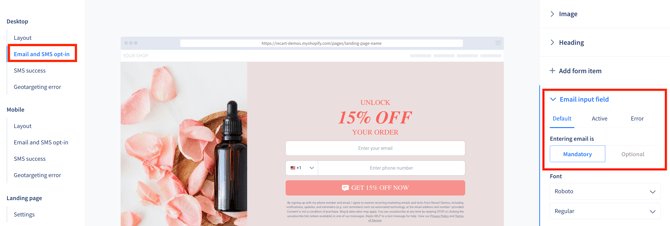
- In the left sidebar, select Email and SMS opt-in under Desktop or Mobile.
- In the right panel, scroll to Email input field.
- Under Entering email is, choose:
- Mandatory – visitors must provide an email address to subscribe
- Optional – visitors can skip the email field and subscribe with their phone number only
Step 3 – Save and Activate
Required: Before activating, go to Settings and connect your landing page to a Welcome Flow. This is what sends the first message to new subscribers.
In Settings, you can also configure:
- Page Title – pre-populated with your landing page name, but editable
- URL slug – the unique path for your landing page (for example,
/pages/sms-signup) - Geotargeting – by default the page is visible in the US and Canada only
When you're ready:
- Click Save as Draft to keep editing, or
- Click Activate to publish the page immediately.
Note: To save as a draft, the Page Title and URL slug must be set. All other settings are required before activating.
Fixing Empty Space (Margin Customization)
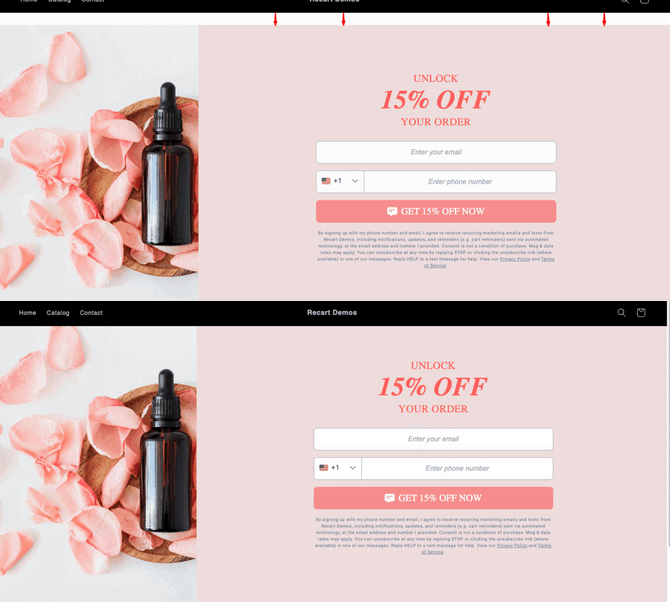
Depending on your Shopify theme, you may notice extra empty space above or below your landing page content. This is caused by your theme's default margin settings.
To fix it:
- In the editor, go to Layout.
- Adjust the top and bottom margins (default is 0px).
- Increase in increments of 5–10px until the empty space disappears.
- Open the landing page in an incognito window to check the result — the preview in the editor does not reflect margin changes.
Note: Top and bottom margins must be adjusted separately, and Desktop and Mobile margins must be adjusted independently.
Viewing and Sharing Your Landing Page
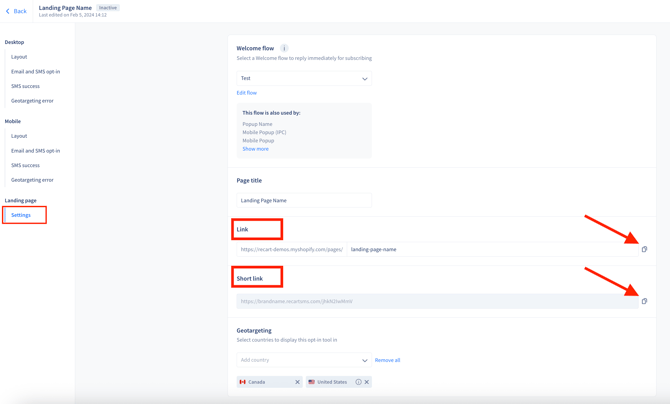
Once your landing page is active, you can find and copy its URL from the editor:
- Click the landing page name on the Opt-in Tools page to return to the Settings section.
- You'll see both the full URL and a shortened link.
- Click the copy icon above either URL to copy it to your clipboard.
When the landing page is inactive or in draft, you can preview it:
- In the editor, within the Layout section
- From Shopify Admin → Pages — find the page with Hidden status, click its name, then click Preview Page
To manage your landing page, click the three-dot menu (⋯) next to it on the Opt-in Tools page to rename, duplicate, activate, or deactivate it.
Statistics and status of Landing Page Opt-in Tools
On the Opt-in Tools page, you will see the statistics and the status of each opt-in tool.
Statistics
- Impression: Number of times the opt-in tool was displayed to visitors
- Opt-in Rates: The percentage of people who became subscribers through the opt-in tool
- Opt-ins: Number of people who became subscribers through the opt-in tool
- New Subscriptions: Number of people who became subscribers through the opt-in tool that was not on any previous SMS subscription list
Landing Page for Non-Shopify Stores
Recart landing pages also work on headless or non-Shopify storefronts, but require a custom integration.
Step 1 – Create a target URL on your store
Set up a page at the URL where you want the landing page to appear. For example: https://yourstore.com/pages/sms-signup
Step 2 – Export the landing page code from Recart
- Open your landing page in the Recart editor.
- Click Export to copy the code snippet.
Step 3 – Add the code to your page
Paste the following into your page at the target URL, replacing the placeholder values with your actual IDs:
<div id="recart-page-loader"></div>
<div id="recart-landing-page-root" data-optin-tool-id="YOUR_TOOL_ID"></div>
<script id="recart-page-loader-script"
src="https://storefront.recart.com/recart-page-loader.js?domain=yourstore.com&account=YOUR_ACCOUNT_ID&hasGMInitParams=1">
</script>
Step 4 – Publish the page
Once the code is added and the page is live, the landing page will function as expected.
Note: If you run into issues, make sure the page URL matches exactly what's configured in your Recart landing page settings. Contact support@recart.com if the issue persists.
Best Practices
Required:
- Connect your landing page to a Welcome Flow before activating.
- Set a unique URL slug before saving as draft.
Recommended:
- Create a separate keyword or landing page for each channel you promote on (ads, social, email, in-store) — this gives you accurate, channel-level statistics.
- Use a QR code to promote your landing page URL in physical locations like packaging, receipts, or in-store signage.
- Check the live page in an incognito window after making margin adjustments — the editor preview does not reflect these changes.
- Customize Desktop and Mobile layouts separately to ensure images fit each device properly.
Avoid:
- Using the same landing page URL across multiple channels without separate pages — you won't be able to distinguish where subscribers came from.
What's Next
Once your landing page is live, you can:
- Track performance – view impressions and opt-in rates in Opt-in Analytics
- Collect more subscriber details – add form fields to capture birthday, preferences, and more in Opt-in Tools: Subscriber Detail Forms
- Explore other opt-in tools – Opt-in Tools – Getting Started
If you have questions, contact our Customer Support team — we're happy to help.