
Table of Contents
- Overview
- Discount Code & Pool Types
- Creating Discount Codes in Recart
- Editing Discount Codes
- Discount Types Explained
- Using Discount Codes in Flows and Campaigns
- Discount Types Explained
- Importing Existing Shopify Discounts
- Limitations
- Best Practices
- What's Next
Overview
Recart's Discount Code feature lets you create, manage, and apply discount codes from one central location. Codes you create in Recart automatically sync with Shopify, so there's no need for manual imports or switching between apps.
You can create both generic codes (reusable by all customers) and unique codes (one-time use per subscriber), then use them across automated flows, campaigns, and opt-in popups.
Discount Code and Pool Types
Discount Code Types
| Type | Description | Reusable | Pool Required | Best For |
|---|---|---|---|---|
| Generic | One code used by all recipients | Yes | No | Pop-ups, general campaigns |
| Unique | One-time use code per subscriber | No | Yes | Welcome flows, winbacks, exclusives |
Discount Pool Types
| Pool Type | Description | Automatically Refilled | Use Case |
|---|---|---|---|
| Regenerating | Automatically refills as needed | Yes | Ongoing automations |
| One-off | Fixed size, not refilled | No | One-time campaigns |
Note: If a one-off pool runs out of codes, the campaign will be saved as a draft and must be updated before sending.
Creating Discount Codes in Recart
Step 1: Go to the Discounts Page
- Open the Recart app.
- Click on Discounts in the left menu.
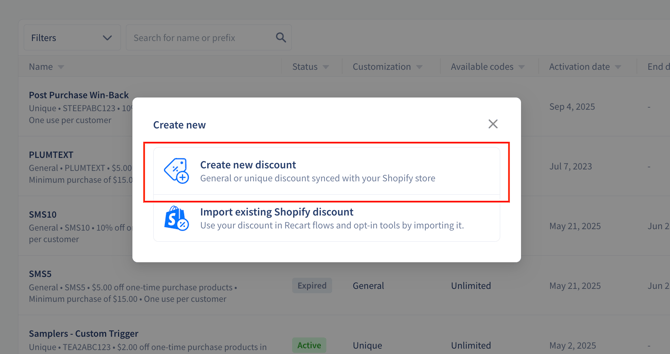
Step 2: Click “Create New”
- Choose Create new discount if you want to start from scratch, or
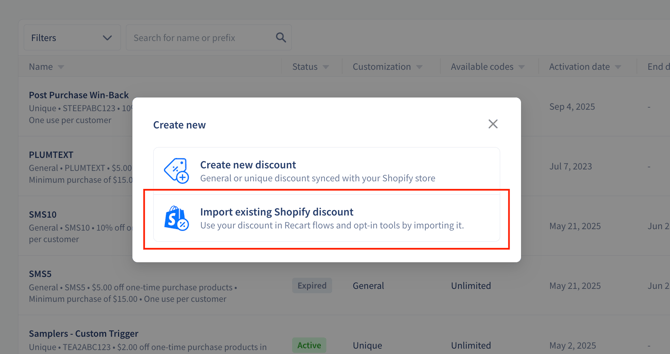
- Import existing Shopify discount if you already have a discount in Shopify that you want to use in Recart.
Step 3: Set Up Your Discount
- Choose a discount type: Amount off product, Buy X get Y, Amount off order, Free shipping.
- Choose Unique or General.
- For unique codes, select a pool type: Regenerating or One-off.
Step 4: Customize Your Discount
- Set:
- Discount value
- Percentage or Fixed amount
- Discount value
-
- Discount name and prefix
- Start and end date
- Usage limits (optional)
- Minimum purchase (optional)
- Combinable with other discounts (optional)
- Use the Sticky Summary Box on the right to view your current selections while scrolling.
Step 5: Activate the Code
- Click Activate to save the discount.
- You’ll be redirected to the page you came from (Flow Editor, Opt-in Tool, or Discounts page).
Editing Discount Codes
After saving, some fields can be edited and others cannot.
| Editable Fields | Non-editable Fields |
|---|---|
| Discount value | Code type (generic/unique) |
| Applicable products | Pool type (regenerating/one-off) |
| Usage limits | Prefix |
| Combinations | |
| Start/end dates |
Discount Types Explained
| Type | Description | Example |
|---|---|---|
| Percentage | % off product or order | 10% off shoes |
| Fixed amount | Flat discount on product/order | $5 off orders over $50 |
| Free shipping | Shipping free based on rules | Free US shipping over $30 |
| Buy X Get Y | BOGO-style offers | Buy 2, get 1 free |
Discounts can also be customized with:
- Usage limits (total uses, one per customer)
- Combinability with other discounts
- Start and end dates/times
Importing Existing Shopify Discounts
If you’ve already created a discount in Shopify, you can import it into Recart.
How to Import
- Open the Discounts page in Recart.
- Click Create New, then choose Import existing Shopify discount.
-
- Example: From the URL https://yourstore.myshopify.com/admin/discounts/1234567890, use 1234567890.
4. Name your discount.
5. Click Import. The discount will appear in your Recart Discounts list.
Note: Shopify customers and segments are not supported. Please set the eligibility to all customers in Shopify before importing the discount into Recart.
Synchronization with Shopify
- All new Recart-created discounts automatically sync with Shopify.
- Any edits made in Shopify will also sync back to Recart.
- Existing Shopify discount codes will not appear unless imported manually.
- Discount codes are backed by Shopify price rules.
Where you can use each code type:
| Code Type | Automated Flows | Campaigns | Popups |
|---|---|---|---|
| Generic | ✓ | ✓ | ✓ |
| Unique (Regenerating pool) | ✓ | ✗ | ✓ |
| Unique (One-off pool) | ✗ | ✓ | ✗ |
Limitations
- Discounts cannot be created inside the flow editor. You must create them on the Discounts page first.
- Pool type cannot be changed after creation. Choose carefully when setting up unique codes.
- Campaigns require sufficient codes. If a one-off pool doesn't have enough codes, the campaign saves as a draft and displays an error.
- Relative expiration not yet available. Expiration based on opt-in date (e.g., "valid for 7 days after signup") is coming in a future update.
Best Practices
- Recommended: Use regenerating pools for automated flows so you never run out of codes.
- Recommended: Use one-off pools for campaigns where you want to control the exact number of codes available.
- Recommended: Set clear expiration dates to create urgency and prevent old codes from being used.
- Recommended: Use descriptive prefixes (e.g., "WELCOME10", "WINBACK15") so you can easily identify codes in reports.
- Avoid: Creating unique codes without enough buffer—always generate more than you expect to need for one-off campaigns.
What's Next
Once your discount codes are set up, you can:
- Add them to your Welcome flow to reward new subscribers
- Create a campaign with exclusive offers for your list
- Build a popup that displays a discount incentive
If you have questions, reach out to support@recart.com—we're happy to help.