
- How Recart Access Works
- Granting Access to Your Recart Account
- Troubleshooting Login Issues
- Best Practices
- What's Next
How Recart Access Works
Recart is a Shopify app, so all user access is managed through your Shopify store's staff permissions. There is no separate login for Recart—team members access the platform directly through Shopify Admin > Apps > Recart.
This means anyone who needs to use Recart must first be added as a staff member in your Shopify store with the correct app permissions.
Granting Access to Your Recart Account
To give a team member access to Recart, add them as a staff member in Shopify and assign the appropriate permissions.
- Go to your Shopify Admin.
- Navigate to Settings > Users and permissions.
- Click Add staff and enter their email address.
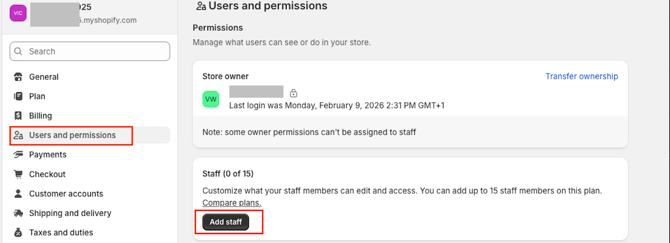
- Choose their permission level:
Access Level What to Select Recart-only access Uncheck all permissions, scroll down to Apps, and select Recart only Broader access Select additional Shopify permissions as needed for their role - Click Send invite.
- Once they accept the invite, they can access Recart by going to Apps > Recart in the Shopify admin.
Tip: You can grant access to just Recart without giving access to other parts of your Shopify store. Simply limit the staff member's permissions to the Recart app only.
For step-by-step instructions on managing staff accounts in Shopify, see Shopify's guide to staff accounts.
Troubleshooting Login Issues
"You don't have access" error or blank screen
If a team member sees a "You don't have access" message or a blank screen when trying to open Recart, this usually means their Shopify permissions are not set up correctly.
To resolve this:
- Go to Shopify Admin > Settings > Users and permissions.
- Verify the user has been added as a staff member.
- Confirm their permissions include access to the Recart app.
- Make sure they are logging into the correct Shopify store and accessing Recart through Shopify Admin > Apps > Recart.
Browser-related issues
If you've confirmed that permissions are correct and the issue persists, try these browser troubleshooting steps:
- Clear your browser cache and cookies, then log in again.
- Try accessing Recart in an incognito or private browsing window.
- Try a different browser (Chrome, Firefox, or Safari).
Learn more about Shopify staff permissions.
Still having issues?
If you've verified Shopify permissions and tried the browser steps above but the user still cannot access Recart, contact our support team at support@recart.com with:
- The user's email address
- The Shopify store URL
- A screenshot of the error or blank screen
We'll investigate any account-specific issues and help get them connected.
Best Practices
- Required: All Recart users must be added as staff members in Shopify with the Recart app permission enabled—there is no other way to grant access.
- Recommended: For team members who only need Recart access, limit their Shopify permissions to the Recart app only. This keeps your store secure.
- Recommended: When a team member leaves, remove their access in Shopify Admin > Settings > Users and permissions promptly.
- Avoid: Sharing a single Shopify staff login across multiple team members—each person should have their own account for security and accountability.
What's Next
Once your team members have access, you can:
- Set up your first opt-in tool to start collecting subscribers
- Create an automated flow to engage your audience
- Explore the Recart dashboard to review your store's SMS performance
If you have questions, contact our Customer Support team—we're happy to help.